
Find the member board
In the mobile app, open Connect, select Community, then choose Needs & Offers. This option appears only after the church enables the board and the signed-in member is eligible to use it. Use the top filters to switch between needs and offers or narrow the board by category, campus, Community Group, audience, or status. Each card shows only a safe summary, approximate audience, published age, and expiry information.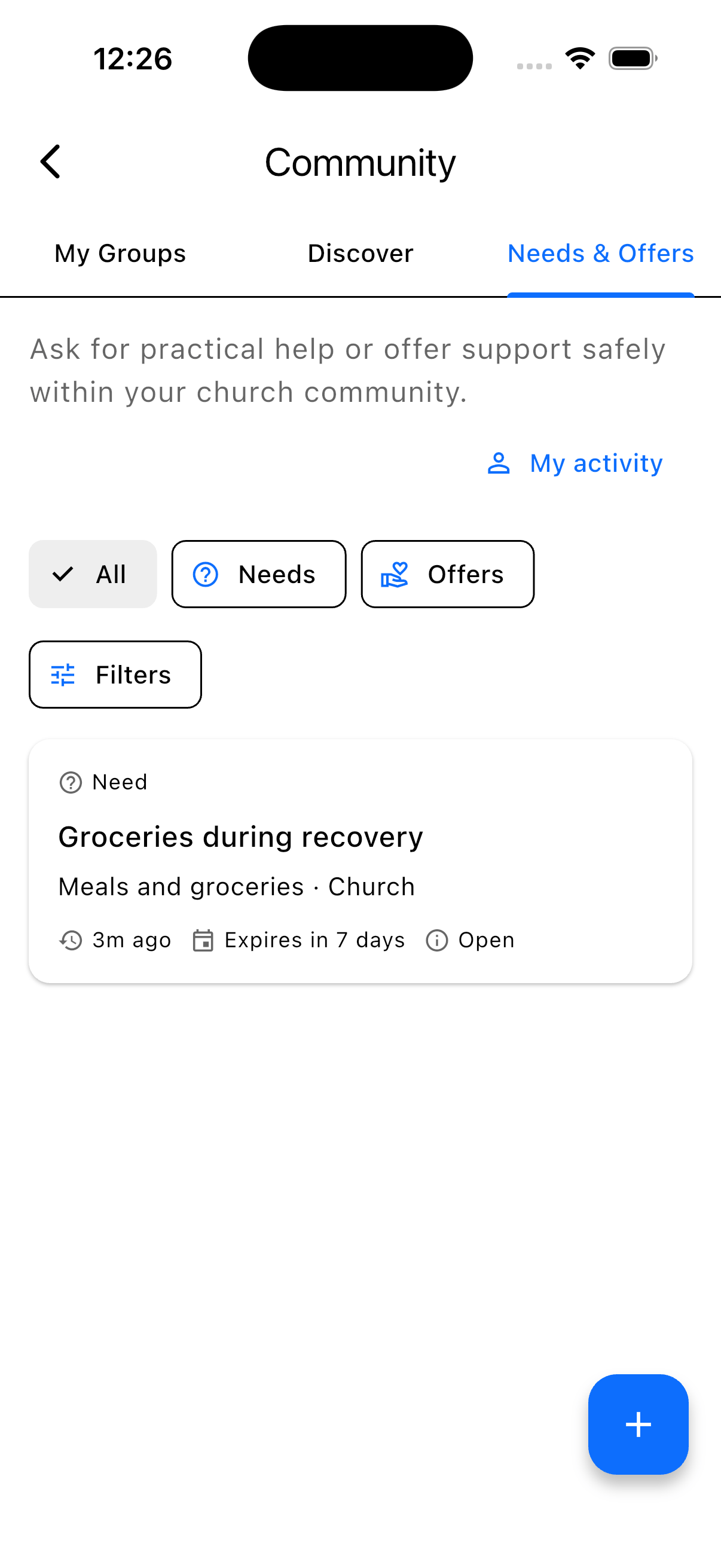
Publish a need or offer
Select Post, choose whether you need help or can offer it, and complete the short form. You can choose an allowed audience, such as your campus, Community Group, or leaders only. Keep phone numbers, email addresses, exact street addresses, and other direct contact details out of the title and description. Responses begin privately in the app. Depending on church settings and category, a post may appear immediately or be sent to staff for review.Donation drives
Choose Donation drive when the church is collecting items or funds for a shared response. Staff review the post and connect it to an active Outreach Campaign before publishing it. Once connected, the post shows View campaign & contribute. This opens the church’s existing campaign page with the current requested items, payment options, delivery details, and progress. Members do not need to choose between two different donation forms.Employment help
Choose Employment information for a job opening, a request for work, career mentoring, or résumé and interview help. The form also records whether the help is on-site, remote, or hybrid and whether it is one-time, short-term, or ongoing. Employment posts use the same reviewed Needs & Offers workflow. The app does not score or automatically match members, and contact details remain outside the public post. The saved help type, work mode, and time commitment remain visible on the member post and in the staff review drawer.Future community pilots
When your church opens relational research, the mobile Community screen shows Help shape future community support. Open it to privately select future ideas you may consider, such as skills sharing, recurring rides, intergenerational connections, nearby practical help, or newcomer connections. This records research interest only. It does not create a match, recommendation, chat, or relationship-risk score. Your church sees only combined counts, and small counts are hidden. You can update your choices or withdraw at any time, including after the church pauses new interest.Borrow or lend a community resource
When your church enables Community resources, open Community and select the resource card. Use Browse to find reviewed lending items and staff-coordinated medical equipment. Select Request item and add an optional private note without contact details. Use My items to lend an item you own. Staff review every listing before it appears. You can approve or decline a request, mark an approved loan checked out, and record its return. My loans shows your requests, due dates, overdue state, cancellations, and returns. Medical equipment is always reviewed and coordinated by staff. Members never see its exact storage location, and only staff approve, check out, or return a medical-equipment loan. A borrower sees staff-coordination guidance instead of a return action.Respond and coordinate privately
Open a post and select Respond privately. The response is visible to the post author and authorized staff, not to the public board. The author can accept or decline responses. Once a response is accepted, both members can continue in a private in-app conversation. The author can then mark the post fulfilled or close it for another reason. Open My activity to review your posts and responses. From there you can edit or extend an eligible post, mark it fulfilled, close it, withdraw a response, or return to an accepted private conversation. Use Report on a post when staff should review a safety or conduct concern. Needs & Offers is not an emergency service; contact local emergency services or a trusted church leader when immediate help is needed.Set up the board
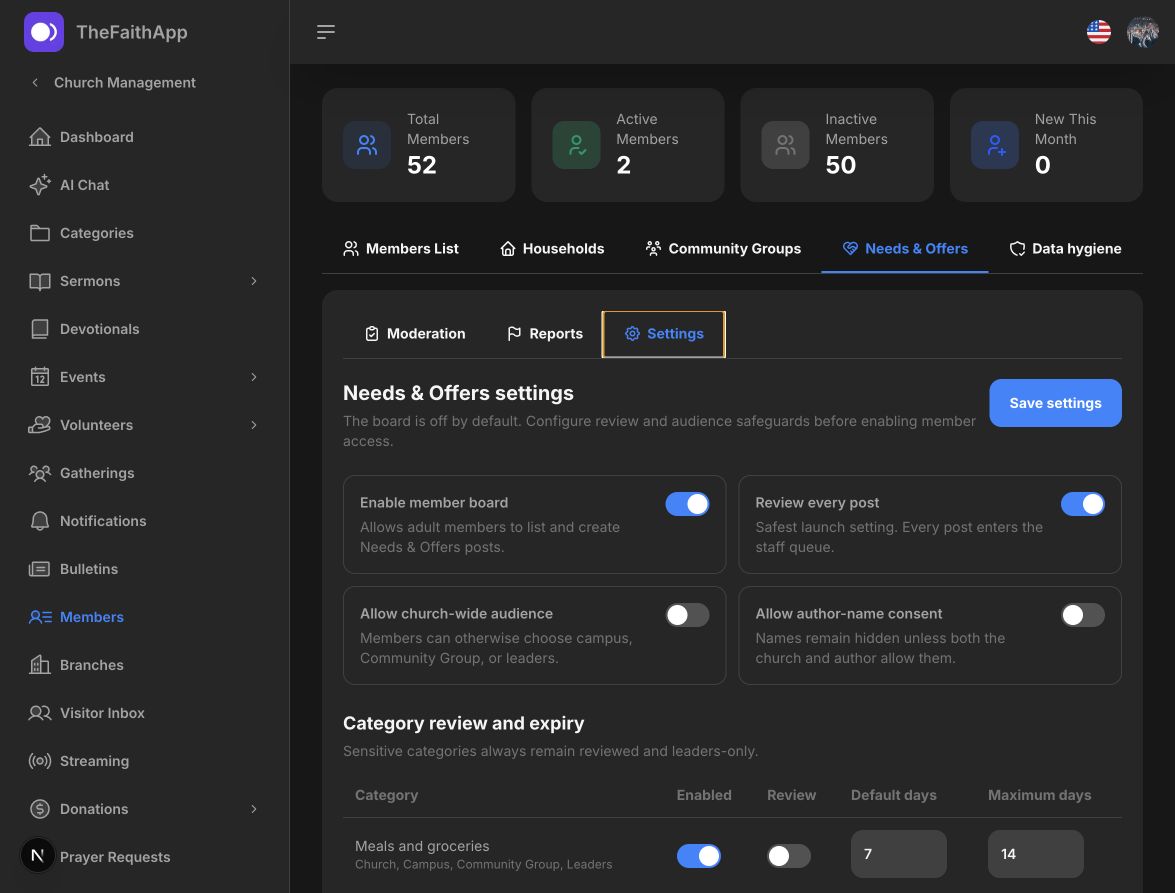
Open Members, select Needs & Offers, then open Settings. Before enabling the board, review:- Whether every post must be approved before publishing.
- Whether church-wide posts are allowed or audiences stay limited to a campus, Community Group, or leaders.
- Whether an author may choose to show their name.
- Which categories are enabled.
- Which categories always require review.
- Default and maximum expiry periods for each category.
- Whether the separate research-interest registry is open to eligible adult members.
- Whether the reviewed Community resource library is available to eligible adult members.
Review relational research readiness
Open Research pilots to see voluntary interest before designing any future pilot. This page never lists participating members. It shows combined counts only and displays fewer than 5 when a church or research area has fewer than five active opt-ins. The page also keeps the research boundaries visible: no automatic matching, no member identities, no precise location, no relationship-risk scores, adult participation only, and withdrawal at any time. Interest is discovery input, not approval to launch a matcher. Complete pastoral, safeguarding, fairness, and explainability review before proposing a pilot.Review a post
Staff with Needs & Offers view permission can open the moderation queue and review a post’s requested audience, safe location, author context, responses, reports, and audit history. Staff with moderation permission can:- Approve and publish a pending post.
- Ask the author for a safer edit without rewriting their words.
- Restrict a post to leaders only.
- Assign a staff coordinator.
- Reject or close a post with a recorded reason.
Coordinate an assigned post
A staff member assigned to a post gets an Assigned Needs & Offers entry even when they do not have the board-wide view or moderation permissions. It shows only the assigned post and its private responses. The coordinator can accept or decline a response, mark the post fulfilled, or close it with a reason. Assignment does not open the moderation queue, reports, audit history, settings, staff directory, or any other post. Reassigning the post removes the previous coordinator’s access immediately. Time-sensitive and sensitive-category posts show a pastoral review warning. Needs & Offers is not an emergency service; use your church’s existing safeguarding and emergency procedures when urgent follow-up is required.Handle reports
Open Reports to review member safety concerns. Reporter identity is visible only inside the permission-gated staff queue and is never shown to a post author or other members. Three reports from different members within 24 hours pause an open post for review by default. Staff can resolve or dismiss a report with an optional note.Manage resources and ministry chats
Open Resources in Needs & Offers to review member lending items, add church-managed medical equipment, approve or restrict listings, and coordinate loan approval, checkout, overdue, and return states. Resource access reuses the Needs & Offers view and moderation permissions. Open Volunteers → Ministries and select the chat action for a ministry to create one private discussion and one leader-posting announcement channel. Active ministry membership controls chat access, ministry leaders become chat moderators, and Sync membership reconciles any drift.Choose communication preferences
From the mobile Notifications screen, open Communication preferences. Members can schedule recurring quiet hours by local time and weekday. The app automatically starts with the church’s time zone, and a dropdown of valid time zones is available when it needs to be changed. Members can then enable or pause push notifications for direct messages, ministries, Community Groups, and Needs & Offers. Inside an individual chat, choose All messages, Mentions only, or None. The server applies quiet hours, topics, and the channel choice before sending push notifications. Messages and in-app activity remain available.Automatic expiry and private contact
Posts expire automatically according to their category. The author receives a generic in-app update that does not repeat the post title, description, location, or other sensitive details. Phone numbers, email addresses, and exact street addresses are rejected from post content. The offline mobile board stores only safe card summaries and does not store post descriptions, author details, response notes, or contact data. Responses begin privately inside the app.Staff permissions
Needs & Offers uses three separate permissions:- View Needs & Offers reads the moderation and reports queues.
- Moderate Needs & Offers approves, restricts, assigns, rejects, closes, and resolves reports. A moderator also needs view permission.
- Configure Needs & Offers changes the board’s church-level settings, controls whether research interest is open, and reads thresholded research readiness. It does not expose participant identities.