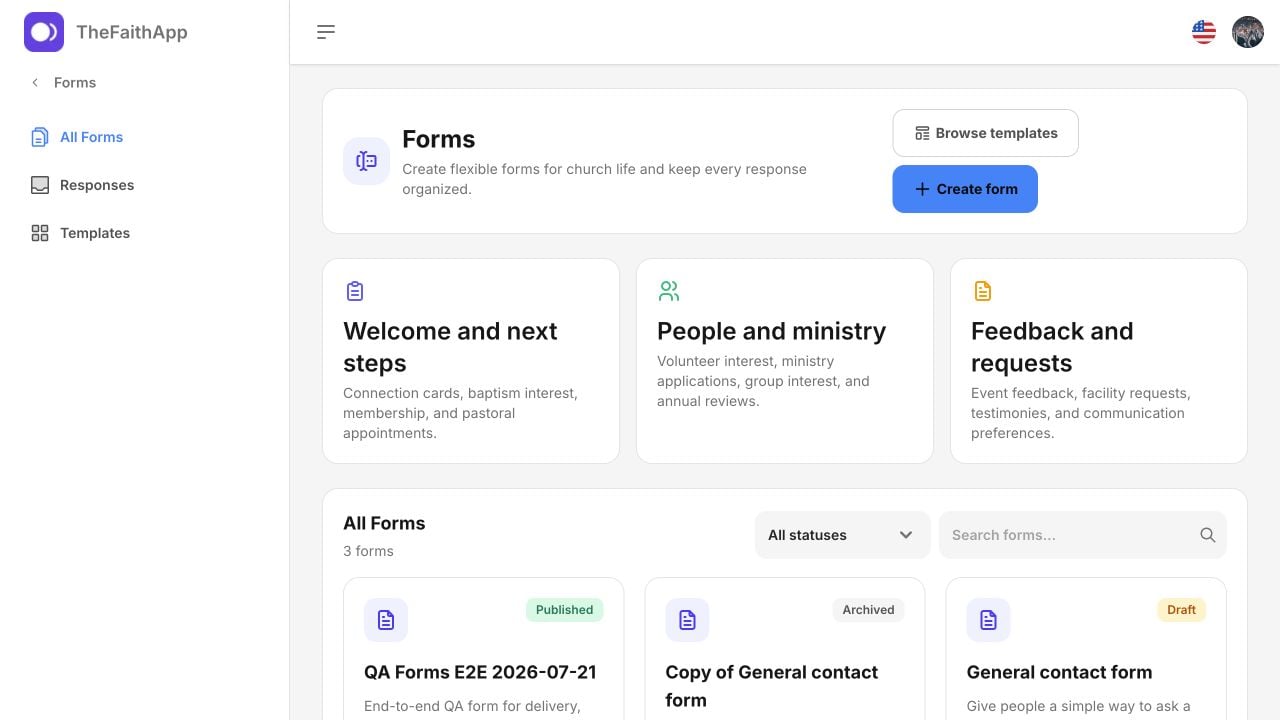
Forms gives your church one place to create flexible forms, share them, and
coordinate what happens after someone responds. Use Forms for connection cards,
ministry interest, membership next steps, feedback, pastoral requests, internal
requests, and other church workflows that do not belong to a specialized
product.Each response stays attached to the exact version of the form that the person
completed. Your team can assign an owner, set a due date and priority, add
private notes, and keep an activity history without moving the response into a
separate spreadsheet.
At least one administrator has permission to manage Forms.
Staff who will review responses have response access.
Sensitive or restricted forms have named form managers.
The church’s privacy wording and follow-up owner are agreed before publishing.
Any custom domain you want to use is already connected in TheFaithApp.
Forms may contain pastoral, child, safeguarding, health, or other sensitive
information. Collect only what your church needs, choose the correct
sensitivity, and give response access only to the people responsible for the
follow-up.
From All Forms, select Create form to start with an empty form, or
select Browse templates to start with reviewed questions and settings for a
common church workflow.The template catalog includes starting points for:
General contact and connection cards.
Baptism and membership interest.
Volunteer interest and applications.
Small-group interest.
Child dedication and pastoral appointments.
Prayer requests and praise reports.
Event feedback and facility requests.
Annual member-information review.
Communication preferences and testimony submissions.
Templates are editable starting points. Review every question, privacy notice,
access choice, sensitivity, and manager before publishing.
Start with the shortest form that can support the next action. A clear form
with fewer questions is usually easier to complete and easier for staff to
follow up.
Select a question on the canvas, then review its settings. Depending on the
question type, you can:
Change the label, help text, and placeholder.
Make the question required.
Set minimum or maximum limits.
Add a custom validation message.
Mark the answer as standard, sensitive, or restricted.
Map an eligible answer to a member-profile field for staff review.
Choose whether the answer may appear on the confirmation screen.
Drag blocks to reorder them, or use the up and down controls for keyboard
reordering. Duplicate a block when several questions need similar settings.Profile mapping never silently replaces a member’s saved details. A matching
response can create a proposed change for an authorized staff member to review.For a consent question that asks for a reply, enable Require an email or phone
number when checked and include at least one email or phone question. The
connection-card template enables this automatically. Visitors can leave contact
details blank when they do not request a reply; asking for contact requires a
usable reply channel. When contact details are missing, the form highlights a
contact field and brings it into view so the visitor can correct it.
Member aware remains public and can safely prefill verified member details
after sign-in.
Member only requires a verified church member.
Invite only requires a valid invitation.
Restricted is intended for tightly managed or sensitive collection.
You can also decide whether a verified member may respond for themselves, an
authorized adult in their household, or a child in their household. Child
responses require guardian attestation and restricted handling.
The staff members or permission groups responsible for the form.
Restricted forms should always have explicit managers. Managers can be used to
limit response access and receive response notifications without opening the
answers to every administrator.A standard public form can be saved without selecting a manager. Settings and
manager choices save together; if something needs correction, the settings
dialog shows the error and keeps your choices available.
Select Preview to review the draft without accepting a submission.
Check required questions, choice options, privacy wording, and confirmation
text.
Select Publish or Publish update.
Confirm the version that will become public.
Publishing creates an immutable version. Later edits create a new draft, while
the public form continues using the last published version. Select Versions
to review the version history.This keeps older responses understandable after a question is renamed,
reordered, or removed.
Paste the complete code into a website block that accepts custom HTML or an
iframe.
Publish the website page.
Test the page on a phone and computer.
Submit one test response and confirm that it appears in Responses.
Do not change the address inside the supplied iframe. If the form is long, the
website manager can increase the iframe height while keeping the form address
unchanged.
Open the public link before sending it to anyone.Confirm that:
The church name, form title, description, and color are correct.
Required questions and validation messages are clear.
The privacy notice explains how the answers will be used.
The form works at phone and desktop widths.
The confirmation message gives the respondent a useful next step.
Scheduled opening, closing, and response limits behave as expected.
Public submissions include duplicate and spam protections. If a connection is
interrupted, the respondent can retry safely without creating an extra response
from the same submission attempt.
A published form can be placed in a reviewed area of the member app through App
Customization. Members see the same published questions and validation rules as
the web form.
Invite a member when the form should be delivered directly rather than shared
as a general public link. The delivery record shows whether the invitation was
queued, sent, opened, started, submitted, declined, or expired.Reminders use the original delivery channel and respect the member’s messaging
preferences. Avoid repeatedly reminding someone about a sensitive form.
Open Forms → Responses for the global inbox, or open a form and choose its
responses view.Use the inbox to:
Search respondents and answers.
Filter by form, status, priority, owner, and submission date. Use Submitted
from and Submitted to for the start and end dates.
Show current or historical answer columns.
Choose visible columns.
Save a useful filter as a view. Give it a View name, then select Save
view or press Enter. The view restores your filters and visible columns.
Export the authorized view to CSV.
On phones, each response appears as a readable card with its submitted time,
status, priority, form, respondent, owner, and selected answer columns. Select a
card to open the full follow-up view. On larger screens, the same information is
available in the response table.One row is always one submission. Repeated responses from the same person stay
separate instead of being merged.Sensitive answers are hidden or redacted for staff who do not have permission
to see them. Export uses the same access rules as the inbox.
Forms can start reviewed actions for supported workflows such as visitor
follow-up, member journeys, events, volunteer coordination, Community Groups,
prayer requests, or an Outreach Campaign review reference.Configure actions from Delivery and review the target before activating
them. Each action is recorded against the response so staff can see whether it
completed, failed, or is waiting for review. A failed action does not remove the
original response.Forms does not copy submissions into the legacy Donor Forms tables. A future
fundraising or donor-data transfer must be separately reviewed and explicitly
configured.
Guest responses can display a supplied name when the name question is mapped
to Name and you have permission to see that answer. A guest is not linked
to a member automatically. Responses with no visible name or contact details
retain the anonymous label; sensitive answers remain protected.Forms separates permission to build forms from permission to review responses.
Sensitive-answer access and form-manager restrictions narrow access further.Recommended practice:
Give form-building access only to staff who design church workflows.
Give response access only to staff who own follow-up.
Name managers for pastoral, child, safeguarding, or other restricted forms.
Avoid collecting financial card data, passwords, government identifiers, or
information that belongs in a specialized product.
Review CSV exports before sharing or storing them outside TheFaithApp.
Confirm consent before sending reminders or starting a connected action.
The current release does not yet include nested conditional logic, multi-page
branching, partial submissions, file uploads, electronic signatures, payments,
calculations, webhooks, or direct spreadsheet integrations.Use the existing specialized Giving, Events, Prayer Requests, Visitor, and
Outreach Campaign workflows when they already match the church’s need.
No. Response permission, answer sensitivity, and form-manager restrictions are
enforced separately.
Was this page helpful?
{"docsConfig":{"theme":"mint","$schema":"https://mintlify.com/docs.json","name":"TheFaithApp Documentation","description":"Practical TheFaithApp documentation for church admins and developers, covering member care, content, giving, mobile SDKs, the partner API, and release notes.","colors":{"primary":"#166534","light":"#07C983","dark":"#15803D"},"logo":{"light":"https://mintcdn.com/thefaithltd/GNHYQ128_n_YT423/logo/icon-512.svg?fit=max\u0026auto=format\u0026n=GNHYQ128_n_YT423\u0026q=85\u0026s=7c84f759f97c70c4e4c0916d7801d872","dark":"https://mintcdn.com/thefaithltd/GNHYQ128_n_YT423/logo/icon-512.svg?fit=max\u0026auto=format\u0026n=GNHYQ128_n_YT423\u0026q=85\u0026s=7c84f759f97c70c4e4c0916d7801d872","href":"/"},"favicon":"https://mintcdn.com/thefaithltd/V1ZP8pAc5_joV-Vo/favicon.ico?fit=max\u0026auto=format\u0026n=V1ZP8pAc5_joV-Vo\u0026q=85\u0026s=820f7c93900d5722c2cae96117cf6b2d","api":{"playground":{"display":"interactive"},"examples":{"defaults":"required","languages":["curl","javascript","python"]}},"navbar":{"links":[{"href":"mailto:support@thefaithapp.com","label":"Support"}],"primary":{"type":"button","label":"Dashboard","href":"https://app.thefaithapp.com"}},"footer":{"socials":{"x":"https://x.com/thefaithapp_","instagram":"https://www.instagram.com/the_faithapp","website":"https://www.thefaithapp.com"}},"styling":{"latex":true},"navigation":{"global":{"anchors":[{"anchor":"Website","icon":"globe","href":"https://www.thefaithapp.com"}]},"pages":[]}},"deployment":{"deploymentMetadataValue":{"subdomain":"thefaithltd","hasAudioNarration":false,"actualSubdomain":"thefaithltd","customDomains":["docs.thefaithapp.com"],"gitSource":{"type":"github","owner":"alsong","repo":"tfa","deployBranch":"main","contentDirectory":"api-docs","isPrivate":true,"mountPath":"","label":""},"chroma":{"liveDeploymentHistoryId":"6ad786a3ad443f8e2f25502a","collectionId":"bb788804-e182-46df-bbc3-352ce355e38e","schemaVersion":"v3","latestBuiltDeploymentHistoryId":"6ad786a3ad443f8e2f25502a"},"feedback":{"thumbs":true,"agentFeedback":true},"entitlements":{},"buildId":"6ad786a3ad443f8e2f25502a","clientVersion":"0.0.3908","searchFilterCounts":[{"language":"default","tag":"API Reference","count":139},{"language":"default","tag":"Endpoints","count":124},{"language":"default","tag":"Changelog","count":98},{"language":"default","tag":"Product Guides","count":45},{"language":"default","tag":"Get Started","count":15},{"language":"default","tag":"Community Groups","count":12},{"language":"default","tag":"Mutual Aid","count":12},{"language":"default","tag":"Pastoral Care","count":12},{"language":"default","tag":"Content","count":11},{"language":"default","tag":"Events \u0026 Volunteers","count":11}]},"assistantConfig":{},"hasChatPermissions":false,"hasWebMcpPermissions":false,"toggles":[{"name":"kill-isr","enabled":true,"variant":{"name":"disabled","enabled":false,"feature_enabled":true},"impressionData":false},{"name":"agent-mintlify-slack","enabled":true,"variant":{"name":"disabled","enabled":false,"feature_enabled":true},"impressionData":false},{"name":"editor-v7-file-tree","enabled":true,"variant":{"name":"disabled","enabled":false,"feature_enabled":true},"impressionData":false},{"name":"agent-integrations-settings","enabled":true,"variant":{"name":"disabled","enabled":false,"feature_enabled":true},"impressionData":false},{"name":"automations-pr-grouping","enabled":true,"variant":{"name":"disabled","enabled":false,"feature_enabled":true},"impressionData":false},{"name":"custom-prefix","enabled":true,"variant":{"name":"disabled","enabled":false,"feature_enabled":true},"impressionData":false},{"name":"analytics-v7","enabled":true,"variant":{"name":"disabled","enabled":false,"feature_enabled":true},"impressionData":false},{"name":"user-flows-analytics","enabled":true,"variant":{"name":"disabled","enabled":false,"feature_enabled":true},"impressionData":false},{"name":"no-publish-flow","enabled":true,"variant":{"name":"disabled","enabled":false,"feature_enabled":true},"impressionData":false},{"name":"workos-onboarding","enabled":true,"variant":{"name":"disabled","enabled":false,"feature_enabled":true},"impressionData":false},{"name":"llms-txt-v2","enabled":true,"variant":{"name":"disabled","enabled":false,"feature_enabled":true},"impressionData":false},{"name":"pause-universal-search-reconcile","enabled":true,"variant":{"name":"disabled","enabled":false,"feature_enabled":true},"impressionData":false},{"name":"snapshot-serving-live","enabled":true,"variant":{"name":"disabled","enabled":false,"feature_enabled":true},"impressionData":false},{"name":"stripTemperatureMiddleware","enabled":true,"variant":{"name":"disabled","enabled":false,"feature_enabled":true},"impressionData":false},{"name":"per-site-search-delta","enabled":true,"variant":{"name":"disabled","enabled":false,"feature_enabled":true},"impressionData":false},{"name":"support-platform-pylon-zendesk","enabled":true,"variant":{"name":"disabled","enabled":false,"feature_enabled":true},"impressionData":false},{"name":"editor-branches-v2-autocommit","enabled":true,"variant":{"name":"disabled","enabled":false,"feature_enabled":true},"impressionData":false},{"name":"editor-branches-v2","enabled":true,"variant":{"name":"disabled","enabled":false,"feature_enabled":true},"impressionData":false},{"name":"snapshot-serving","enabled":true,"variant":{"name":"disabled","enabled":false,"feature_enabled":true},"impressionData":false},{"name":"instant-rollback","enabled":true,"variant":{"name":"disabled","enabled":false,"feature_enabled":true},"impressionData":false},{"name":"granular-notifications-server","enabled":true,"variant":{"name":"disabled","enabled":false,"feature_enabled":true},"impressionData":false},{"name":"granular-notifications","enabled":true,"variant":{"name":"disabled","enabled":false,"feature_enabled":true},"impressionData":false},{"name":"editor-private-page-search","enabled":true,"variant":{"name":"disabled","enabled":false,"feature_enabled":true},"impressionData":false},{"name":"automations-fable","enabled":true,"variant":{"name":"disabled","enabled":false,"feature_enabled":true},"impressionData":false},{"name":"fixed-ai-action-pricing","enabled":true,"variant":{"name":"disabled","enabled":false,"feature_enabled":true},"impressionData":false},{"name":"automation-resolve-merge-conflict","enabled":true,"variant":{"name":"disabled","enabled":false,"feature_enabled":true},"impressionData":false},{"name":"scoped-publishing","enabled":true,"variant":{"name":"disabled","enabled":false,"feature_enabled":true},"impressionData":false},{"name":"mintql","enabled":true,"variant":{"name":"disabled","enabled":false,"feature_enabled":true},"impressionData":false},{"name":"page-level-analytics","enabled":true,"variant":{"name":"disabled","enabled":false,"feature_enabled":true},"impressionData":false},{"name":"teamspace","enabled":true,"variant":{"name":"disabled","enabled":false,"feature_enabled":true},"impressionData":false},{"name":"editor-version-history-v2","enabled":true,"variant":{"name":"disabled","enabled":false,"feature_enabled":true},"impressionData":false},{"name":"vite-origin","enabled":true,"variant":{"name":"disabled","enabled":false,"feature_enabled":true},"impressionData":false},{"name":"editor-nav-generations","enabled":true,"variant":{"name":"disabled","enabled":false,"feature_enabled":true},"impressionData":false},{"name":"billing-page-v2","enabled":true,"variant":{"name":"disabled","enabled":false,"feature_enabled":true},"impressionData":false},{"name":"workspace-projects","enabled":true,"variant":{"name":"disabled","enabled":false,"feature_enabled":true},"impressionData":false},{"name":"assistant-v5","enabled":true,"variant":{"name":"disabled","enabled":false,"feature_enabled":true},"impressionData":false},{"name":"byok-sep-25","enabled":true,"variant":{"name":"disabled","enabled":false,"feature_enabled":true},"impressionData":false},{"name":"fork-pr-previews","enabled":true,"variant":{"name":"disabled","enabled":false,"feature_enabled":true},"impressionData":false},{"name":"revalidation-jwt","enabled":true,"variant":{"name":"disabled","enabled":false,"feature_enabled":true},"impressionData":false},{"name":"editor-agent-model-picker","enabled":true,"variant":{"name":"disabled","enabled":false,"feature_enabled":true},"impressionData":false},{"name":"client-snapshot-docs-config","enabled":true,"variant":{"name":"disabled","enabled":false,"feature_enabled":true},"impressionData":false},{"name":"hobby-abuse-scan","enabled":true,"variant":{"name":"disabled","enabled":false,"feature_enabled":true},"impressionData":false},{"name":"dashboard-inbox","enabled":true,"variant":{"name":"disabled","enabled":false,"feature_enabled":true},"impressionData":false}],"isAtlas":false,"googleFontsInlined":false},"customCss":[],"page":{"pagePath":"product/forms","slug":"/product/forms","pageMetadata":{"title":"Forms","description":"Create church forms, publish them on the web or member app, and turn every response into an organized follow-up workflow.","href":"/product/forms"},"description":{"compiledSource":"\"use strict\";\nconst {jsx: _jsx} = arguments[0];\nconst {useMDXComponents: _provideComponents} = arguments[0];\nfunction _createMdxContent(props) {\n const _components = {\n p: \"p\",\n ..._provideComponents(),\n ...props.components\n };\n return _jsx(_components.p, {\n children: \"Create church forms, publish them on the web or member app, and turn every response into an organized follow-up workflow.\"\n });\n}\nfunction MDXContent(props = {}) {\n const {wrapper: MDXLayout} = {\n ..._provideComponents(),\n ...props.components\n };\n return MDXLayout ? _jsx(MDXLayout, {\n ...props,\n children: _jsx(_createMdxContent, {\n ...props\n })\n }) : _createMdxContent(props);\n}\nreturn {\n default: MDXContent\n};\n","frontmatter":{},"scope":{}},"pageType":"default","mdx":{"mdxSource":{"compiledSource":"\"use strict\";const{Fragment:_Fragment,jsx:_jsx,jsxs:_jsxs}=arguments[0];const{useMDXComponents:_provideComponents}=arguments[0];function _createMdxContent(props){const _components={input:`input`,li:`li`,ol:`ol`,p:`p`,strong:`strong`,ul:`ul`,..._provideComponents(),...props.components},{Heading,OptimizedImage,Tip,Warning}=_components;if(!Heading)_missingMdxReference(`Heading`,true);if(!OptimizedImage)_missingMdxReference(`OptimizedImage`,true);if(!Tip)_missingMdxReference(`Tip`,true);if(!Warning)_missingMdxReference(`Warning`,true);return _jsxs(_Fragment,{children:[_jsx(Heading,{level:`1`,id:`forms`,children:`Forms`}),`\n`,_jsx(_components.p,{children:`Forms gives your church one place to create flexible forms, share them, and\ncoordinate what happens after someone responds. Use Forms for connection cards,\nministry interest, membership next steps, feedback, pastoral requests, internal\nrequests, and other church workflows that do not belong to a specialized\nproduct.`}),`\n`,_jsx(_components.p,{children:`Each response stays attached to the exact version of the form that the person\ncompleted. Your team can assign an owner, set a due date and priority, add\nprivate notes, and keep an activity history without moving the response into a\nseparate spreadsheet.`}),`\n`,_jsx(OptimizedImage,{src:`https://mintcdn.com/thefaithltd/OUU7GQw1uxz3I73Y/images/product/forms/forms-library.png?fit=max\u0026auto=format\u0026n=OUU7GQw1uxz3I73Y\u0026q=85\u0026s=9dc21fbc3b06b7abe822b318292e5a76`,alt:`Forms library`,\"data-og-width\":`1280`,width:`1280`,\"data-og-height\":`720`,height:`720`,\"data-path\":`images/product/forms/forms-library.png`,\"data-optimize\":`true`,\"data-opv\":`3`,srcset:`https://mintcdn.com/thefaithltd/OUU7GQw1uxz3I73Y/images/product/forms/forms-library.png?w=280\u0026fit=max\u0026auto=format\u0026n=OUU7GQw1uxz3I73Y\u0026q=85\u0026s=9d5e0448f559d7c5cbf6f4c1f8dd181a 280w, https://mintcdn.com/thefaithltd/OUU7GQw1uxz3I73Y/images/product/forms/forms-library.png?w=560\u0026fit=max\u0026auto=format\u0026n=OUU7GQw1uxz3I73Y\u0026q=85\u0026s=5306a5caa83bdbb6dd965d3b0fbf8c86 560w, https://mintcdn.com/thefaithltd/OUU7GQw1uxz3I73Y/images/product/forms/forms-library.png?w=840\u0026fit=max\u0026auto=format\u0026n=OUU7GQw1uxz3I73Y\u0026q=85\u0026s=635d0e1894775e0653061663d6204288 840w, https://mintcdn.com/thefaithltd/OUU7GQw1uxz3I73Y/images/product/forms/forms-library.png?w=1100\u0026fit=max\u0026auto=format\u0026n=OUU7GQw1uxz3I73Y\u0026q=85\u0026s=d6cae915087305c1a2914ad5785af2ad 1100w, https://mintcdn.com/thefaithltd/OUU7GQw1uxz3I73Y/images/product/forms/forms-library.png?w=1650\u0026fit=max\u0026auto=format\u0026n=OUU7GQw1uxz3I73Y\u0026q=85\u0026s=e7b07c9dc2788b7eecd514b48bee9b25 1650w, https://mintcdn.com/thefaithltd/OUU7GQw1uxz3I73Y/images/product/forms/forms-library.png?w=2500\u0026fit=max\u0026auto=format\u0026n=OUU7GQw1uxz3I73Y\u0026q=85\u0026s=f1ed22ddfca8e707a8ef5a33f0de6b89 2500w`}),`\n`,_jsx(Heading,{level:`2`,id:`before-you-start`,children:`Before You Start`}),`\n`,_jsx(_components.p,{children:`Make sure that:`}),`\n`,_jsxs(_components.ul,{children:[`\n`,_jsx(_components.li,{children:`At least one administrator has permission to manage Forms.`}),`\n`,_jsx(_components.li,{children:`Staff who will review responses have response access.`}),`\n`,_jsx(_components.li,{children:`Sensitive or restricted forms have named form managers.`}),`\n`,_jsx(_components.li,{children:`The church’s privacy wording and follow-up owner are agreed before publishing.`}),`\n`,_jsx(_components.li,{children:`Any custom domain you want to use is already connected in TheFaithApp.`}),`\n`]}),`\n`,_jsx(Warning,{children:_jsx(_components.p,{children:`Forms may contain pastoral, child, safeguarding, health, or other sensitive\ninformation. Collect only what your church needs, choose the correct\nsensitivity, and give response access only to the people responsible for the\nfollow-up.`})}),`\n`,_jsx(Heading,{level:`2`,id:`open-forms`,children:`Open Forms`}),`\n`,_jsxs(_components.ol,{children:[`\n`,_jsx(_components.li,{children:`Open the main product menu in the admin sidebar.`}),`\n`,_jsxs(_components.li,{children:[`Select `,_jsx(_components.strong,{children:`Forms`}),`.`]}),`\n`,_jsxs(_components.li,{children:[`Choose `,_jsx(_components.strong,{children:`All Forms`}),`, `,_jsx(_components.strong,{children:`Responses`}),`, or `,_jsx(_components.strong,{children:`Templates`}),`.`]}),`\n`]}),`\n`,_jsxs(_components.p,{children:[`Forms is a top-level product. `,_jsx(_components.strong,{children:`Donor Forms`}),` remains inside `,_jsx(_components.strong,{children:`Outreach\nCampaigns`}),` and is a separate fundraising workflow.`]}),`\n`,_jsx(Heading,{level:`2`,id:`create-a-form`,children:`Create a Form`}),`\n`,_jsxs(_components.p,{children:[`From `,_jsx(_components.strong,{children:`All Forms`}),`, select `,_jsx(_components.strong,{children:`Create form`}),` to start with an empty form, or\nselect `,_jsx(_components.strong,{children:`Browse templates`}),` to start with reviewed questions and settings for a\ncommon church workflow.`]}),`\n`,_jsx(OptimizedImage,{src:`https://mintcdn.com/thefaithltd/OUU7GQw1uxz3I73Y/images/product/forms/forms-templates.png?fit=max\u0026auto=format\u0026n=OUU7GQw1uxz3I73Y\u0026q=85\u0026s=84a849782d6721b9ac3b2bb586f49bca`,alt:`Church form templates`,\"data-og-width\":`1280`,width:`1280`,\"data-og-height\":`720`,height:`720`,\"data-path\":`images/product/forms/forms-templates.png`,\"data-optimize\":`true`,\"data-opv\":`3`,srcset:`https://mintcdn.com/thefaithltd/OUU7GQw1uxz3I73Y/images/product/forms/forms-templates.png?w=280\u0026fit=max\u0026auto=format\u0026n=OUU7GQw1uxz3I73Y\u0026q=85\u0026s=7ca0c2cb7ffd6f2d30affdf74cea694a 280w, https://mintcdn.com/thefaithltd/OUU7GQw1uxz3I73Y/images/product/forms/forms-templates.png?w=560\u0026fit=max\u0026auto=format\u0026n=OUU7GQw1uxz3I73Y\u0026q=85\u0026s=b04334c02c8c7d8476500969d379d15b 560w, https://mintcdn.com/thefaithltd/OUU7GQw1uxz3I73Y/images/product/forms/forms-templates.png?w=840\u0026fit=max\u0026auto=format\u0026n=OUU7GQw1uxz3I73Y\u0026q=85\u0026s=d12938fc80fbcea74b9725698c525fa3 840w, https://mintcdn.com/thefaithltd/OUU7GQw1uxz3I73Y/images/product/forms/forms-templates.png?w=1100\u0026fit=max\u0026auto=format\u0026n=OUU7GQw1uxz3I73Y\u0026q=85\u0026s=d25855dc9c64ed071bc2b9d670351435 1100w, https://mintcdn.com/thefaithltd/OUU7GQw1uxz3I73Y/images/product/forms/forms-templates.png?w=1650\u0026fit=max\u0026auto=format\u0026n=OUU7GQw1uxz3I73Y\u0026q=85\u0026s=5281d52f3b4d7e16f484692a4bf8dce0 1650w, https://mintcdn.com/thefaithltd/OUU7GQw1uxz3I73Y/images/product/forms/forms-templates.png?w=2500\u0026fit=max\u0026auto=format\u0026n=OUU7GQw1uxz3I73Y\u0026q=85\u0026s=ccb74f70f31f05f05f62bdacd3f19944 2500w`}),`\n`,_jsx(_components.p,{children:`The template catalog includes starting points for:`}),`\n`,_jsxs(_components.ul,{children:[`\n`,_jsx(_components.li,{children:`General contact and connection cards.`}),`\n`,_jsx(_components.li,{children:`Baptism and membership interest.`}),`\n`,_jsx(_components.li,{children:`Volunteer interest and applications.`}),`\n`,_jsx(_components.li,{children:`Small-group interest.`}),`\n`,_jsx(_components.li,{children:`Child dedication and pastoral appointments.`}),`\n`,_jsx(_components.li,{children:`Prayer requests and praise reports.`}),`\n`,_jsx(_components.li,{children:`Event feedback and facility requests.`}),`\n`,_jsx(_components.li,{children:`Annual member-information review.`}),`\n`,_jsx(_components.li,{children:`Communication preferences and testimony submissions.`}),`\n`]}),`\n`,_jsx(_components.p,{children:`Templates are editable starting points. Review every question, privacy notice,\naccess choice, sensitivity, and manager before publishing.`}),`\n`,_jsx(Tip,{children:_jsx(_components.p,{children:`Start with the shortest form that can support the next action. A clear form\nwith fewer questions is usually easier to complete and easier for staff to\nfollow up.`})}),`\n`,_jsx(Heading,{level:`2`,id:`build-the-form`,children:`Build the Form`}),`\n`,_jsx(_components.p,{children:`The builder has three working areas: available blocks on the left, the form\ncanvas in the middle, and settings for the selected block on the right.`}),`\n`,_jsx(OptimizedImage,{src:`https://mintcdn.com/thefaithltd/OUU7GQw1uxz3I73Y/images/product/forms/forms-builder.png?fit=max\u0026auto=format\u0026n=OUU7GQw1uxz3I73Y\u0026q=85\u0026s=27a046ebf12f3e28c2b2ede57dc64323`,alt:`Forms builder`,\"data-og-width\":`1280`,width:`1280`,\"data-og-height\":`720`,height:`720`,\"data-path\":`images/product/forms/forms-builder.png`,\"data-optimize\":`true`,\"data-opv\":`3`,srcset:`https://mintcdn.com/thefaithltd/OUU7GQw1uxz3I73Y/images/product/forms/forms-builder.png?w=280\u0026fit=max\u0026auto=format\u0026n=OUU7GQw1uxz3I73Y\u0026q=85\u0026s=fd477559248517002a0b7092c5486f2d 280w, https://mintcdn.com/thefaithltd/OUU7GQw1uxz3I73Y/images/product/forms/forms-builder.png?w=560\u0026fit=max\u0026auto=format\u0026n=OUU7GQw1uxz3I73Y\u0026q=85\u0026s=cd17c57cc3709479b1cfddfbb580aad9 560w, https://mintcdn.com/thefaithltd/OUU7GQw1uxz3I73Y/images/product/forms/forms-builder.png?w=840\u0026fit=max\u0026auto=format\u0026n=OUU7GQw1uxz3I73Y\u0026q=85\u0026s=a70da4cab0ef03e311e0db44e111b263 840w, https://mintcdn.com/thefaithltd/OUU7GQw1uxz3I73Y/images/product/forms/forms-builder.png?w=1100\u0026fit=max\u0026auto=format\u0026n=OUU7GQw1uxz3I73Y\u0026q=85\u0026s=dcb52116870cef5d927c79d223b9bba8 1100w, https://mintcdn.com/thefaithltd/OUU7GQw1uxz3I73Y/images/product/forms/forms-builder.png?w=1650\u0026fit=max\u0026auto=format\u0026n=OUU7GQw1uxz3I73Y\u0026q=85\u0026s=80ca1a78805c85ec0f98b5b3f10e77bc 1650w, https://mintcdn.com/thefaithltd/OUU7GQw1uxz3I73Y/images/product/forms/forms-builder.png?w=2500\u0026fit=max\u0026auto=format\u0026n=OUU7GQw1uxz3I73Y\u0026q=85\u0026s=ea038fbcd8ec3150b70a4199fc09c5e0 2500w`}),`\n`,_jsx(Heading,{level:`3`,id:`add-questions`,children:`Add Questions`}),`\n`,_jsx(_components.p,{children:`Select a block to add it to the form:`}),`\n`,_jsxs(_components.ul,{children:[`\n`,_jsxs(_components.li,{children:[_jsx(_components.strong,{children:`Short answer`}),` for a name or brief response.`]}),`\n`,_jsxs(_components.li,{children:[_jsx(_components.strong,{children:`Long answer`}),` for a message, story, or explanation.`]}),`\n`,_jsxs(_components.li,{children:[_jsx(_components.strong,{children:`Email address`}),` and `,_jsx(_components.strong,{children:`Phone number`}),` for contact details.`]}),`\n`,_jsxs(_components.li,{children:[_jsx(_components.strong,{children:`Number`}),` and `,_jsx(_components.strong,{children:`Date`}),` for structured values.`]}),`\n`,_jsxs(_components.li,{children:[_jsx(_components.strong,{children:`Single choice`}),`, `,_jsx(_components.strong,{children:`Multiple choice`}),`, and `,_jsx(_components.strong,{children:`Dropdown`}),` for defined options.`]}),`\n`,_jsxs(_components.li,{children:[_jsx(_components.strong,{children:`Consent`}),` for a clear acknowledgement or permission choice.`]}),`\n`]}),`\n`,_jsxs(_components.p,{children:[`Use `,_jsx(_components.strong,{children:`Heading`}),`, `,_jsx(_components.strong,{children:`Paragraph`}),`, `,_jsx(_components.strong,{children:`Divider`}),`, and `,_jsx(_components.strong,{children:`Section`}),` to organize longer\nforms without collecting an answer.`]}),`\n`,_jsx(Heading,{level:`3`,id:`configure-a-question`,children:`Configure a Question`}),`\n`,_jsx(_components.p,{children:`Select a question on the canvas, then review its settings. Depending on the\nquestion type, you can:`}),`\n`,_jsxs(_components.ul,{children:[`\n`,_jsx(_components.li,{children:`Change the label, help text, and placeholder.`}),`\n`,_jsx(_components.li,{children:`Make the question required.`}),`\n`,_jsx(_components.li,{children:`Set minimum or maximum limits.`}),`\n`,_jsx(_components.li,{children:`Add a custom validation message.`}),`\n`,_jsx(_components.li,{children:`Mark the answer as standard, sensitive, or restricted.`}),`\n`,_jsx(_components.li,{children:`Map an eligible answer to a member-profile field for staff review.`}),`\n`,_jsx(_components.li,{children:`Choose whether the answer may appear on the confirmation screen.`}),`\n`]}),`\n`,_jsx(_components.p,{children:`Drag blocks to reorder them, or use the up and down controls for keyboard\nreordering. Duplicate a block when several questions need similar settings.`}),`\n`,_jsx(_components.p,{children:`Profile mapping never silently replaces a member’s saved details. A matching\nresponse can create a proposed change for an authorized staff member to review.`}),`\n`,_jsxs(_components.p,{children:[`For a consent question that asks for a reply, enable `,_jsx(_components.strong,{children:`Require an email or phone\nnumber when checked`}),` and include at least one email or phone question. The\nconnection-card template enables this automatically. Visitors can leave contact\ndetails blank when they do not request a reply; asking for contact requires a\nusable reply channel. When contact details are missing, the form highlights a\ncontact field and brings it into view so the visitor can correct it.`]}),`\n`,_jsx(Heading,{level:`2`,id:`configure-access-privacy-and-managers`,children:`Configure Access, Privacy, and Managers`}),`\n`,_jsxs(_components.p,{children:[`Select `,_jsx(_components.strong,{children:`Settings`}),` in the builder.`]}),`\n`,_jsx(OptimizedImage,{src:`https://mintcdn.com/thefaithltd/OUU7GQw1uxz3I73Y/images/product/forms/forms-settings.png?fit=max\u0026auto=format\u0026n=OUU7GQw1uxz3I73Y\u0026q=85\u0026s=969714383181198d128756d21eaeb3eb`,alt:`Form access and privacy settings`,\"data-og-width\":`1280`,width:`1280`,\"data-og-height\":`720`,height:`720`,\"data-path\":`images/product/forms/forms-settings.png`,\"data-optimize\":`true`,\"data-opv\":`3`,srcset:`https://mintcdn.com/thefaithltd/OUU7GQw1uxz3I73Y/images/product/forms/forms-settings.png?w=280\u0026fit=max\u0026auto=format\u0026n=OUU7GQw1uxz3I73Y\u0026q=85\u0026s=b7e9b2de6e8591d05cbcf2d983129fcc 280w, https://mintcdn.com/thefaithltd/OUU7GQw1uxz3I73Y/images/product/forms/forms-settings.png?w=560\u0026fit=max\u0026auto=format\u0026n=OUU7GQw1uxz3I73Y\u0026q=85\u0026s=e3dd2e20c7b2e2eda39810fe72af8fb1 560w, https://mintcdn.com/thefaithltd/OUU7GQw1uxz3I73Y/images/product/forms/forms-settings.png?w=840\u0026fit=max\u0026auto=format\u0026n=OUU7GQw1uxz3I73Y\u0026q=85\u0026s=9d8d7c40ddba73194dc69cdcc1e08301 840w, https://mintcdn.com/thefaithltd/OUU7GQw1uxz3I73Y/images/product/forms/forms-settings.png?w=1100\u0026fit=max\u0026auto=format\u0026n=OUU7GQw1uxz3I73Y\u0026q=85\u0026s=19c6e3183871f58776826345245d9f89 1100w, https://mintcdn.com/thefaithltd/OUU7GQw1uxz3I73Y/images/product/forms/forms-settings.png?w=1650\u0026fit=max\u0026auto=format\u0026n=OUU7GQw1uxz3I73Y\u0026q=85\u0026s=7b87ba2dc5a65a144f8030e6a544c2db 1650w, https://mintcdn.com/thefaithltd/OUU7GQw1uxz3I73Y/images/product/forms/forms-settings.png?w=2500\u0026fit=max\u0026auto=format\u0026n=OUU7GQw1uxz3I73Y\u0026q=85\u0026s=1b062d14e2938d4ae0cca2f30c9bb694 2500w`}),`\n`,_jsx(Heading,{level:`3`,id:`choose-who-can-open-the-form`,children:`Choose Who Can Open the Form`}),`\n`,_jsxs(_components.ul,{children:[`\n`,_jsxs(_components.li,{children:[_jsx(_components.strong,{children:`Public`}),` allows anyone with the link to respond.`]}),`\n`,_jsxs(_components.li,{children:[_jsx(_components.strong,{children:`Member aware`}),` remains public and can safely prefill verified member details\nafter sign-in.`]}),`\n`,_jsxs(_components.li,{children:[_jsx(_components.strong,{children:`Member only`}),` requires a verified church member.`]}),`\n`,_jsxs(_components.li,{children:[_jsx(_components.strong,{children:`Invite only`}),` requires a valid invitation.`]}),`\n`,_jsxs(_components.li,{children:[_jsx(_components.strong,{children:`Restricted`}),` is intended for tightly managed or sensitive collection.`]}),`\n`]}),`\n`,_jsx(_components.p,{children:`You can also decide whether a verified member may respond for themselves, an\nauthorized adult in their household, or a child in their household. Child\nresponses require guardian attestation and restricted handling.`}),`\n`,_jsx(Heading,{level:`3`,id:`review-form-settings`,children:`Review Form Settings`}),`\n`,_jsx(_components.p,{children:`The settings dialog also controls:`}),`\n`,_jsxs(_components.ul,{children:[`\n`,_jsx(_components.li,{children:`Overall sensitivity.`}),`\n`,_jsx(_components.li,{children:`Whether one person may respond more than once.`}),`\n`,_jsx(_components.li,{children:`Privacy and confirmation wording.`}),`\n`,_jsx(_components.li,{children:`Opening and closing times.`}),`\n`,_jsx(_components.li,{children:`A total response limit.`}),`\n`,_jsx(_components.li,{children:`Form color and the message shown after closure.`}),`\n`,_jsx(_components.li,{children:`The staff members or permission groups responsible for the form.`}),`\n`]}),`\n`,_jsx(_components.p,{children:`Restricted forms should always have explicit managers. Managers can be used to\nlimit response access and receive response notifications without opening the\nanswers to every administrator.`}),`\n`,_jsx(_components.p,{children:`A standard public form can be saved without selecting a manager. Settings and\nmanager choices save together; if something needs correction, the settings\ndialog shows the error and keeps your choices available.`}),`\n`,_jsx(Heading,{level:`2`,id:`preview-and-publish`,children:`Preview and Publish`}),`\n`,_jsx(_components.p,{children:`Changes save to the current draft while you work.`}),`\n`,_jsxs(_components.ol,{children:[`\n`,_jsxs(_components.li,{children:[`Select `,_jsx(_components.strong,{children:`Preview`}),` to review the draft without accepting a submission.`]}),`\n`,_jsx(_components.li,{children:`Check required questions, choice options, privacy wording, and confirmation\ntext.`}),`\n`,_jsxs(_components.li,{children:[`Select `,_jsx(_components.strong,{children:`Publish`}),` or `,_jsx(_components.strong,{children:`Publish update`}),`.`]}),`\n`,_jsx(_components.li,{children:`Confirm the version that will become public.`}),`\n`]}),`\n`,_jsxs(_components.p,{children:[`Publishing creates an immutable version. Later edits create a new draft, while\nthe public form continues using the last published version. Select `,_jsx(_components.strong,{children:`Versions`}),`\nto review the version history.`]}),`\n`,_jsx(_components.p,{children:`This keeps older responses understandable after a question is renamed,\nreordered, or removed.`}),`\n`,_jsx(Heading,{level:`2`,id:`share-the-form`,children:`Share the Form`}),`\n`,_jsxs(_components.p,{children:[`Select `,_jsx(_components.strong,{children:`Share`}),` after publishing.`]}),`\n`,_jsx(OptimizedImage,{src:`https://mintcdn.com/thefaithltd/OUU7GQw1uxz3I73Y/images/product/forms/forms-sharing.png?fit=max\u0026auto=format\u0026n=OUU7GQw1uxz3I73Y\u0026q=85\u0026s=eb07f0a108a6500be93dce6b9011329b`,alt:`Form sharing options`,\"data-og-width\":`1280`,width:`1280`,\"data-og-height\":`720`,height:`720`,\"data-path\":`images/product/forms/forms-sharing.png`,\"data-optimize\":`true`,\"data-opv\":`3`,srcset:`https://mintcdn.com/thefaithltd/OUU7GQw1uxz3I73Y/images/product/forms/forms-sharing.png?w=280\u0026fit=max\u0026auto=format\u0026n=OUU7GQw1uxz3I73Y\u0026q=85\u0026s=9de9697f65d5ae6491e4c58f9ee325d1 280w, https://mintcdn.com/thefaithltd/OUU7GQw1uxz3I73Y/images/product/forms/forms-sharing.png?w=560\u0026fit=max\u0026auto=format\u0026n=OUU7GQw1uxz3I73Y\u0026q=85\u0026s=2e2c5c661c145999ca034d3627686995 560w, https://mintcdn.com/thefaithltd/OUU7GQw1uxz3I73Y/images/product/forms/forms-sharing.png?w=840\u0026fit=max\u0026auto=format\u0026n=OUU7GQw1uxz3I73Y\u0026q=85\u0026s=901c4d863f6d563e16a83c3a4b6897db 840w, https://mintcdn.com/thefaithltd/OUU7GQw1uxz3I73Y/images/product/forms/forms-sharing.png?w=1100\u0026fit=max\u0026auto=format\u0026n=OUU7GQw1uxz3I73Y\u0026q=85\u0026s=2472d7f95f1db4b998de1bf142daa647 1100w, https://mintcdn.com/thefaithltd/OUU7GQw1uxz3I73Y/images/product/forms/forms-sharing.png?w=1650\u0026fit=max\u0026auto=format\u0026n=OUU7GQw1uxz3I73Y\u0026q=85\u0026s=226aef31efa0b2889c9b525951be46e2 1650w, https://mintcdn.com/thefaithltd/OUU7GQw1uxz3I73Y/images/product/forms/forms-sharing.png?w=2500\u0026fit=max\u0026auto=format\u0026n=OUU7GQw1uxz3I73Y\u0026q=85\u0026s=0acab319de1f22e59915b5cb858b2433 2500w`}),`\n`,_jsx(_components.p,{children:`You can:`}),`\n`,_jsxs(_components.ul,{children:[`\n`,_jsx(_components.li,{children:`Copy the public link.`}),`\n`,_jsx(_components.li,{children:`Download a QR code.`}),`\n`,_jsx(_components.li,{children:`Copy website embed code.`}),`\n`,_jsx(_components.li,{children:`Open the form in a new tab.`}),`\n`,_jsx(_components.li,{children:`Share the form through WhatsApp.`}),`\n`]}),`\n`,_jsx(_components.p,{children:`When the church has a connected custom domain, the public link, QR code,\nWhatsApp link, and embed code use it automatically.`}),`\n`,_jsx(Heading,{level:`3`,id:`embed-a-form-on-a-website`,children:`Embed a Form on a Website`}),`\n`,_jsxs(_components.ol,{children:[`\n`,_jsxs(_components.li,{children:[`Copy `,_jsx(_components.strong,{children:`Website embed`}),`.`]}),`\n`,_jsx(_components.li,{children:`Paste the complete code into a website block that accepts custom HTML or an\niframe.`}),`\n`,_jsx(_components.li,{children:`Publish the website page.`}),`\n`,_jsx(_components.li,{children:`Test the page on a phone and computer.`}),`\n`,_jsxs(_components.li,{children:[`Submit one test response and confirm that it appears in `,_jsx(_components.strong,{children:`Responses`}),`.`]}),`\n`]}),`\n`,_jsx(_components.p,{children:`Do not change the address inside the supplied iframe. If the form is long, the\nwebsite manager can increase the iframe height while keeping the form address\nunchanged.`}),`\n`,_jsx(Heading,{level:`2`,id:`check-the-public-experience`,children:`Check the Public Experience`}),`\n`,_jsx(_components.p,{children:`Open the public link before sending it to anyone.`}),`\n`,_jsx(OptimizedImage,{src:`https://mintcdn.com/thefaithltd/OUU7GQw1uxz3I73Y/images/product/forms/public-form.png?fit=max\u0026auto=format\u0026n=OUU7GQw1uxz3I73Y\u0026q=85\u0026s=6730bc2baa2d2503fc971336362c8825`,alt:`Published public form`,\"data-og-width\":`1280`,width:`1280`,\"data-og-height\":`720`,height:`720`,\"data-path\":`images/product/forms/public-form.png`,\"data-optimize\":`true`,\"data-opv\":`3`,srcset:`https://mintcdn.com/thefaithltd/OUU7GQw1uxz3I73Y/images/product/forms/public-form.png?w=280\u0026fit=max\u0026auto=format\u0026n=OUU7GQw1uxz3I73Y\u0026q=85\u0026s=5fe693dbde21ab912f47b116e2e189fc 280w, https://mintcdn.com/thefaithltd/OUU7GQw1uxz3I73Y/images/product/forms/public-form.png?w=560\u0026fit=max\u0026auto=format\u0026n=OUU7GQw1uxz3I73Y\u0026q=85\u0026s=d2acde9df12ecb965692db6003a57b30 560w, https://mintcdn.com/thefaithltd/OUU7GQw1uxz3I73Y/images/product/forms/public-form.png?w=840\u0026fit=max\u0026auto=format\u0026n=OUU7GQw1uxz3I73Y\u0026q=85\u0026s=dca18ec3cbb021b73952bf824f5a2e5c 840w, https://mintcdn.com/thefaithltd/OUU7GQw1uxz3I73Y/images/product/forms/public-form.png?w=1100\u0026fit=max\u0026auto=format\u0026n=OUU7GQw1uxz3I73Y\u0026q=85\u0026s=68cfbcabcf61f4a5b7830d99e11f7d27 1100w, https://mintcdn.com/thefaithltd/OUU7GQw1uxz3I73Y/images/product/forms/public-form.png?w=1650\u0026fit=max\u0026auto=format\u0026n=OUU7GQw1uxz3I73Y\u0026q=85\u0026s=027fc918757db94645317ae5a66493a1 1650w, https://mintcdn.com/thefaithltd/OUU7GQw1uxz3I73Y/images/product/forms/public-form.png?w=2500\u0026fit=max\u0026auto=format\u0026n=OUU7GQw1uxz3I73Y\u0026q=85\u0026s=13b12e5c23d8000ef313574096560323 2500w`}),`\n`,_jsx(_components.p,{children:`Confirm that:`}),`\n`,_jsxs(_components.ul,{children:[`\n`,_jsx(_components.li,{children:`The church name, form title, description, and color are correct.`}),`\n`,_jsx(_components.li,{children:`Required questions and validation messages are clear.`}),`\n`,_jsx(_components.li,{children:`The privacy notice explains how the answers will be used.`}),`\n`,_jsx(_components.li,{children:`The form works at phone and desktop widths.`}),`\n`,_jsx(_components.li,{children:`The confirmation message gives the respondent a useful next step.`}),`\n`,_jsx(_components.li,{children:`Scheduled opening, closing, and response limits behave as expected.`}),`\n`]}),`\n`,_jsx(_components.p,{children:`Public submissions include duplicate and spam protections. If a connection is\ninterrupted, the respondent can retry safely without creating an extra response\nfrom the same submission attempt.`}),`\n`,_jsx(Heading,{level:`2`,id:`deliver-forms-in-the-member-app`,children:`Deliver Forms in the Member App`}),`\n`,_jsxs(_components.p,{children:[`Select `,_jsx(_components.strong,{children:`Delivery`}),` to manage invitations, app placements, and connected\nproduct actions.`]}),`\n`,_jsx(Heading,{level:`3`,id:`app-placements`,children:`App Placements`}),`\n`,_jsx(_components.p,{children:`A published form can be placed in a reviewed area of the member app through App\nCustomization. Members see the same published questions and validation rules as\nthe web form.`}),`\n`,_jsx(Heading,{level:`3`,id:`invitations-and-reminders`,children:`Invitations and Reminders`}),`\n`,_jsx(_components.p,{children:`Invite a member when the form should be delivered directly rather than shared\nas a general public link. The delivery record shows whether the invitation was\nqueued, sent, opened, started, submitted, declined, or expired.`}),`\n`,_jsx(_components.p,{children:`Reminders use the original delivery channel and respect the member’s messaging\npreferences. Avoid repeatedly reminding someone about a sensitive form.`}),`\n`,_jsx(Heading,{level:`2`,id:`review-responses`,children:`Review Responses`}),`\n`,_jsxs(_components.p,{children:[`Open `,_jsx(_components.strong,{children:`Forms → Responses`}),` for the global inbox, or open a form and choose its\nresponses view.`]}),`\n`,_jsx(OptimizedImage,{src:`https://mintcdn.com/thefaithltd/OUU7GQw1uxz3I73Y/images/product/forms/responses-inbox.png?fit=max\u0026auto=format\u0026n=OUU7GQw1uxz3I73Y\u0026q=85\u0026s=cdab5fe7ddf0bd0c2cfc837f38f7d6fa`,alt:`Forms response inbox`,\"data-og-width\":`1280`,width:`1280`,\"data-og-height\":`720`,height:`720`,\"data-path\":`images/product/forms/responses-inbox.png`,\"data-optimize\":`true`,\"data-opv\":`3`,srcset:`https://mintcdn.com/thefaithltd/OUU7GQw1uxz3I73Y/images/product/forms/responses-inbox.png?w=280\u0026fit=max\u0026auto=format\u0026n=OUU7GQw1uxz3I73Y\u0026q=85\u0026s=a7d9695d2521371126a1d450d5a542e0 280w, https://mintcdn.com/thefaithltd/OUU7GQw1uxz3I73Y/images/product/forms/responses-inbox.png?w=560\u0026fit=max\u0026auto=format\u0026n=OUU7GQw1uxz3I73Y\u0026q=85\u0026s=aa88a9e5aa41c5574e5c49b334109b69 560w, https://mintcdn.com/thefaithltd/OUU7GQw1uxz3I73Y/images/product/forms/responses-inbox.png?w=840\u0026fit=max\u0026auto=format\u0026n=OUU7GQw1uxz3I73Y\u0026q=85\u0026s=c74a764c4fe6080877b20ce1a3bb62c4 840w, https://mintcdn.com/thefaithltd/OUU7GQw1uxz3I73Y/images/product/forms/responses-inbox.png?w=1100\u0026fit=max\u0026auto=format\u0026n=OUU7GQw1uxz3I73Y\u0026q=85\u0026s=a56372347ada31333e4ae2abbc15596a 1100w, https://mintcdn.com/thefaithltd/OUU7GQw1uxz3I73Y/images/product/forms/responses-inbox.png?w=1650\u0026fit=max\u0026auto=format\u0026n=OUU7GQw1uxz3I73Y\u0026q=85\u0026s=7f3dbd743bd2a9ce322d3098705afe98 1650w, https://mintcdn.com/thefaithltd/OUU7GQw1uxz3I73Y/images/product/forms/responses-inbox.png?w=2500\u0026fit=max\u0026auto=format\u0026n=OUU7GQw1uxz3I73Y\u0026q=85\u0026s=41cd13ca7387444be5e961a4a67750cd 2500w`}),`\n`,_jsx(_components.p,{children:`Use the inbox to:`}),`\n`,_jsxs(_components.ul,{children:[`\n`,_jsx(_components.li,{children:`Search respondents and answers.`}),`\n`,_jsxs(_components.li,{children:[`Filter by form, status, priority, owner, and submission date. Use `,_jsx(_components.strong,{children:`Submitted\nfrom`}),` and `,_jsx(_components.strong,{children:`Submitted to`}),` for the start and end dates.`]}),`\n`,_jsx(_components.li,{children:`Show current or historical answer columns.`}),`\n`,_jsx(_components.li,{children:`Choose visible columns.`}),`\n`,_jsxs(_components.li,{children:[`Save a useful filter as a view. Give it a `,_jsx(_components.strong,{children:`View name`}),`, then select `,_jsx(_components.strong,{children:`Save\nview`}),` or press Enter. The view restores your filters and visible columns.`]}),`\n`,_jsx(_components.li,{children:`Export the authorized view to CSV.`}),`\n`]}),`\n`,_jsx(_components.p,{children:`On phones, each response appears as a readable card with its submitted time,\nstatus, priority, form, respondent, owner, and selected answer columns. Select a\ncard to open the full follow-up view. On larger screens, the same information is\navailable in the response table.`}),`\n`,_jsx(_components.p,{children:`One row is always one submission. Repeated responses from the same person stay\nseparate instead of being merged.`}),`\n`,_jsx(_components.p,{children:`Sensitive answers are hidden or redacted for staff who do not have permission\nto see them. Export uses the same access rules as the inbox.`}),`\n`,_jsx(Heading,{level:`2`,id:`assign-and-complete-follow-up`,children:`Assign and Complete Follow-Up`}),`\n`,_jsx(_components.p,{children:`Select a response row or mobile card to open its details.`}),`\n`,_jsx(OptimizedImage,{src:`https://mintcdn.com/thefaithltd/OUU7GQw1uxz3I73Y/images/product/forms/response-details.png?fit=max\u0026auto=format\u0026n=OUU7GQw1uxz3I73Y\u0026q=85\u0026s=767dd14cc698bfcac3ba0738ef80abf3`,alt:`Response details and follow-up`,\"data-og-width\":`1280`,width:`1280`,\"data-og-height\":`720`,height:`720`,\"data-path\":`images/product/forms/response-details.png`,\"data-optimize\":`true`,\"data-opv\":`3`,srcset:`https://mintcdn.com/thefaithltd/OUU7GQw1uxz3I73Y/images/product/forms/response-details.png?w=280\u0026fit=max\u0026auto=format\u0026n=OUU7GQw1uxz3I73Y\u0026q=85\u0026s=7ae40520e8d171e7ac3d7999a3de2a03 280w, https://mintcdn.com/thefaithltd/OUU7GQw1uxz3I73Y/images/product/forms/response-details.png?w=560\u0026fit=max\u0026auto=format\u0026n=OUU7GQw1uxz3I73Y\u0026q=85\u0026s=4a80c73e59165dbe17dc8c0e32951fa7 560w, https://mintcdn.com/thefaithltd/OUU7GQw1uxz3I73Y/images/product/forms/response-details.png?w=840\u0026fit=max\u0026auto=format\u0026n=OUU7GQw1uxz3I73Y\u0026q=85\u0026s=4d891bcce09609480694920f67e4c323 840w, https://mintcdn.com/thefaithltd/OUU7GQw1uxz3I73Y/images/product/forms/response-details.png?w=1100\u0026fit=max\u0026auto=format\u0026n=OUU7GQw1uxz3I73Y\u0026q=85\u0026s=8ce71beb28e216c93e9b2a45664928f7 1100w, https://mintcdn.com/thefaithltd/OUU7GQw1uxz3I73Y/images/product/forms/response-details.png?w=1650\u0026fit=max\u0026auto=format\u0026n=OUU7GQw1uxz3I73Y\u0026q=85\u0026s=3b86ac19a0baa51e0ed8f1db69919f6f 1650w, https://mintcdn.com/thefaithltd/OUU7GQw1uxz3I73Y/images/product/forms/response-details.png?w=2500\u0026fit=max\u0026auto=format\u0026n=OUU7GQw1uxz3I73Y\u0026q=85\u0026s=25804062da9b1490ab99fd47708e6881 2500w`}),`\n`,_jsx(_components.p,{children:`From the response details, authorized staff can:`}),`\n`,_jsxs(_components.ul,{children:[`\n`,_jsx(_components.li,{children:`Change the workflow status.`}),`\n`,_jsx(_components.li,{children:`Set normal, high, or urgent priority.`}),`\n`,_jsxs(_components.li,{children:[`Set `,_jsx(_components.strong,{children:`Assigned to`}),` and `,_jsx(_components.strong,{children:`Follow-up due`}),`, then select `,_jsx(_components.strong,{children:`Save follow-up`}),`.`]}),`\n`,_jsx(_components.li,{children:`Review the answers against the submitted version.`}),`\n`,_jsx(_components.li,{children:`Add private staff notes.`}),`\n`,_jsx(_components.li,{children:`Review the activity history.`}),`\n`,_jsx(_components.li,{children:`Review a proposed member-profile change.`}),`\n`,_jsx(_components.li,{children:`See whether a connected product action completed or needs attention.`}),`\n`]}),`\n`,_jsx(_components.p,{children:`Use the owner and due date to make the next responsibility clear. Notes and\nactivity are internal and are not shown to the respondent.`}),`\n`,_jsx(Heading,{level:`2`,id:`connect-a-response-to-other-products`,children:`Connect a Response to Other Products`}),`\n`,_jsx(_components.p,{children:`Forms can start reviewed actions for supported workflows such as visitor\nfollow-up, member journeys, events, volunteer coordination, Community Groups,\nprayer requests, or an Outreach Campaign review reference.`}),`\n`,_jsxs(_components.p,{children:[`Configure actions from `,_jsx(_components.strong,{children:`Delivery`}),` and review the target before activating\nthem. Each action is recorded against the response so staff can see whether it\ncompleted, failed, or is waiting for review. A failed action does not remove the\noriginal response.`]}),`\n`,_jsx(_components.p,{children:`Forms does not copy submissions into the legacy Donor Forms tables. A future\nfundraising or donor-data transfer must be separately reviewed and explicitly\nconfigured.`}),`\n`,_jsx(Heading,{level:`2`,id:`close-archive-restore-or-delete`,children:`Close, Archive, Restore, or Delete`}),`\n`,_jsxs(_components.ul,{children:[`\n`,_jsxs(_components.li,{children:[_jsx(_components.strong,{children:`Close form`}),` stops new responses while keeping the form and its history.`]}),`\n`,_jsxs(_components.li,{children:[_jsx(_components.strong,{children:`Reopen form`}),` returns a closed form to its published state.`]}),`\n`,_jsxs(_components.li,{children:[_jsx(_components.strong,{children:`Archive`}),` removes the form from the active workflow without deleting its\nhistory.`]}),`\n`,_jsxs(_components.li,{children:[_jsx(_components.strong,{children:`Restore`}),` returns an archived form.`]}),`\n`,_jsxs(_components.li,{children:[_jsx(_components.strong,{children:`Delete draft`}),` is available only when a draft can be safely removed.`]}),`\n`,_jsx(_components.li,{children:`Moving a response to trash is recoverable by an authorized manager.`}),`\n`]}),`\n`,_jsx(_components.p,{children:`Do not delete or archive a form simply to hide sensitive data. Follow the\nchurch’s retention and safeguarding policy.`}),`\n`,_jsx(Heading,{level:`2`,id:`permissions-and-privacy`,children:`Permissions and Privacy`}),`\n`,_jsxs(_components.p,{children:[`Guest responses can display a supplied name when the name question is mapped\nto `,_jsx(_components.strong,{children:`Name`}),` and you have permission to see that answer. A guest is not linked\nto a member automatically. Responses with no visible name or contact details\nretain the anonymous label; sensitive answers remain protected.`]}),`\n`,_jsx(_components.p,{children:`Forms separates permission to build forms from permission to review responses.\nSensitive-answer access and form-manager restrictions narrow access further.`}),`\n`,_jsx(_components.p,{children:`Recommended practice:`}),`\n`,_jsxs(_components.ul,{children:[`\n`,_jsx(_components.li,{children:`Give form-building access only to staff who design church workflows.`}),`\n`,_jsx(_components.li,{children:`Give response access only to staff who own follow-up.`}),`\n`,_jsx(_components.li,{children:`Name managers for pastoral, child, safeguarding, or other restricted forms.`}),`\n`,_jsx(_components.li,{children:`Avoid collecting financial card data, passwords, government identifiers, or\ninformation that belongs in a specialized product.`}),`\n`,_jsx(_components.li,{children:`Review CSV exports before sharing or storing them outside TheFaithApp.`}),`\n`,_jsx(_components.li,{children:`Confirm consent before sending reminders or starting a connected action.`}),`\n`]}),`\n`,_jsx(Heading,{level:`2`,id:`launch-checklist`,children:`Launch Checklist`}),`\n`,_jsx(_components.p,{children:`Before sharing a new form:`}),`\n`,_jsxs(_components.ul,{className:`contains-task-list`,children:[`\n`,_jsxs(_components.li,{className:`task-list-item`,children:[_jsx(_components.input,{type:`checkbox`,disabled:true}),` `,`Preview every question and content block.`]}),`\n`,_jsxs(_components.li,{className:`task-list-item`,children:[_jsx(_components.input,{type:`checkbox`,disabled:true}),` `,`Confirm access mode, sensitivity, and managers.`]}),`\n`,_jsxs(_components.li,{className:`task-list-item`,children:[_jsx(_components.input,{type:`checkbox`,disabled:true}),` `,`Review privacy and confirmation wording.`]}),`\n`,_jsxs(_components.li,{className:`task-list-item`,children:[_jsx(_components.input,{type:`checkbox`,disabled:true}),` `,`Publish the intended version.`]}),`\n`,_jsxs(_components.li,{className:`task-list-item`,children:[_jsx(_components.input,{type:`checkbox`,disabled:true}),` `,`Open the public or member-app form yourself.`]}),`\n`,_jsxs(_components.li,{className:`task-list-item`,children:[_jsx(_components.input,{type:`checkbox`,disabled:true}),` `,`Test phone and desktop layouts.`]}),`\n`,_jsxs(_components.li,{className:`task-list-item`,children:[_jsx(_components.input,{type:`checkbox`,disabled:true}),` `,`Submit a test response.`]}),`\n`,_jsxs(_components.li,{className:`task-list-item`,children:[_jsx(_components.input,{type:`checkbox`,disabled:true}),` `,`Confirm ownership, priority, due date, and notifications.`]}),`\n`,_jsxs(_components.li,{className:`task-list-item`,children:[_jsx(_components.input,{type:`checkbox`,disabled:true}),` `,`Confirm any connected action reaches the expected product.`]}),`\n`,_jsxs(_components.li,{className:`task-list-item`,children:[_jsx(_components.input,{type:`checkbox`,disabled:true}),` `,`Remove or complete the test response according to your retention policy.`]}),`\n`]}),`\n`,_jsx(Heading,{level:`2`,id:`current-limitations`,children:`Current Limitations`}),`\n`,_jsx(_components.p,{children:`The current release does not yet include nested conditional logic, multi-page\nbranching, partial submissions, file uploads, electronic signatures, payments,\ncalculations, webhooks, or direct spreadsheet integrations.`}),`\n`,_jsx(_components.p,{children:`Use the existing specialized Giving, Events, Prayer Requests, Visitor, and\nOutreach Campaign workflows when they already match the church’s need.`}),`\n`,_jsx(Heading,{level:`2`,id:`common-questions`,children:`Common Questions`}),`\n`,_jsx(Heading,{level:`3`,id:`are-forms-and-donor-forms-the-same`,children:`Are Forms and Donor Forms the same?`}),`\n`,_jsx(_components.p,{children:`No. Forms is a general church workflow product. Donor Forms remains part of\nOutreach Campaigns and uses separate data and fundraising workflows.`}),`\n`,_jsx(Heading,{level:`3`,id:`does-editing-a-form-change-old-responses`,children:`Does editing a form change old responses?`}),`\n`,_jsx(_components.p,{children:`No. Each response stays attached to the published version that was submitted.`}),`\n`,_jsx(Heading,{level:`3`,id:`can-a-form-use-our-custom-domain`,children:`Can a form use our custom domain?`}),`\n`,_jsx(_components.p,{children:`Yes. Once the domain is connected, generated public and embed links use it\nautomatically.`}),`\n`,_jsx(Heading,{level:`3`,id:`can-someone-submit-without-an-account`,children:`Can someone submit without an account?`}),`\n`,_jsxs(_components.p,{children:[`Yes, when the access mode is `,_jsx(_components.strong,{children:`Public`}),` or `,_jsx(_components.strong,{children:`Member aware`}),`. Member-only,\ninvite-only, and restricted forms apply their selected access checks.`]}),`\n`,_jsx(Heading,{level:`3`,id:`does-profile-mapping-immediately-update-a-member`,children:`Does profile mapping immediately update a member?`}),`\n`,_jsx(_components.p,{children:`No. Eligible changes are presented for authorized staff review.`}),`\n`,_jsx(Heading,{level:`3`,id:`can-every-administrator-see-sensitive-answers`,children:`Can every administrator see sensitive answers?`}),`\n`,_jsx(_components.p,{children:`No. Response permission, answer sensitivity, and form-manager restrictions are\nenforced separately.`})]})}function MDXContent(props={}){const{wrapper:MDXLayout}={..._provideComponents(),...props.components};return MDXLayout?_jsx(MDXLayout,{...props,children:_jsx(_createMdxContent,{...props})}):_createMdxContent(props)}return{default:MDXContent};function _missingMdxReference(id,component){throw new Error(`Expected `+(component?`component`:`object`)+\" `\"+id+\"` to be defined: you likely forgot to import, pass, or provide it.\")}","frontmatter":{},"scope":{"config":{},"pageMetadata":{"title":"Forms","description":"Create church forms, publish them on the web or member app, and turn every response into an organized follow-up workflow.","href":"/product/forms"}}},"mdxSourceWithNoJs":null},"mdxExtracts":{"tableOfContents":[{"title":"Forms","slug":"forms","depth":1,"children":[]},{"title":"Before You Start","slug":"before-you-start","depth":2,"children":[]},{"title":"Open Forms","slug":"open-forms","depth":2,"children":[]},{"title":"Create a Form","slug":"create-a-form","depth":2,"children":[]},{"title":"Build the Form","slug":"build-the-form","depth":2,"children":[{"title":"Add Questions","slug":"add-questions","depth":3,"children":[]},{"title":"Configure a Question","slug":"configure-a-question","depth":3,"children":[]}]},{"title":"Configure Access, Privacy, and Managers","slug":"configure-access-privacy-and-managers","depth":2,"children":[{"title":"Choose Who Can Open the Form","slug":"choose-who-can-open-the-form","depth":3,"children":[]},{"title":"Review Form Settings","slug":"review-form-settings","depth":3,"children":[]}]},{"title":"Preview and Publish","slug":"preview-and-publish","depth":2,"children":[]},{"title":"Share the Form","slug":"share-the-form","depth":2,"children":[{"title":"Embed a Form on a Website","slug":"embed-a-form-on-a-website","depth":3,"children":[]}]},{"title":"Check the Public Experience","slug":"check-the-public-experience","depth":2,"children":[]},{"title":"Deliver Forms in the Member App","slug":"deliver-forms-in-the-member-app","depth":2,"children":[{"title":"App Placements","slug":"app-placements","depth":3,"children":[]},{"title":"Invitations and Reminders","slug":"invitations-and-reminders","depth":3,"children":[]}]},{"title":"Review Responses","slug":"review-responses","depth":2,"children":[]},{"title":"Assign and Complete Follow-Up","slug":"assign-and-complete-follow-up","depth":2,"children":[]},{"title":"Connect a Response to Other Products","slug":"connect-a-response-to-other-products","depth":2,"children":[]},{"title":"Close, Archive, Restore, or Delete","slug":"close-archive-restore-or-delete","depth":2,"children":[]},{"title":"Permissions and Privacy","slug":"permissions-and-privacy","depth":2,"children":[]},{"title":"Launch Checklist","slug":"launch-checklist","depth":2,"children":[]},{"title":"Current Limitations","slug":"current-limitations","depth":2,"children":[]},{"title":"Common Questions","slug":"common-questions","depth":2,"children":[{"title":"Are Forms and Donor Forms the same?","slug":"are-forms-and-donor-forms-the-same","depth":3,"children":[]},{"title":"Does editing a form change old responses?","slug":"does-editing-a-form-change-old-responses","depth":3,"children":[]},{"title":"Can a form use our custom domain?","slug":"can-a-form-use-our-custom-domain","depth":3,"children":[]},{"title":"Can someone submit without an account?","slug":"can-someone-submit-without-an-account","depth":3,"children":[]},{"title":"Does profile mapping immediately update a member?","slug":"does-profile-mapping-immediately-update-a-member","depth":3,"children":[]},{"title":"Can every administrator see sensitive answers?","slug":"can-every-administrator-see-sensitive-answers","depth":3,"children":[]}]}],"codeExamples":{}},"jsLinks":[],"subdomain":"thefaithltd","siteName":"TheFaithApp Documentation","title":"Forms - TheFaithApp Documentation","navMaps":{"firstHrefInVersion":{},"firstHrefInLanguage":{}},"lastModified":"2026-10-04T21:27:28.170Z","originalFileLocation":"product/forms.mdx"},"headHtml":"\u003cscript data-mint-head>(function(){var d=document.documentElement,p=null;if(!p){try{p=localStorage.getItem(\"isDarkMode\")}catch(e){}if(p==='true')p='dark';else if(p==='false')p='light';if(p!=='light'\u0026\u0026p!=='dark'\u0026\u0026p!=='system')p=\"system\"}var r=p==='system'?(matchMedia(\"(prefers-color-scheme: dark)\").matches?'dark':'light'):p;d.classList.remove(r==='dark'?'light':'dark');d.classList.add(r);d.setAttribute(\"data-theme-preference\",p)})();\u003c/script>\u003cmeta data-mint-head name=\"description\" content=\"Create church forms, publish them on the web or member app, and turn every response into an organized follow-up workflow.\">\u003cmeta data-mint-head name=\"application-name\" content=\"TheFaithApp Documentation\">\u003cmeta data-mint-head name=\"generator\" content=\"Mintlify\">\u003clink data-mint-head rel=\"icon\" type=\"image/png\" sizes=\"192x192\" href=\"/mintlify-assets/_mintlify/favicons/thefaithltd/OVaPbb5qZ5nVOuPO/_generated/favicon/android-chrome-192x192.png\" media=\"(prefers-color-scheme: light)\">\u003clink data-mint-head rel=\"apple-touch-icon\" type=\"image/png\" sizes=\"180x180\" href=\"/mintlify-assets/_mintlify/favicons/thefaithltd/OVaPbb5qZ5nVOuPO/_generated/favicon/apple-touch-icon.png\">\u003clink data-mint-head rel=\"icon\" type=\"image/png\" sizes=\"16x16\" href=\"/mintlify-assets/_mintlify/favicons/thefaithltd/OVaPbb5qZ5nVOuPO/_generated/favicon/favicon-16x16.png\" media=\"(prefers-color-scheme: light)\">\u003clink data-mint-head rel=\"icon\" type=\"image/png\" sizes=\"32x32\" href=\"/mintlify-assets/_mintlify/favicons/thefaithltd/OVaPbb5qZ5nVOuPO/_generated/favicon/favicon-32x32.png\" media=\"(prefers-color-scheme: light)\">\u003clink data-mint-head rel=\"shortcut icon\" type=\"image/x-icon\" href=\"/mintlify-assets/_mintlify/favicons/thefaithltd/OVaPbb5qZ5nVOuPO/_generated/favicon/favicon.ico\" media=\"(prefers-color-scheme: light)\">\u003clink data-mint-head rel=\"icon\" type=\"image/png\" sizes=\"192x192\" href=\"/mintlify-assets/_mintlify/favicons/thefaithltd/OVaPbb5qZ5nVOuPO/_generated/favicon-dark/android-chrome-192x192.png\" media=\"(prefers-color-scheme: dark)\">\u003clink data-mint-head rel=\"icon\" type=\"image/png\" sizes=\"16x16\" href=\"/mintlify-assets/_mintlify/favicons/thefaithltd/OVaPbb5qZ5nVOuPO/_generated/favicon-dark/favicon-16x16.png\" media=\"(prefers-color-scheme: dark)\">\u003clink data-mint-head rel=\"icon\" type=\"image/png\" sizes=\"32x32\" href=\"/mintlify-assets/_mintlify/favicons/thefaithltd/OVaPbb5qZ5nVOuPO/_generated/favicon-dark/favicon-32x32.png\" media=\"(prefers-color-scheme: dark)\">\u003clink data-mint-head rel=\"shortcut icon\" type=\"image/x-icon\" href=\"/mintlify-assets/_mintlify/favicons/thefaithltd/OVaPbb5qZ5nVOuPO/_generated/favicon-dark/favicon.ico\" media=\"(prefers-color-scheme: dark)\">\u003cmeta data-mint-head property=\"og:title\" content=\"Forms - TheFaithApp Documentation\">\u003cmeta data-mint-head property=\"og:description\" content=\"Create church forms, publish them on the web or member app, and turn every response into an organized follow-up workflow.\">\u003cmeta data-mint-head property=\"og:site_name\" content=\"TheFaithApp Documentation\">\u003cmeta data-mint-head property=\"og:url\" content=\"https://docs.thefaithapp.com/product/forms\">\u003cmeta data-mint-head property=\"og:type\" content=\"website\">\u003cmeta data-mint-head name=\"twitter:card\" content=\"summary_large_image\">\u003cmeta data-mint-head name=\"twitter:title\" content=\"Forms - TheFaithApp Documentation\">\u003cmeta data-mint-head name=\"twitter:description\" content=\"Create church forms, publish them on the web or member app, and turn every response into an organized follow-up workflow.\">\u003cmeta data-mint-head name=\"msapplication-config\" content=\"/mintlify-assets/_mintlify/favicons/thefaithltd/OVaPbb5qZ5nVOuPO/_generated/favicon/browserconfig.xml\">\u003cmeta data-mint-head name=\"apple-mobile-web-app-title\" content=\"TheFaithApp Documentation\">\u003cmeta data-mint-head name=\"msapplication-TileColor\" content=\"#166534\">\u003clink data-mint-head rel=\"canonical\" href=\"https://docs.thefaithapp.com/product/forms\">\u003clink data-mint-head rel=\"alternate\" type=\"application/xml\" href=\"/sitemap.xml\">\u003clink data-mint-head rel=\"alternate\" type=\"text/markdown\" href=\"/product/forms.md\">\u003cscript data-mint-head type=\"application/ld+json\">{\"@context\":\"https://schema.org\",\"@graph\":[{\"@type\":\"Organization\",\"@id\":\"https://docs.thefaithapp.com/#organization\",\"name\":\"TheFaithApp Documentation\",\"url\":\"https://docs.thefaithapp.com\",\"logo\":{\"@type\":\"ImageObject\",\"url\":\"https://mintcdn.com/thefaithltd/GNHYQ128_n_YT423/logo/icon-512.svg?fit=max\u0026auto=format\u0026n=GNHYQ128_n_YT423\u0026q=85\u0026s=7c84f759f97c70c4e4c0916d7801d872\"}},{\"@type\":\"WebSite\",\"@id\":\"https://docs.thefaithapp.com#website\",\"name\":\"TheFaithApp Documentation\",\"url\":\"https://docs.thefaithapp.com\",\"publisher\":{\"@id\":\"https://docs.thefaithapp.com/#organization\"}},{\"@type\":\"WebPage\",\"@id\":\"https://docs.thefaithapp.com/product/forms#webpage\",\"url\":\"https://docs.thefaithapp.com/product/forms\",\"name\":\"Forms\",\"description\":\"Create church forms, publish them on the web or member app, and turn every response into an organized follow-up workflow.\",\"dateModified\":\"2026-10-04T21:27:28.170Z\",\"isPartOf\":{\"@id\":\"https://docs.thefaithapp.com#website\"}},{\"@type\":[\"Article\",\"TechArticle\"],\"@id\":\"https://docs.thefaithapp.com/product/forms#article\",\"headline\":\"Forms\",\"name\":\"Forms\",\"description\":\"Create church forms, publish them on the web or member app, and turn every response into an organized follow-up workflow.\",\"url\":\"https://docs.thefaithapp.com/product/forms\",\"mainEntityOfPage\":{\"@id\":\"https://docs.thefaithapp.com/product/forms#webpage\"},\"dateModified\":\"2026-10-04T21:27:28.170Z\",\"publisher\":{\"@id\":\"https://docs.thefaithapp.com/#organization\"},\"isPartOf\":{\"@id\":\"https://docs.thefaithapp.com#website\"}}]}\u003c/script>\u003cscript data-mint-head type=\"application/ld+json\">{\"@context\":\"https://schema.org\",\"@type\":\"WebSite\",\"name\":\"TheFaithApp Documentation\",\"creator\":{\"@type\":\"Organization\",\"name\":\"Mintlify\",\"url\":\"https://mintlify.com\"}}\u003c/script>","siteName":"TheFaithApp Documentation","nav":{"global":{"anchors":[{"anchor":"Website","icon":"globe","href":"https://www.thefaithapp.com"}]},"tabs":[{"tab":"Product Guides","pages":[{"title":"Getting Started","href":""},{"title":"Client onboarding","href":"/product/client-onboarding"},{"title":"Find a starting plan","href":"/product/pricing-plan-finder"},{"title":"Admin Navigation","href":"/product/admin-navigation"},{"title":"Platform, Access and Integrations","icon":"universal-access","href":"/product/platform-access-integrations"},{"title":"Admin, Data and Governance","description":"Build reports, manage church resources, coordinate formal decisions, and protect sensitive governance work.","icon":"scale-balanced","href":"/product/admin-data-governance"},{"title":"Forms","href":"/product/forms"},{"group":"Discipleship","pages":[{"title":"Discipleship overview","description":"Start with one church-owned pathway, then add mentorship and spiritual practices when your ministry is ready.","icon":"route","href":"/product/discipleship"},{"title":"Classes, quizzes, and learners","icon":"graduation-cap","href":"/product/discipleship-pathways"},{"title":"Mentorship and personal formation","icon":"people-arrows","href":"/product/discipleship-formation"},{"title":"Prayer and spiritual practices","icon":"hands-praying","href":"/product/discipleship-practices"},{"title":"Privacy, safety, and current scope","icon":"shield-halved","href":"/product/discipleship-privacy"}]},{"title":"Authentication","href":"/product/authentication"},{"title":"Dashboard and Internal Tools","href":"/product/dashboard-and-internal-tools"},{"group":"People","pages":[{"title":"Member Profiles","icon":"user","href":"/product/member-profiles"},{"title":"Members Directory","icon":"users","href":"/product/members-directory"},{"title":"Search and the Attention Bell","icon":"bell","href":"/product/search-and-attention"}]},{"title":"AI Assistance","href":"/product/ai-assistance"},{"title":"Content Management","href":"/product/content-management"},{"title":"Sermons and Bible Formation","href":"/product/sermons-and-bible-formation"},{"title":"Church Operations","href":"/product/church-operations"},{"title":"Operations and Facilities","icon":"building-shield","href":"/product/operations-and-facilities"},{"title":"Church Networks","icon":"network-wired","href":"/product/church-networks"},{"title":"New Visitor Journey","href":"/product/new-visitor-journey"},{"title":"Public Church Pages","icon":"globe","href":"/product/public-church-pages"},{"title":"Events and Volunteers","href":"/product/events-and-volunteers"},{"title":"Volunteers and Serving Teams","icon":"hands-holding-circle","href":"/product/volunteers-and-serving-teams"},{"title":"Children, Youth and Family Safety","icon":"children","href":"/product/children-youth-family-safety"},{"title":"Giving","href":"/product/giving-and-finance"},{"title":"Outreach and Donor Management","href":"/product/outreach-and-donor-management"},{"title":"Outreach, Missions and Local Presence","icon":"map-location-dot","href":"/product/outreach-missions-local-presence"},{"title":"Engagement and Communication","href":"/product/engagement-and-communication"},{"title":"Pastoral Care","icon":"hand-holding-heart","href":"/product/pastoral-care"},{"title":"Prayer Community","href":"/product/prayer-community"},{"title":"Prayer Rooms","href":"/product/prayer-rooms"},{"title":"Personalized Home","href":"/product/personalized-home"},{"title":"Member Directory","href":"/product/member-directory"},{"title":"Member Connections and Community Groups","href":"/product/member-connections"},{"title":"Use and moderate Needs \u0026 Offers","href":"/product/needs-and-offers"},{"title":"Member Data Hygiene and Migration","href":"/product/member-data-hygiene"},{"title":"Marketing","href":"/product/marketing"},{"title":"Free church tools","href":"/product/free-church-tools"},{"title":"Twilio Setup","icon":"phone","href":"/product/twilio-setup"},{"title":"Analytics","href":"/product/analytics"},{"title":"Settings, Branding, and App Customization","href":"/product/settings-branding-and-customization"}]},{"tab":"API Reference","pages":[{"title":"API Reference","href":"/api-reference/introduction"}]},{"tab":"Changelog","pages":[{"title":"Changelog","href":"/changelog"}]}]},"title":"Forms - TheFaithApp Documentation","buildId":"dpl_CUnGQP1HgFUzoxatVC37y4zP83Vx","deploymentId":"dpl_CUnGQP1HgFUzoxatVC37y4zP83Vx","dynamics":["a74be98ba7"],"chunks":["zoom-image-lightbox-DQ5W4Q2v.js","PlusIcon-jZ8vgk6R.js","lightbox-handle-r17bVUz3.js"]}