> ## Documentation Index
> Fetch the complete documentation index at: https://docs.thefaithapp.com/llms.txt
> Use this file to discover all available pages before exploring further.
# Outreach and Donor Management
> Create outreach campaigns, review campaign donations, manage donors, work with donor forms, and share public campaign pages in TheFaithApp.
# Outreach and Donor Management
This guide covers the outreach tools used to run giving campaigns, manage donor information, and share campaign pages with supporters.
These tools include:
* Outreach campaigns
* Campaign items
* Campaign donations
* Donor directory
* Donor details
* Donor forms
* Campaign analytics
* Public campaign pages
## Before You Start
* Sign in to your admin account.
* Open `Outreach Campaigns` from the five-product sidebar, then choose the campaign, analytics, donations, or donor-management page you need.
* Use the `Campaigns`, `Analytics`, `Donations`, and `Donor Management` sections to move between workflows.
* Before sharing a public campaign, make sure the campaign is active and ready for donors to see.
## Outreach Campaigns
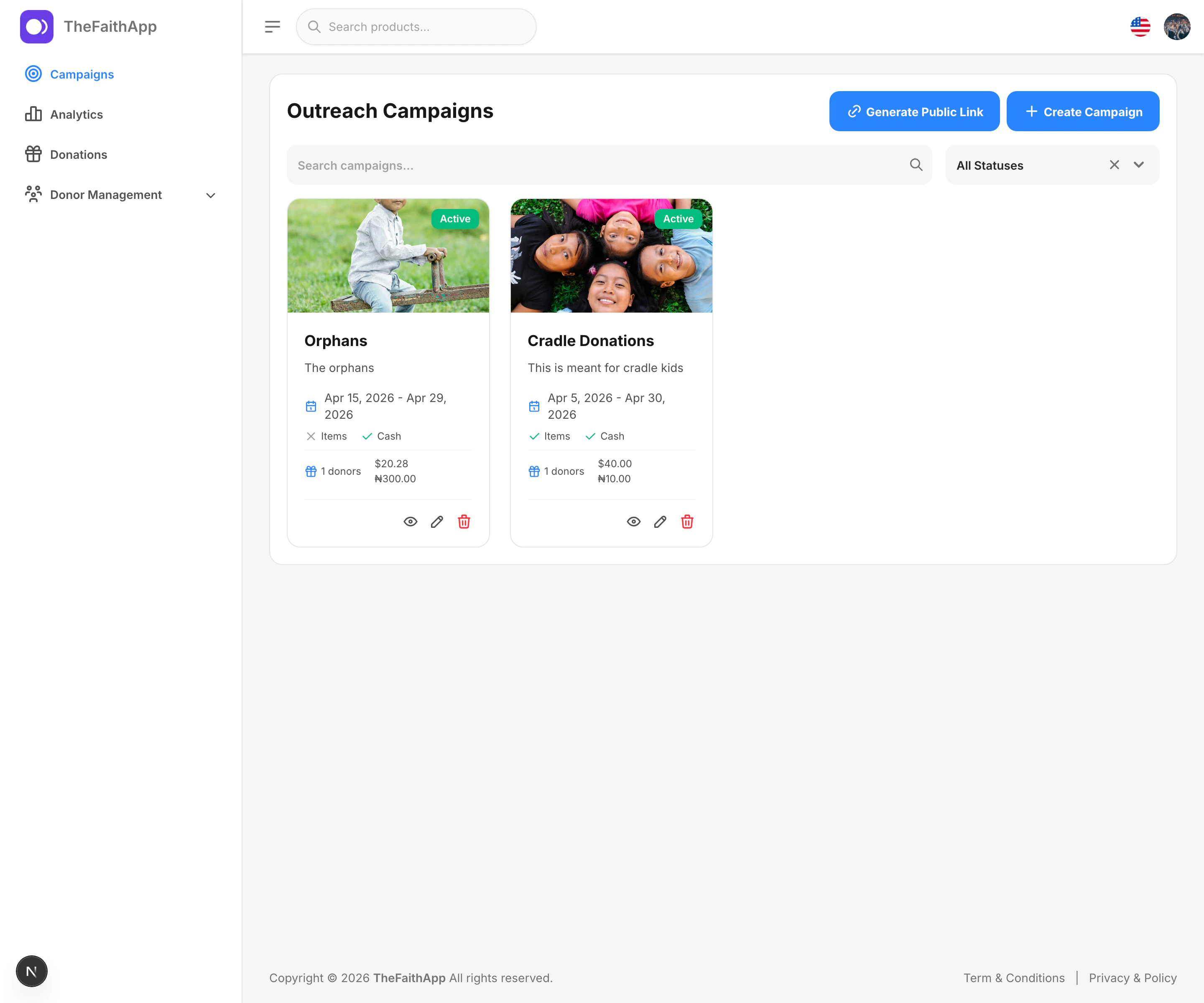
Use the campaigns page to create, review, and organize all outreach campaigns in one place.
 ### What You Can Do
* Create a campaign
* Search campaigns
* Filter campaigns by status
* Open a campaign for more detail
* Generate a public link
* Edit or delete a campaign
### Steps
1. Open `Outreach Campaigns`.
2. Stay on `Campaigns`.
3. Use search or the status filter to find the campaign you want.
4. Click `Create Campaign` to add a new campaign, or open an existing one to manage it.
5. Use the page actions when you need to update or share the campaign.
### Notes
* Campaign cards help your team compare progress quickly.
* Active campaigns are the best choice for public sharing.
## Public Campaign Links
Use the public link tool when you want to share a church-wide outreach page outside the admin dashboard.
### What You Can Do
* Create a campaign
* Search campaigns
* Filter campaigns by status
* Open a campaign for more detail
* Generate a public link
* Edit or delete a campaign
### Steps
1. Open `Outreach Campaigns`.
2. Stay on `Campaigns`.
3. Use search or the status filter to find the campaign you want.
4. Click `Create Campaign` to add a new campaign, or open an existing one to manage it.
5. Use the page actions when you need to update or share the campaign.
### Notes
* Campaign cards help your team compare progress quickly.
* Active campaigns are the best choice for public sharing.
## Public Campaign Links
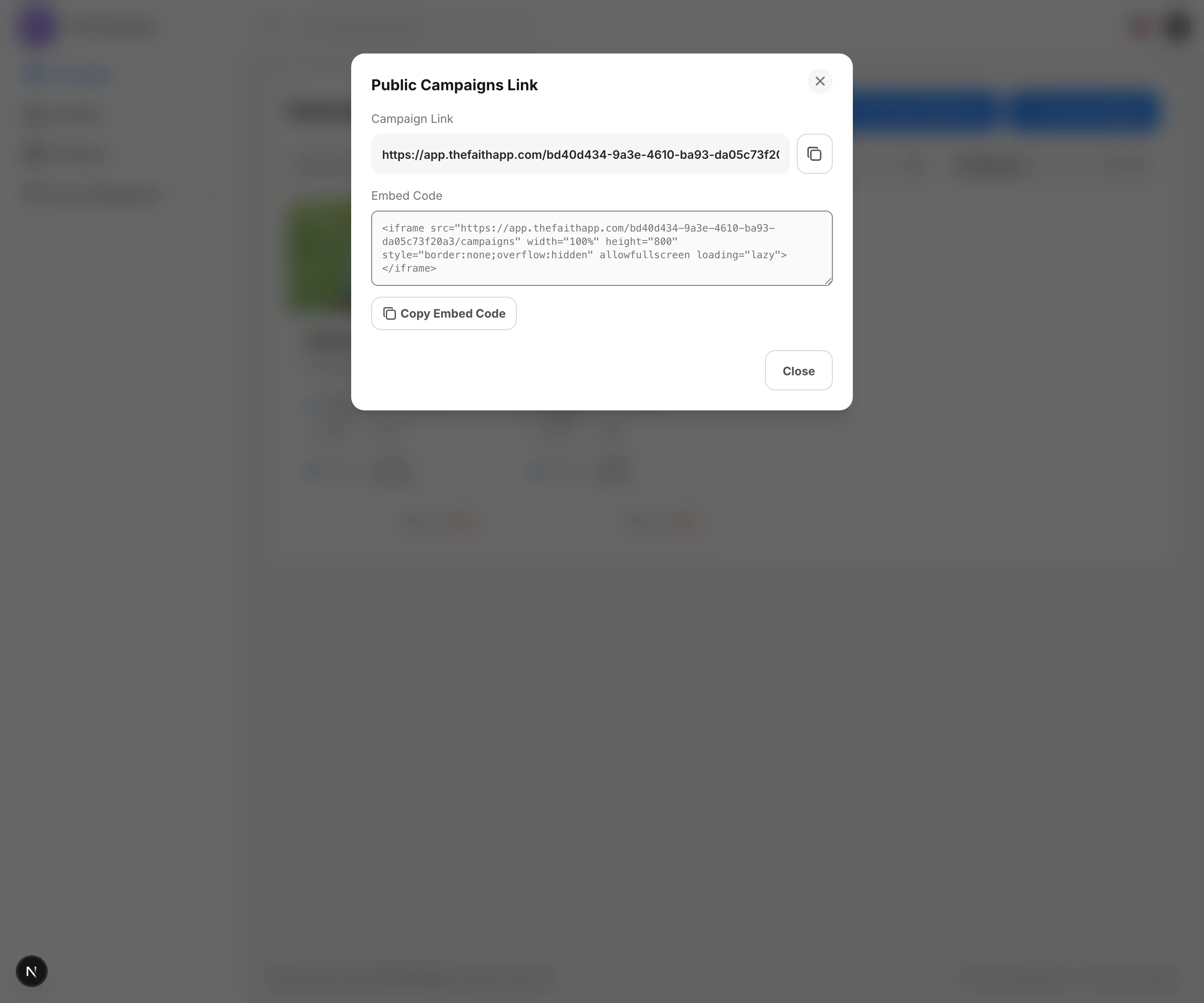
Use the public link tool when you want to share a church-wide outreach page outside the admin dashboard.
 ### What You Can Do
* Copy the public campaigns link
* Copy embed code for a website or landing page
* Share one outreach destination with supporters
### Steps
1. Open `Outreach Campaigns`.
2. On the `Campaigns` page, click `Generate Public Link`.
3. Copy the direct link or the embed code.
4. Share it with your website manager, church team, or donors.
### Notes
* The public link opens the church's campaign page outside the admin dashboard.
* Use embed code when you want campaigns displayed inside another website.
## Campaign Items and Setup
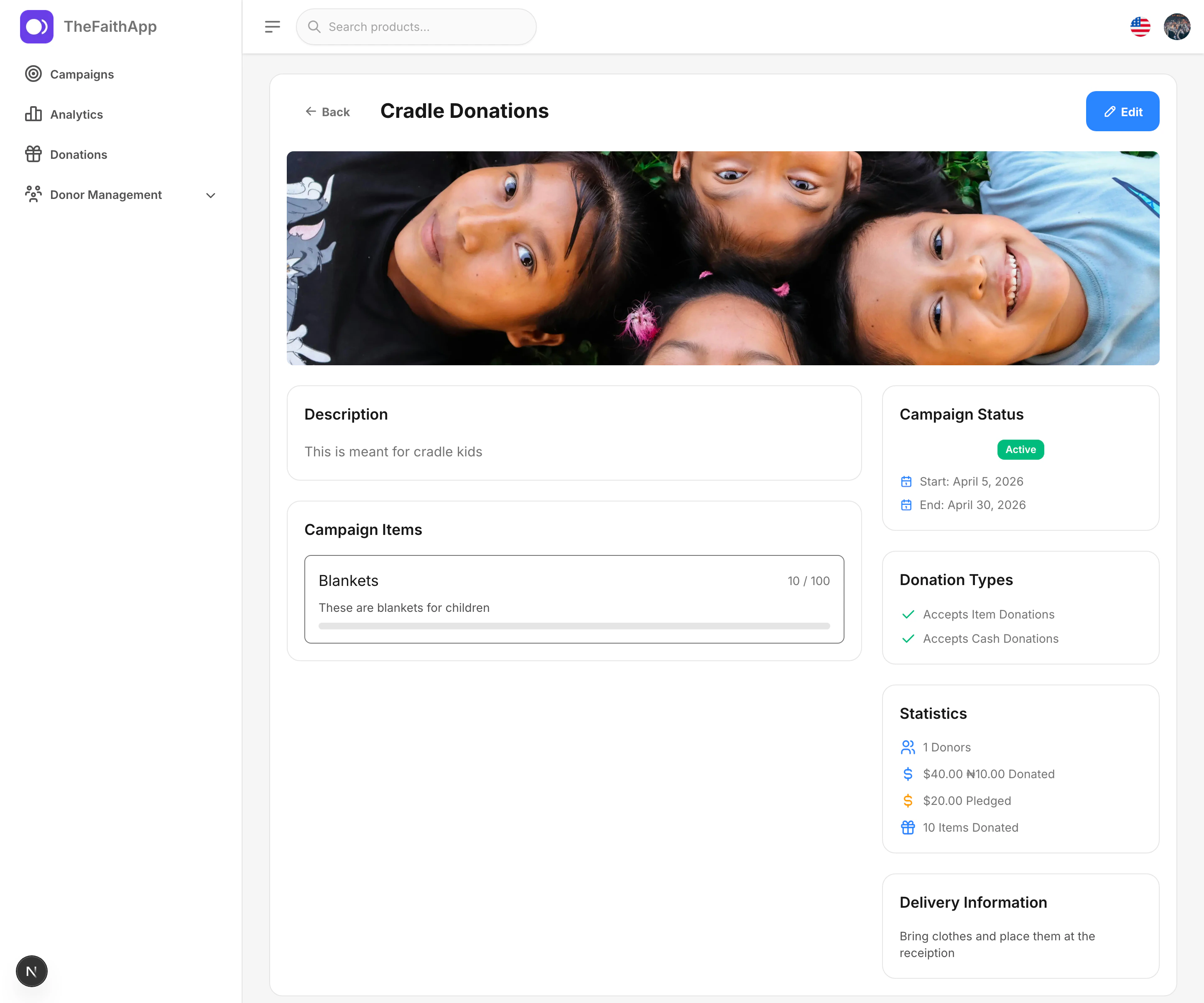
Use the campaign details page to review the setup of an individual campaign and monitor what supporters still need to give.
### What You Can Do
* Copy the public campaigns link
* Copy embed code for a website or landing page
* Share one outreach destination with supporters
### Steps
1. Open `Outreach Campaigns`.
2. On the `Campaigns` page, click `Generate Public Link`.
3. Copy the direct link or the embed code.
4. Share it with your website manager, church team, or donors.
### Notes
* The public link opens the church's campaign page outside the admin dashboard.
* Use embed code when you want campaigns displayed inside another website.
## Campaign Items and Setup
Use the campaign details page to review the setup of an individual campaign and monitor what supporters still need to give.
 ### What You Can Do
* Review the campaign description
* Confirm whether the campaign accepts cash, items, or both
* Track item goals and current progress
* Review donor and donation totals
* Check delivery instructions
* Open editing when updates are needed
### Steps
1. Open `Outreach Campaigns`.
2. Select the campaign you want to review.
3. Check the description, dates, and donation types.
4. Review the campaign items and progress bar.
5. Review the statistics and delivery information.
6. Click `Edit` when the campaign needs changes.
### Notes
* Item progress helps your team see what is still needed.
* Delivery information is useful when supporters are bringing physical items in person.
## Campaign Donations
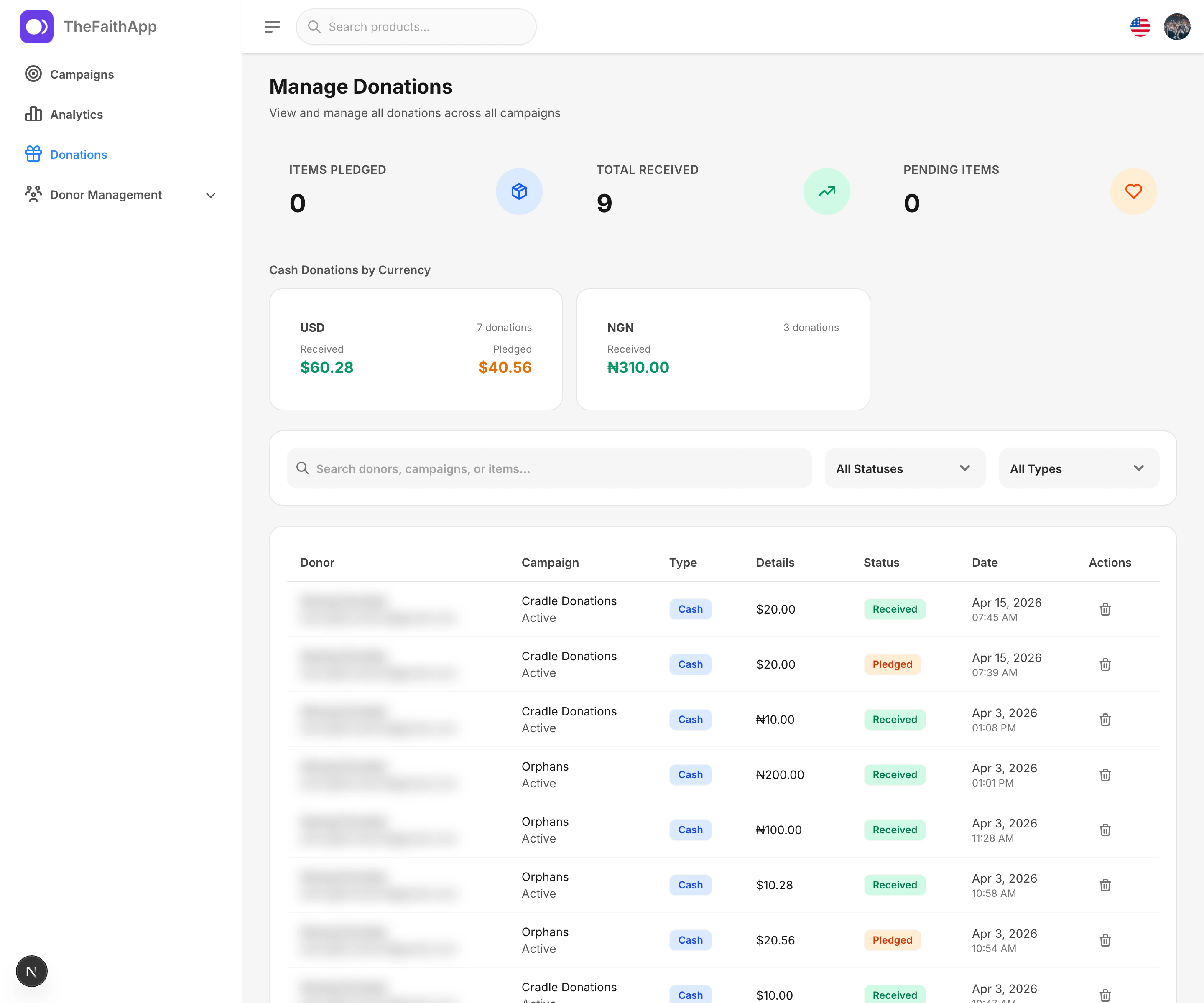
Use the donations page to review pledged and received support across all outreach campaigns.
### What You Can Do
* Review the campaign description
* Confirm whether the campaign accepts cash, items, or both
* Track item goals and current progress
* Review donor and donation totals
* Check delivery instructions
* Open editing when updates are needed
### Steps
1. Open `Outreach Campaigns`.
2. Select the campaign you want to review.
3. Check the description, dates, and donation types.
4. Review the campaign items and progress bar.
5. Review the statistics and delivery information.
6. Click `Edit` when the campaign needs changes.
### Notes
* Item progress helps your team see what is still needed.
* Delivery information is useful when supporters are bringing physical items in person.
## Campaign Donations
Use the donations page to review pledged and received support across all outreach campaigns.
 ### What You Can Do
* Review giving totals across campaigns
* Search donations
* Filter by status
* Filter by type
* Review campaign, amount, and date details
* Remove a donation record when needed
### Steps
1. Open `Outreach Campaigns`.
2. Click `Donations`.
3. Review the summary cards and currency totals.
4. Use search or filters to narrow the donation list.
5. Review whether each record is `Received` or `Pledged`.
### Notes
* Donation records can include both cash and item-related activity.
* Status helps your team separate promised support from what has already arrived.
## Donor Directory
Use the donor directory to review everyone who registered or gave through outreach campaign pages.
### What You Can Do
* Review giving totals across campaigns
* Search donations
* Filter by status
* Filter by type
* Review campaign, amount, and date details
* Remove a donation record when needed
### Steps
1. Open `Outreach Campaigns`.
2. Click `Donations`.
3. Review the summary cards and currency totals.
4. Use search or filters to narrow the donation list.
5. Review whether each record is `Received` or `Pledged`.
### Notes
* Donation records can include both cash and item-related activity.
* Status helps your team separate promised support from what has already arrived.
## Donor Directory
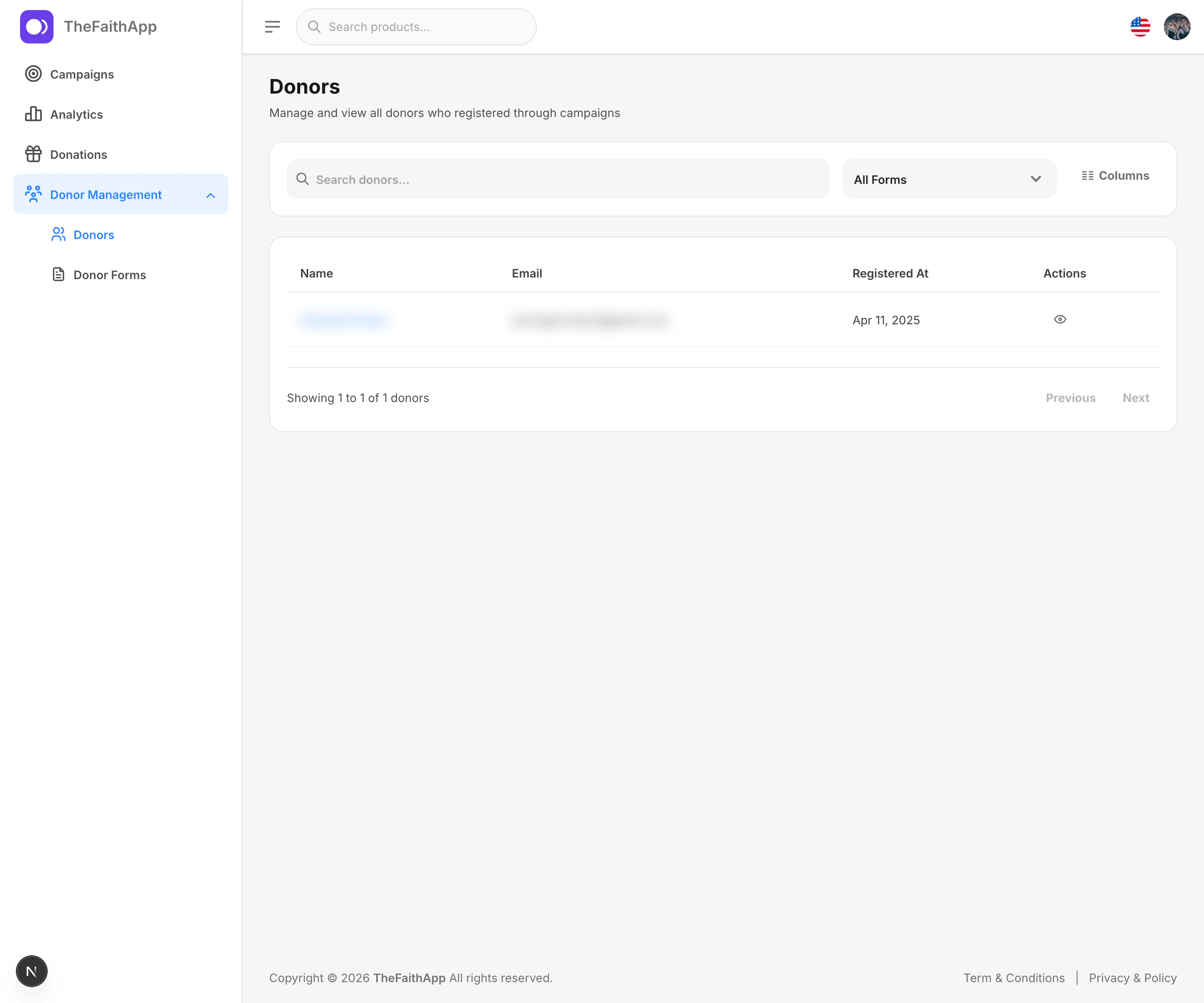
Use the donor directory to review everyone who registered or gave through outreach campaign pages.
 ### What You Can Do
* Search donors
* Filter donors by form
* Choose which columns to display
* Open donor details
### Steps
1. Open `Outreach Campaigns`.
2. Expand `Donor Management`.
3. Click `Donors`.
4. Use the search box or form filter to narrow the list.
5. Use `Columns` if you want to change what the table shows.
6. Click a donor name or the view icon to open donor details.
### Notes
* Donors appear here after they register through campaign donation pages.
* Column selection helps your team focus on only the details needed for follow-up.
## Donor Details
Use the donor details drawer to review supporter information without leaving the donor list.
### What You Can Do
* Search donors
* Filter donors by form
* Choose which columns to display
* Open donor details
### Steps
1. Open `Outreach Campaigns`.
2. Expand `Donor Management`.
3. Click `Donors`.
4. Use the search box or form filter to narrow the list.
5. Use `Columns` if you want to change what the table shows.
6. Click a donor name or the view icon to open donor details.
### Notes
* Donors appear here after they register through campaign donation pages.
* Column selection helps your team focus on only the details needed for follow-up.
## Donor Details
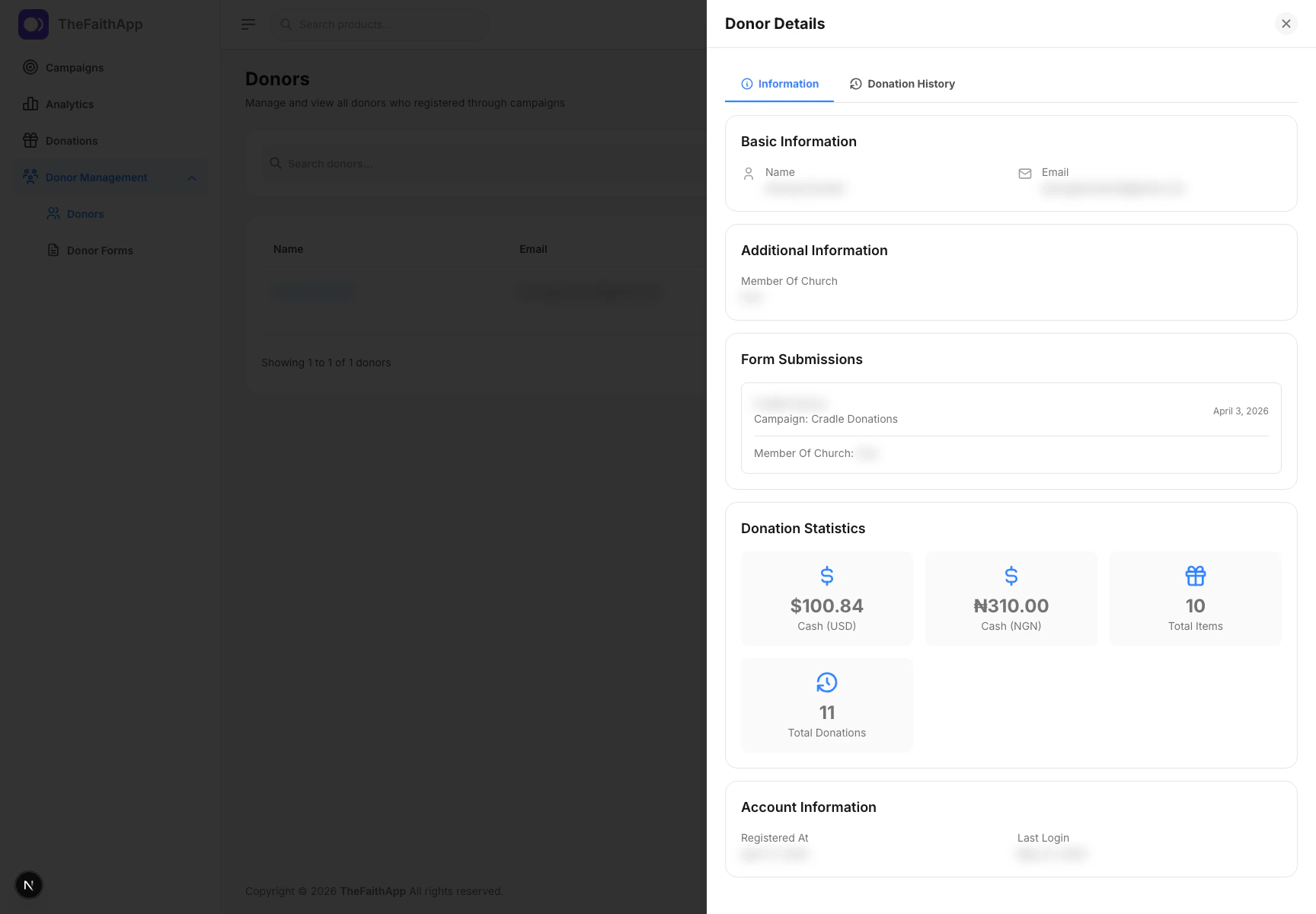
Use the donor details drawer to review supporter information without leaving the donor list.
 ### What You Can Do
* Review contact information
* See additional form responses
* Review donation statistics
* Open donation history
### Steps
1. Open `Outreach Campaigns`.
2. Click `Donor Management`, then `Donors`.
3. Click a donor name or the view icon.
4. Review the `Information` tab.
5. Switch to `Donation History` when you need the full giving record.
### Notes
* The donor details view opens in a side drawer for quick review.
* The information shown can vary depending on the donor form used during registration.
## Donor Forms
Use donor forms to decide what extra information supporters should provide when they engage with a campaign.
### What You Can Do
* Review contact information
* See additional form responses
* Review donation statistics
* Open donation history
### Steps
1. Open `Outreach Campaigns`.
2. Click `Donor Management`, then `Donors`.
3. Click a donor name or the view icon.
4. Review the `Information` tab.
5. Switch to `Donation History` when you need the full giving record.
### Notes
* The donor details view opens in a side drawer for quick review.
* The information shown can vary depending on the donor form used during registration.
## Donor Forms
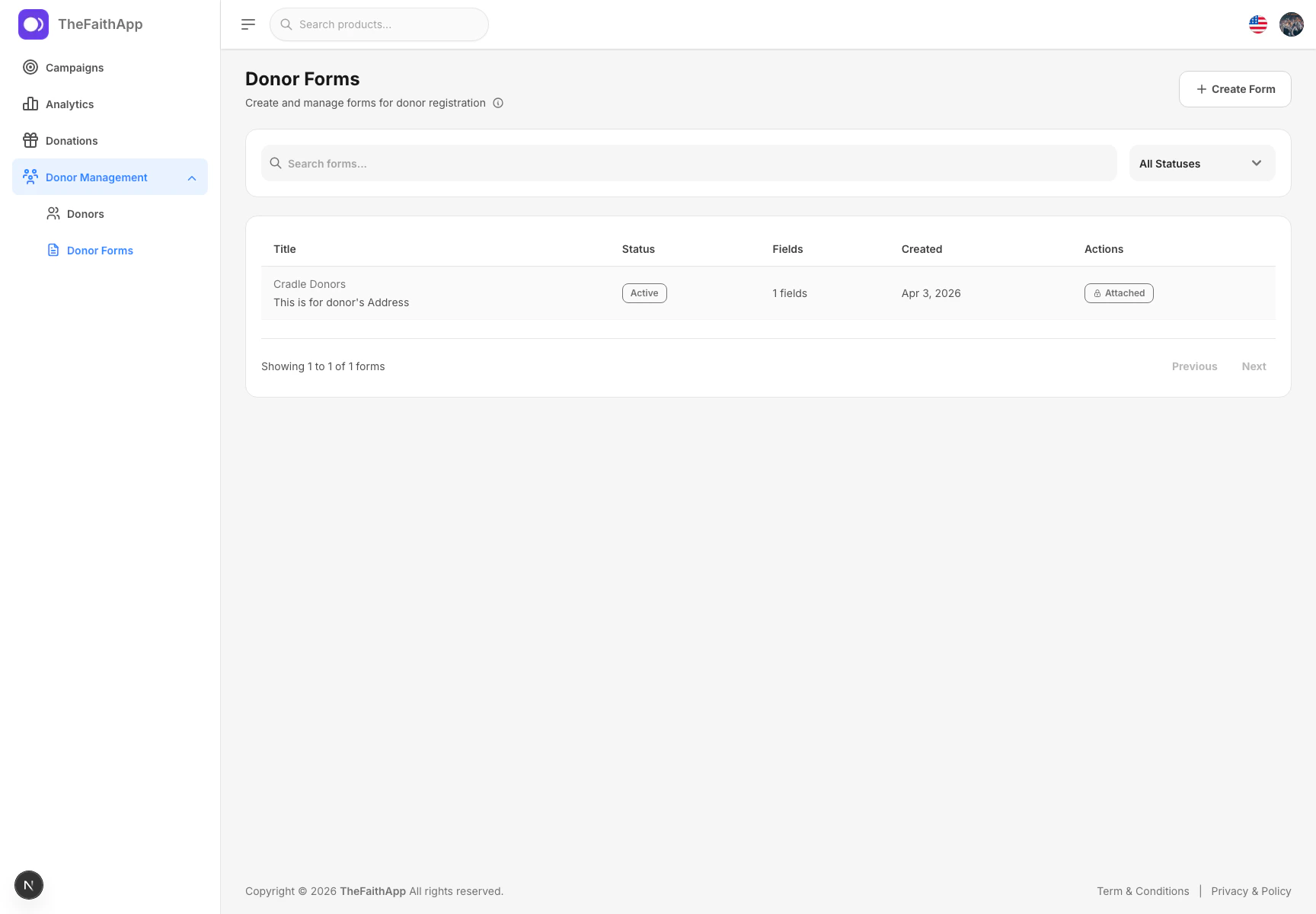
Use donor forms to decide what extra information supporters should provide when they engage with a campaign.
 ### What You Can Do
* Create a donor form
* Search forms
* Filter forms by status
* Review how many fields a form contains
* See whether a form is already attached to a campaign
### Steps
1. Open `Outreach Campaigns`.
2. Expand `Donor Management`.
3. Click `Donor Forms`.
4. Use search or the status filter to find the form you want.
5. Click `Create Form` when you need a new donor form.
6. Review whether a form is already attached before making changes.
### Notes
* Attached forms stay linked to the campaign that uses them.
* Donor forms are useful when you need more than basic name and email details.
## Campaign Analytics
Use analytics to monitor campaign performance and share progress with leadership or your fundraising team.
### What You Can Do
* Create a donor form
* Search forms
* Filter forms by status
* Review how many fields a form contains
* See whether a form is already attached to a campaign
### Steps
1. Open `Outreach Campaigns`.
2. Expand `Donor Management`.
3. Click `Donor Forms`.
4. Use search or the status filter to find the form you want.
5. Click `Create Form` when you need a new donor form.
6. Review whether a form is already attached before making changes.
### Notes
* Attached forms stay linked to the campaign that uses them.
* Donor forms are useful when you need more than basic name and email details.
## Campaign Analytics
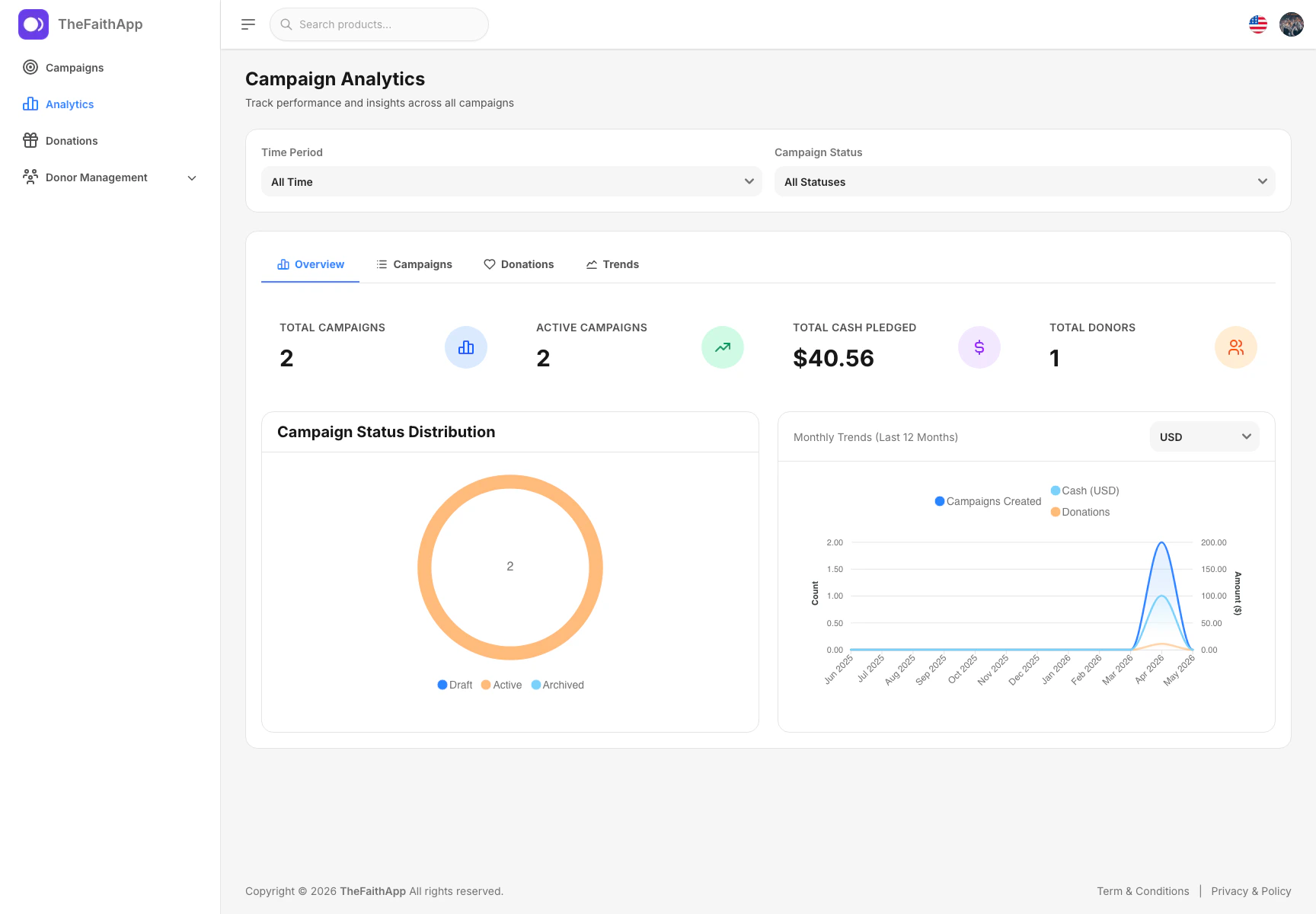
Use analytics to monitor campaign performance and share progress with leadership or your fundraising team.
 ### What You Can Do
* View total campaigns and active campaigns
* Review total cash pledged and total donors
* Filter by time period
* Filter by campaign status
* Switch between `Overview`, `Campaigns`, `Donations`, and `Trends`
* Review status distribution and monthly trends
### Steps
1. Open `Outreach Campaigns`.
2. Click `Analytics`.
3. Choose the time period you want to review.
4. Apply a campaign status filter if needed.
5. Switch between the analytics tabs to review the metrics you need.
### Notes
* Analytics is especially useful for reporting and campaign follow-up meetings.
* Filters help teams review the same time window before making decisions.
## Public Campaign Pages
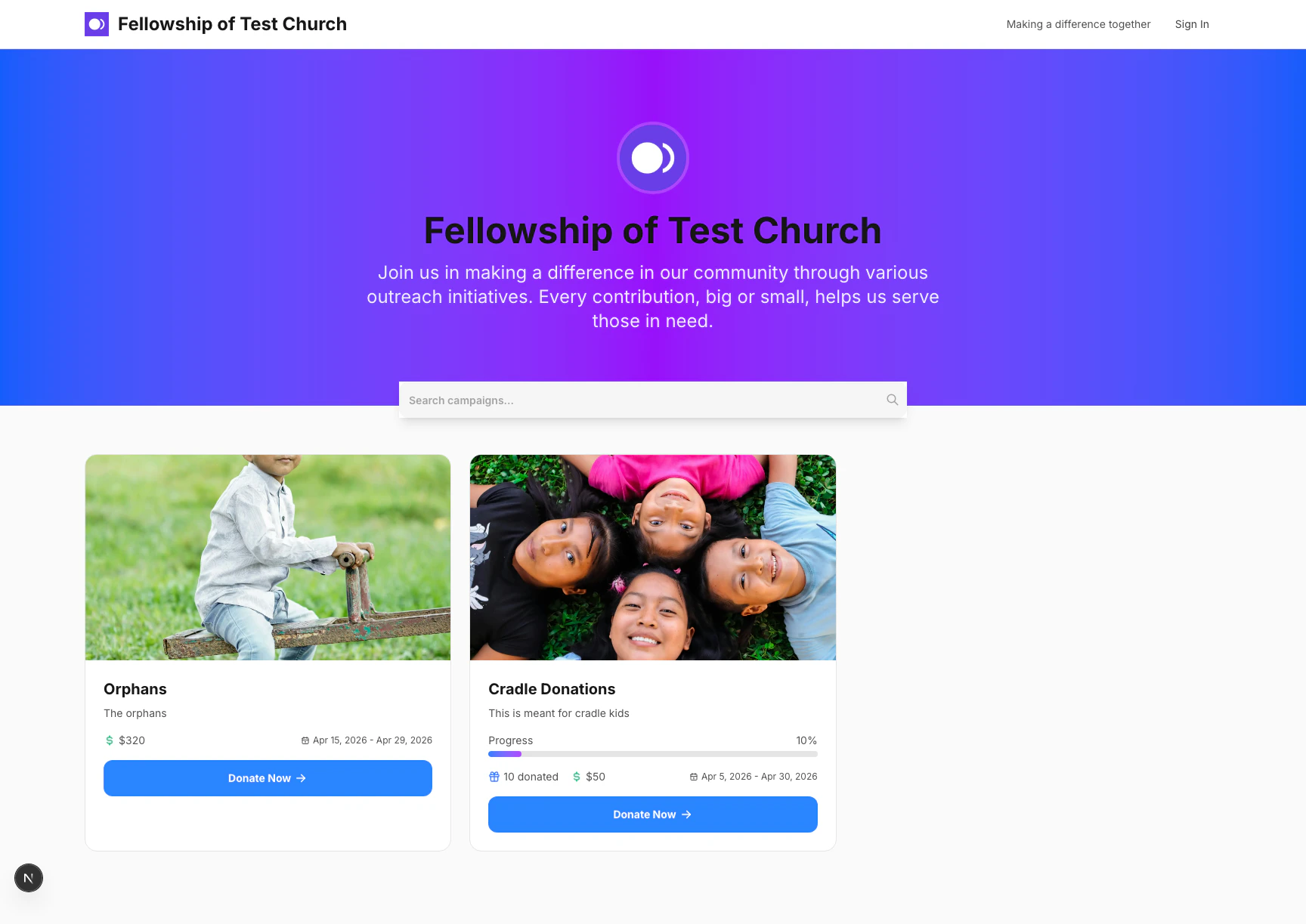
Use the public campaigns page to show all active outreach opportunities in one supporter-friendly experience.
### What You Can Do
* View total campaigns and active campaigns
* Review total cash pledged and total donors
* Filter by time period
* Filter by campaign status
* Switch between `Overview`, `Campaigns`, `Donations`, and `Trends`
* Review status distribution and monthly trends
### Steps
1. Open `Outreach Campaigns`.
2. Click `Analytics`.
3. Choose the time period you want to review.
4. Apply a campaign status filter if needed.
5. Switch between the analytics tabs to review the metrics you need.
### Notes
* Analytics is especially useful for reporting and campaign follow-up meetings.
* Filters help teams review the same time window before making decisions.
## Public Campaign Pages
Use the public campaigns page to show all active outreach opportunities in one supporter-friendly experience.
 ### What You Can Do
* Browse all active campaigns
* Search public campaigns
* Open an individual campaign page
* Share a clean public giving experience with supporters
### Steps
1. Open the public campaigns link.
2. Review the campaign cards on the page.
3. Use search if you need to narrow the list.
4. Click `Donate Now` on the campaign you want to open.
### Notes
* The public campaigns page is designed for supporters outside the admin dashboard.
* This page can display multiple active campaigns at the same time.
## Public Donation Flow
Use the campaign detail page to review the full campaign story and start the donation process.
### What You Can Do
* Browse all active campaigns
* Search public campaigns
* Open an individual campaign page
* Share a clean public giving experience with supporters
### Steps
1. Open the public campaigns link.
2. Review the campaign cards on the page.
3. Use search if you need to narrow the list.
4. Click `Donate Now` on the campaign you want to open.
### Notes
* The public campaigns page is designed for supporters outside the admin dashboard.
* This page can display multiple active campaigns at the same time.
## Public Donation Flow
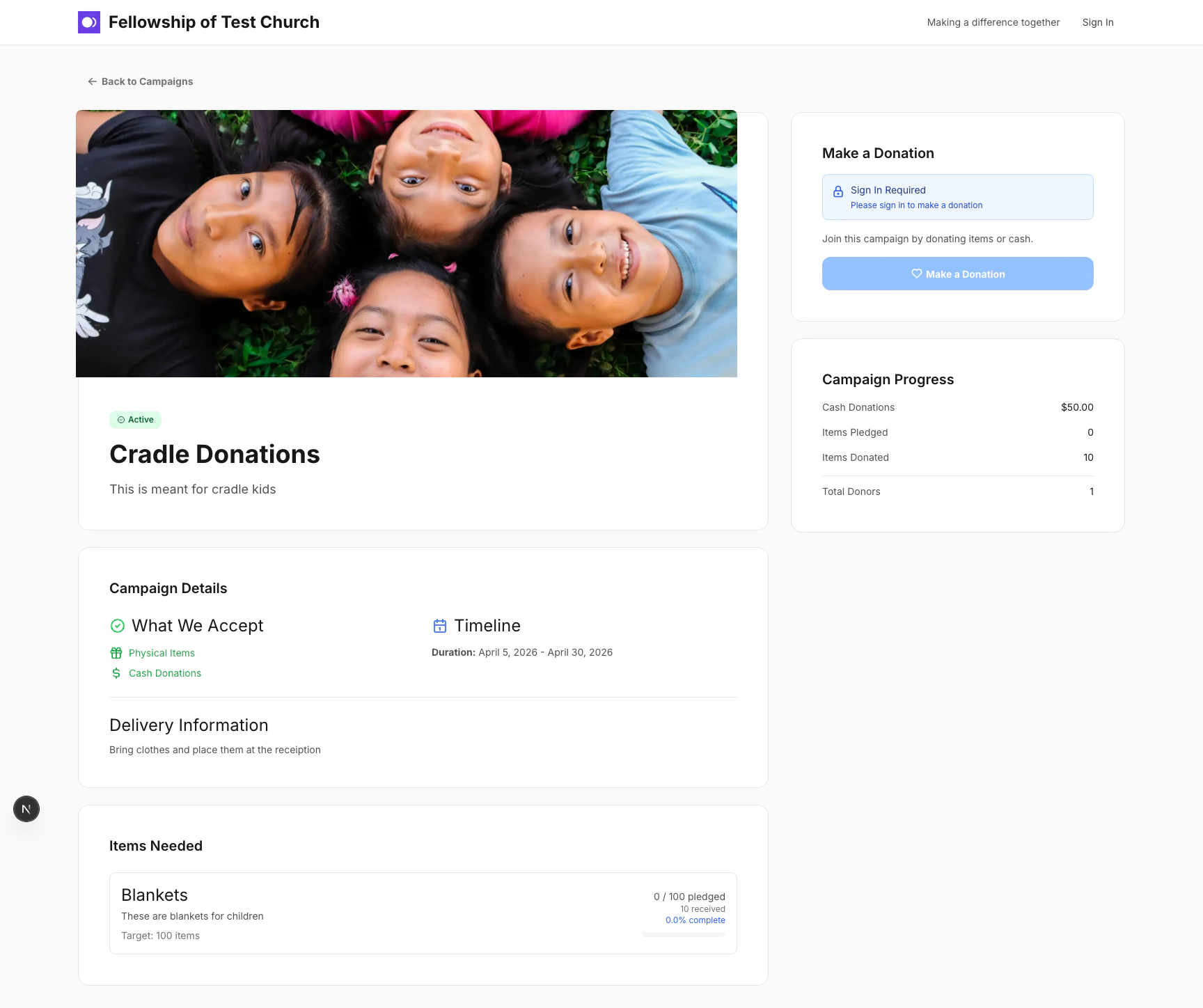
Use the campaign detail page to review the full campaign story and start the donation process.
 ### What You Can Do
* Review the campaign description
* See whether the campaign accepts items, cash, or both
* Review timeline and delivery information
* Review campaign progress
* Start the donation process
### Steps
1. Open a public campaign page.
2. Review the campaign details and item needs.
3. Click `Make a Donation`.
4. Sign in if prompted.
5. Continue with the donation steps shown on screen.
### Notes
* The current public experience asks supporters to sign in before completing a donation.
* Campaign detail pages help donors understand what is still needed before they give.
## Public Campaign Payment Page
Use the public payment page to review a donation summary before the supporter completes payment.
### What You Can Do
* Review the campaign description
* See whether the campaign accepts items, cash, or both
* Review timeline and delivery information
* Review campaign progress
* Start the donation process
### Steps
1. Open a public campaign page.
2. Review the campaign details and item needs.
3. Click `Make a Donation`.
4. Sign in if prompted.
5. Continue with the donation steps shown on screen.
### Notes
* The current public experience asks supporters to sign in before completing a donation.
* Campaign detail pages help donors understand what is still needed before they give.
## Public Campaign Payment Page
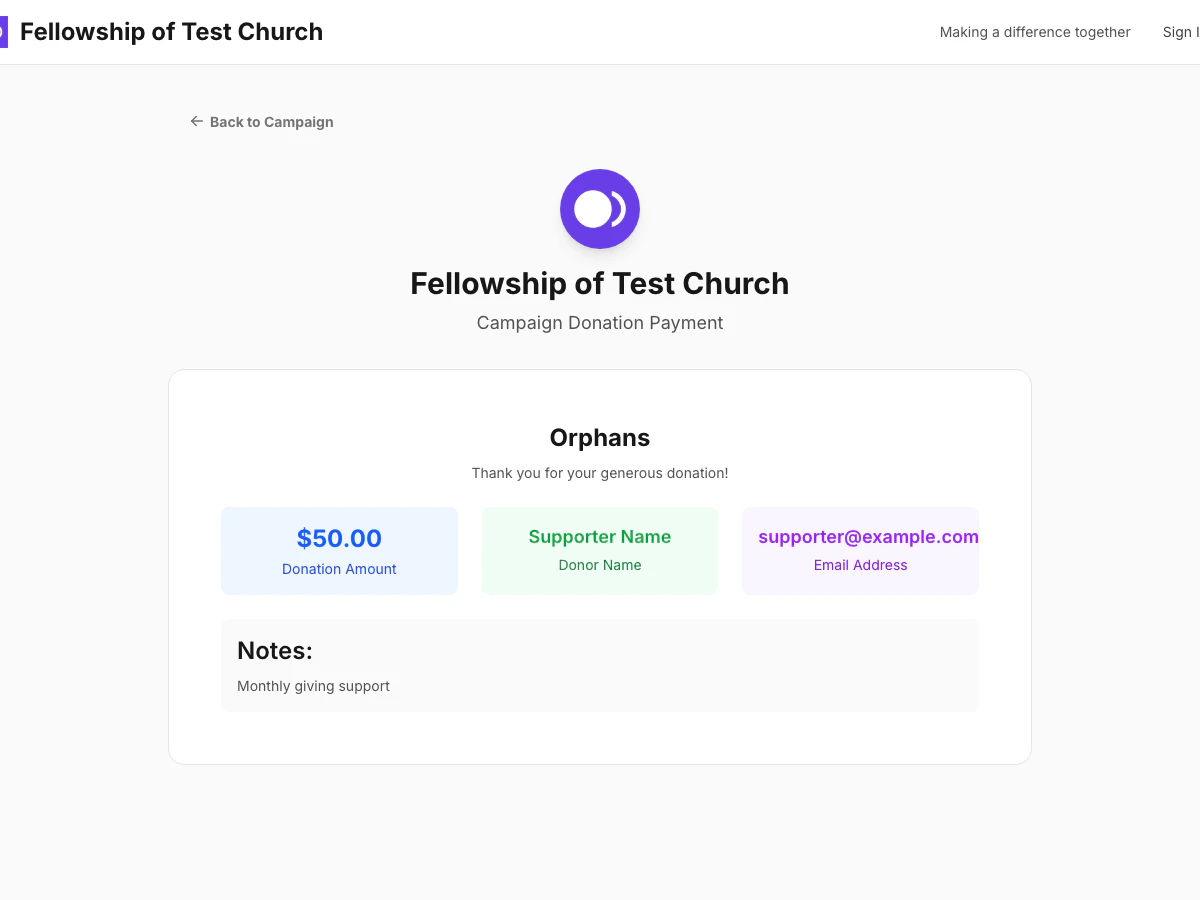
Use the public payment page to review a donation summary before the supporter completes payment.
 ### What Supporters Can Do
* Review the campaign name and donation amount
* Confirm donor name, email, and notes
* Continue to payment after signing in
### Steps
1. Open a public campaign page.
2. Start the donation flow.
3. Review the donation summary on the payment page.
4. Confirm the donor details are correct.
5. Sign in and continue with the payment options shown for that church.
### Notes
* The page shows the donation summary before the payment is completed.
* Payment options appear after the supporter signs in.
## Public Donor Profile Page
Use the public donor profile page to give returning supporters one place to review their donor account after sign-in.
### What Supporters Can Do
* Review the campaign name and donation amount
* Confirm donor name, email, and notes
* Continue to payment after signing in
### Steps
1. Open a public campaign page.
2. Start the donation flow.
3. Review the donation summary on the payment page.
4. Confirm the donor details are correct.
5. Sign in and continue with the payment options shown for that church.
### Notes
* The page shows the donation summary before the payment is completed.
* Payment options appear after the supporter signs in.
## Public Donor Profile Page
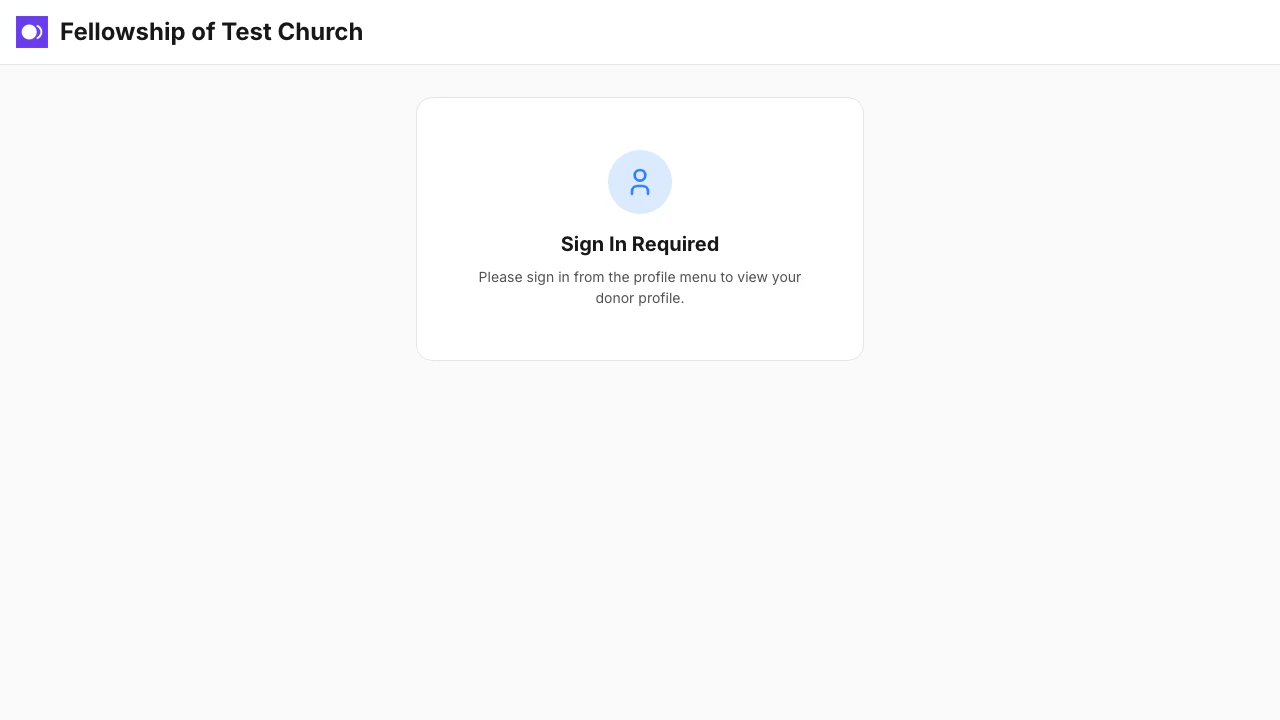
Use the public donor profile page to give returning supporters one place to review their donor account after sign-in.
 ### What Supporters Can Do
* Open a public donor profile page
* Sign in before viewing donor details and giving history
* Return to the profile page to review their account
### Steps
1. Open the public donor profile page.
2. Use the profile sign-in option.
3. Return to the donor profile page after sign-in.
4. Review the donor details and giving history shown on the page.
### Notes
* Before sign-in, the page shows a `Sign In Required` message instead of donor history.
* After sign-in, supporters can review their donor profile and past donations in the same public experience.
### What Supporters Can Do
* Open a public donor profile page
* Sign in before viewing donor details and giving history
* Return to the profile page to review their account
### Steps
1. Open the public donor profile page.
2. Use the profile sign-in option.
3. Return to the donor profile page after sign-in.
4. Review the donor details and giving history shown on the page.
### Notes
* Before sign-in, the page shows a `Sign In Required` message instead of donor history.
* After sign-in, supporters can review their donor profile and past donations in the same public experience.