> ## Documentation Index
> Fetch the complete documentation index at: https://docs.thefaithapp.com/llms.txt
> Use this file to discover all available pages before exploring further.
# Marketing
> Manage marketing dashboards, Mailgun, Twilio, email campaigns, email templates, subscribers, and SMS outreach in TheFaithApp.
# Marketing
This guide covers the marketing tools used to manage email and SMS communication in TheFaithApp.
These tools include:
* Marketing dashboard
* Integrations
* Mailgun
* Twilio
* Email campaigns
* Email templates
* Email subscribers
* SMS campaigns
* SMS templates
* SMS subscribers
## Before You Start
* Sign in to your admin account.
* Open `Marketing` from the five-product sidebar, then choose `Dashboard`, `Email Marketing`, `SMS Marketing`, or `Integrations`.
* Use `Integrations` before building campaigns if your providers are not set up yet.
* New accounts may show empty states until your first template, subscriber list, or campaign is added.
## Marketing Dashboard
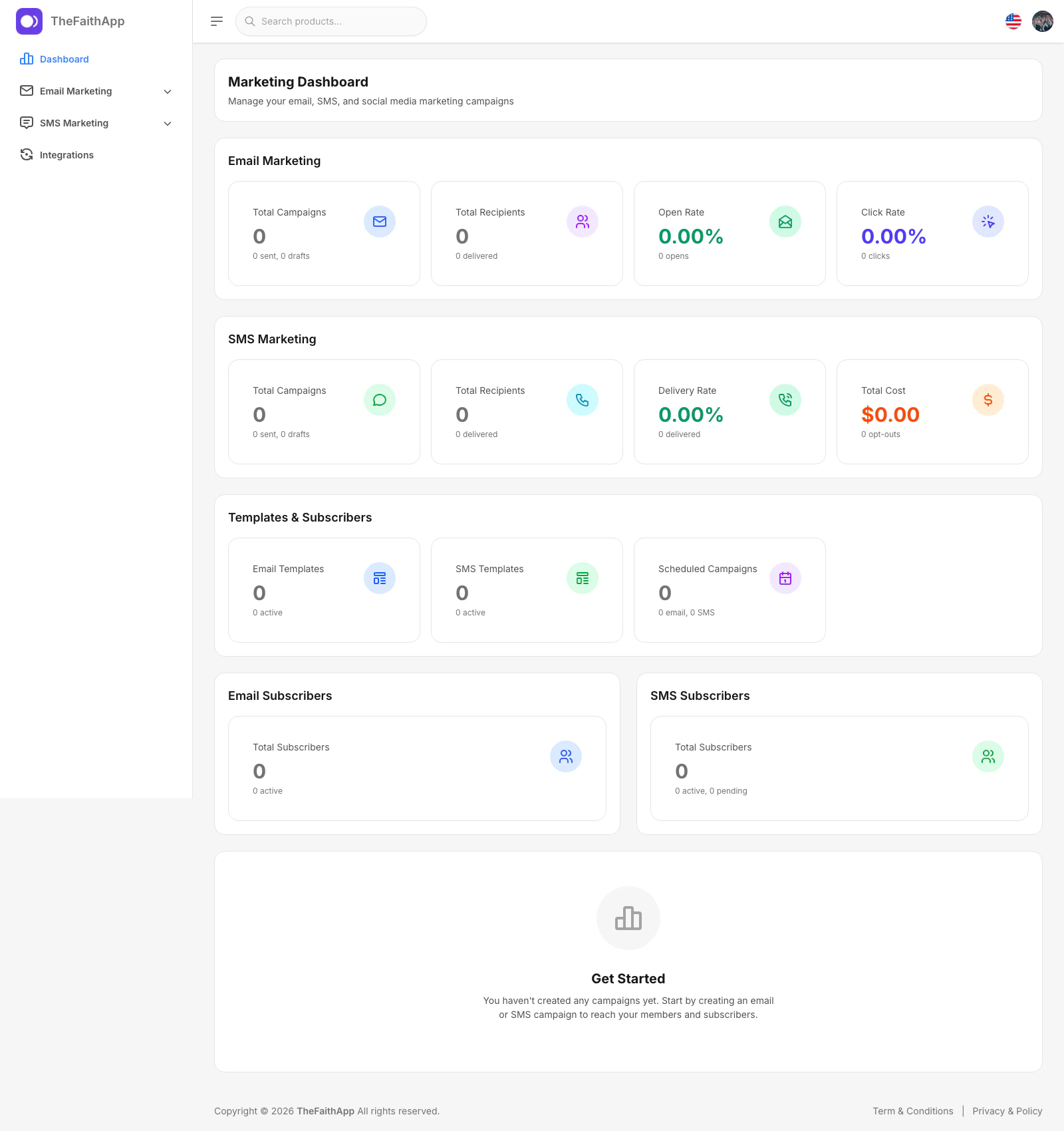
Use the dashboard to monitor the overall health of your email and SMS activity from one place.
 ### What You Can Do
* Review email campaign totals
* Review SMS campaign totals
* Check open, click, and delivery rates
* Monitor template and subscriber totals
* See scheduled campaign totals at a glance
### Steps
1. Open `Marketing`.
2. Stay on `Dashboard`.
3. Review the summary cards for email, SMS, templates, and subscribers.
4. Open the related marketing section when you want to take action on a specific area.
### Notes
* The dashboard is the best starting point for a quick daily review.
* Empty cards usually mean this area has not been configured or used yet.
## Integrations
Use integrations to connect the providers that power your email and SMS delivery.
### What You Can Do
* Review email campaign totals
* Review SMS campaign totals
* Check open, click, and delivery rates
* Monitor template and subscriber totals
* See scheduled campaign totals at a glance
### Steps
1. Open `Marketing`.
2. Stay on `Dashboard`.
3. Review the summary cards for email, SMS, templates, and subscribers.
4. Open the related marketing section when you want to take action on a specific area.
### Notes
* The dashboard is the best starting point for a quick daily review.
* Empty cards usually mean this area has not been configured or used yet.
## Integrations
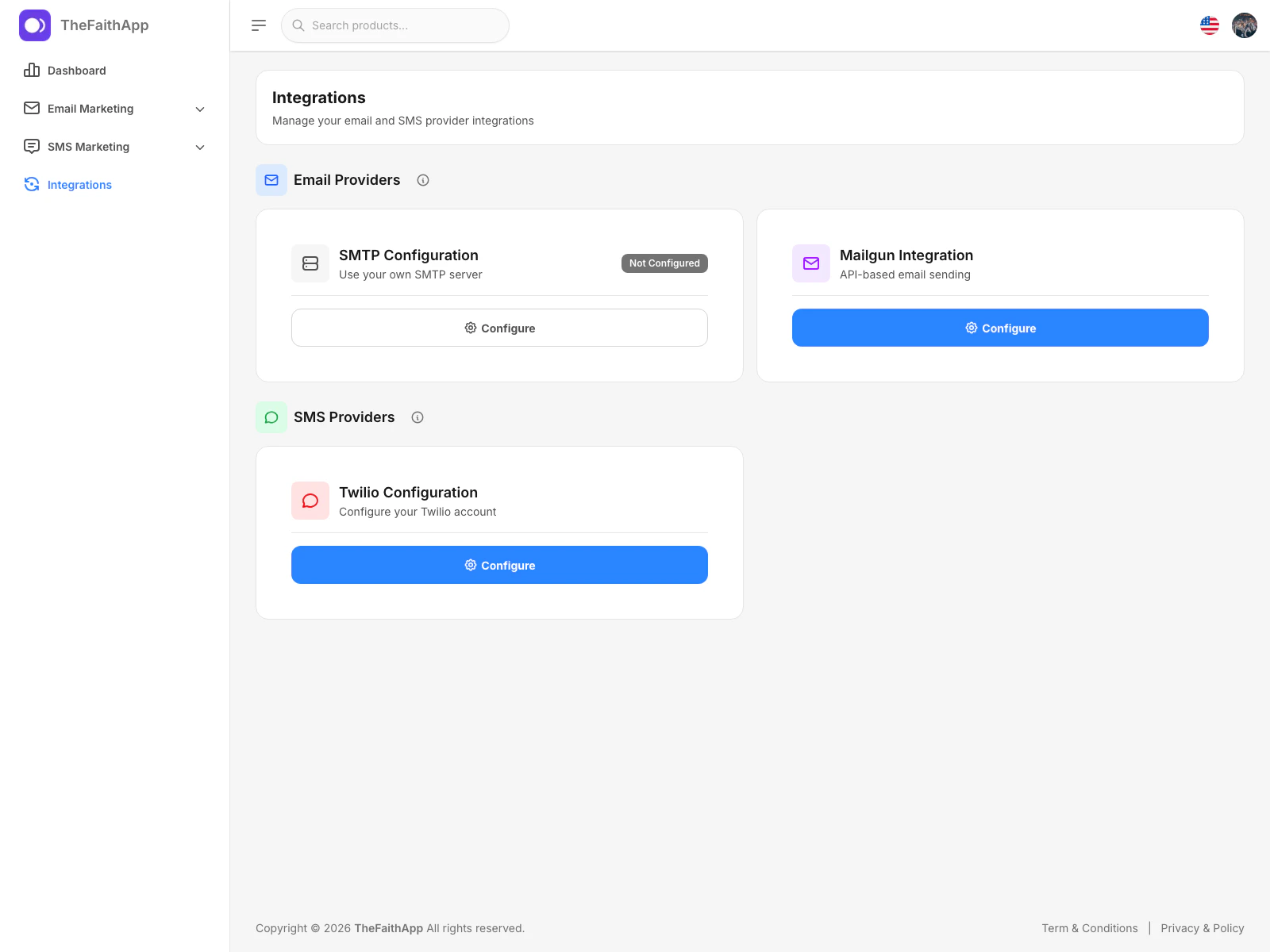
Use integrations to connect the providers that power your email and SMS delivery.
 ### What You Can Do
* Open SMTP setup
* Configure Mailgun
* Configure Twilio
* Review which providers are already active
### Steps
1. Open `Marketing`.
2. Click `Integrations`.
3. Review the email and SMS provider cards.
4. Click `Configure` on the provider you want to update.
### Notes
* `SMTP Configuration` opens the general settings area for SMTP setup.
* Mailgun and Twilio can both be managed directly from this screen.
## Mailgun
Use the Mailgun drawer when your team wants Mailgun to handle email delivery.
### What You Can Do
* Open SMTP setup
* Configure Mailgun
* Configure Twilio
* Review which providers are already active
### Steps
1. Open `Marketing`.
2. Click `Integrations`.
3. Review the email and SMS provider cards.
4. Click `Configure` on the provider you want to update.
### Notes
* `SMTP Configuration` opens the general settings area for SMTP setup.
* Mailgun and Twilio can both be managed directly from this screen.
## Mailgun
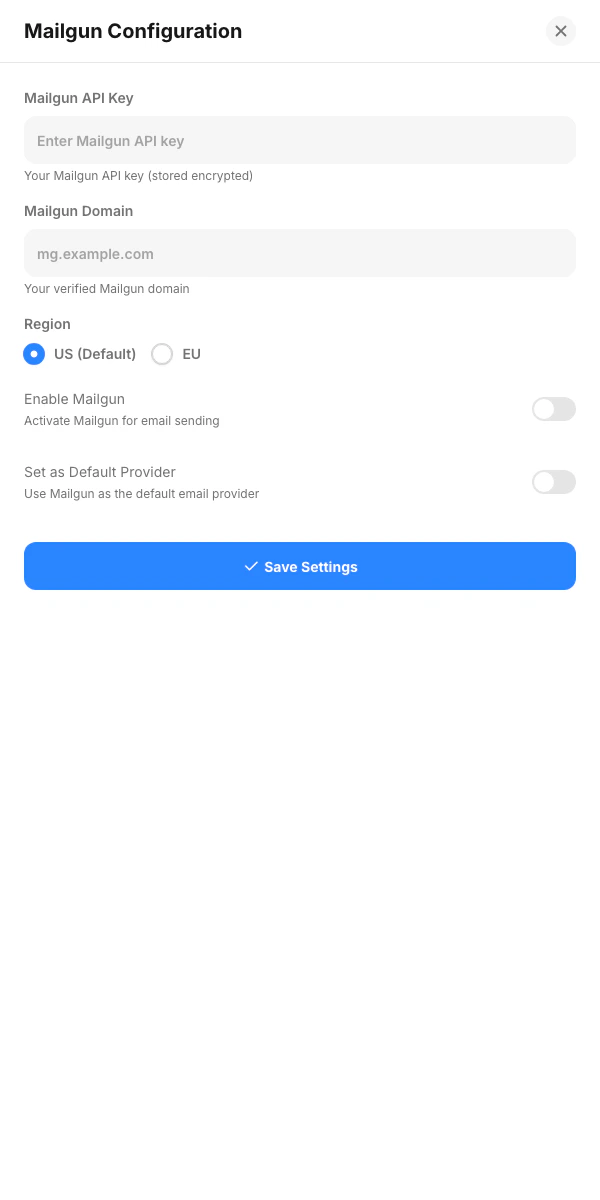
Use the Mailgun drawer when your team wants Mailgun to handle email delivery.
 ### What You Can Do
* Enter your Mailgun API key
* Add the verified Mailgun domain
* Choose the Mailgun region
* Turn Mailgun on or off
* Set Mailgun as the default email provider
### Steps
1. Open `Marketing`.
2. Click `Integrations`.
3. In the `Mailgun Integration` card, click `Configure`.
4. Enter the provider details.
5. Turn on Mailgun if you want to use it for sending.
6. Save the settings.
### Notes
* Use the region that matches your Mailgun account.
* Set Mailgun as default only if it should be the main email sending service for your church.
## Twilio
Use the Twilio drawer when your team wants Twilio to handle SMS delivery.
### What You Can Do
* Enter your Mailgun API key
* Add the verified Mailgun domain
* Choose the Mailgun region
* Turn Mailgun on or off
* Set Mailgun as the default email provider
### Steps
1. Open `Marketing`.
2. Click `Integrations`.
3. In the `Mailgun Integration` card, click `Configure`.
4. Enter the provider details.
5. Turn on Mailgun if you want to use it for sending.
6. Save the settings.
### Notes
* Use the region that matches your Mailgun account.
* Set Mailgun as default only if it should be the main email sending service for your church.
## Twilio
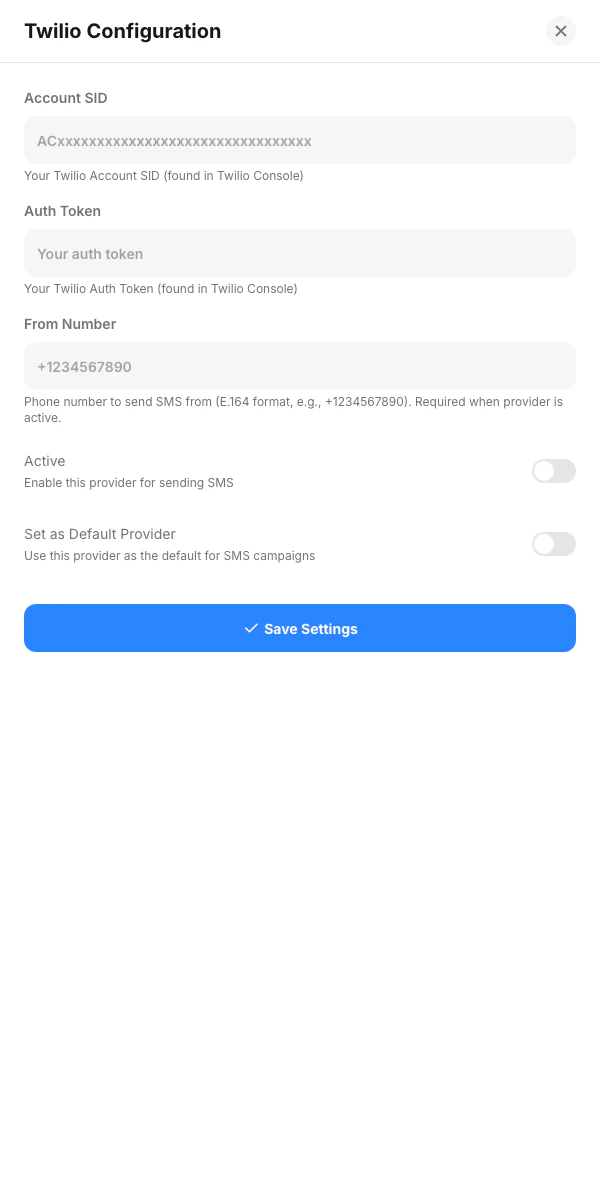
Use the Twilio drawer when your team wants Twilio to handle SMS delivery.
 ### What You Can Do
* Enter the Twilio account SID
* Enter the auth token
* Add the sending phone number
* Turn Twilio on or off
* Set Twilio as the default SMS provider
### Steps
1. Open `Marketing`.
2. Click `Integrations`.
3. In the `Twilio Configuration` card, click `Configure`.
4. Enter the provider details.
5. Turn on Twilio when you are ready to send SMS campaigns.
6. Save the settings.
### Notes
* The phone number should be the number your church will send SMS from.
* Set Twilio as default if it should be the main SMS provider for your account.
## Email Campaigns
Use email campaigns to plan and manage email communication for members and subscribers.
### What You Can Do
* Enter the Twilio account SID
* Enter the auth token
* Add the sending phone number
* Turn Twilio on or off
* Set Twilio as the default SMS provider
### Steps
1. Open `Marketing`.
2. Click `Integrations`.
3. In the `Twilio Configuration` card, click `Configure`.
4. Enter the provider details.
5. Turn on Twilio when you are ready to send SMS campaigns.
6. Save the settings.
### Notes
* The phone number should be the number your church will send SMS from.
* Set Twilio as default if it should be the main SMS provider for your account.
## Email Campaigns
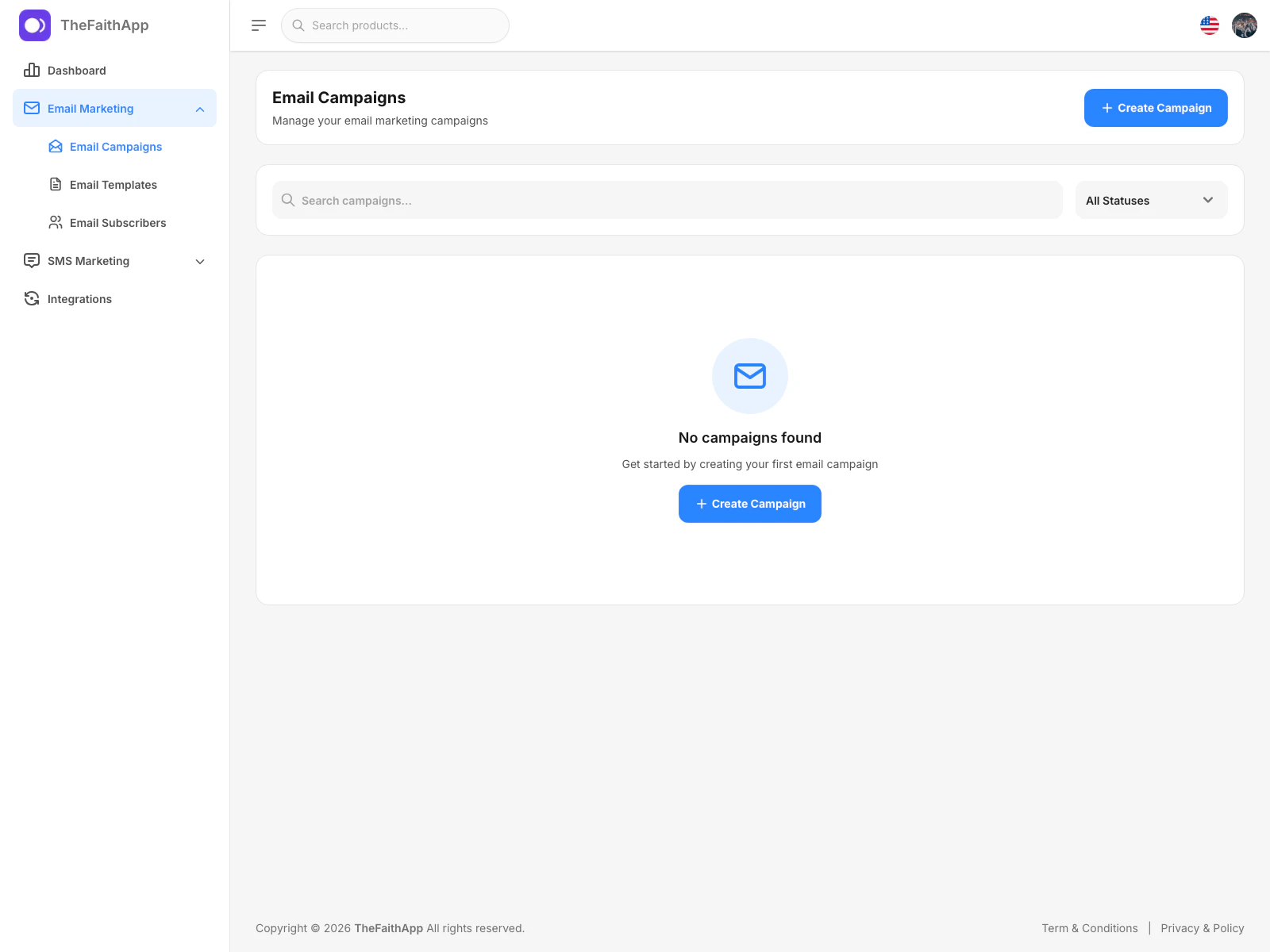
Use email campaigns to plan and manage email communication for members and subscribers.
 ### What You Can Do
* Search campaigns
* Filter by status
* Create a new campaign
* Review empty-state prompts when no campaigns exist yet
### Steps
1. Open `Marketing`.
2. Expand `Email Marketing`.
3. Click `Email Campaigns`.
4. Use search or status filters to narrow the list.
5. Click `Create Campaign` when you want to start a new email campaign.
### Notes
* This page is the main workspace for reviewing campaign status.
* New accounts will usually start with an empty state here.
## Creating an Email Campaign
Use the create drawer when you want to start a guided email campaign setup.
### What You Can Do
* Search campaigns
* Filter by status
* Create a new campaign
* Review empty-state prompts when no campaigns exist yet
### Steps
1. Open `Marketing`.
2. Expand `Email Marketing`.
3. Click `Email Campaigns`.
4. Use search or status filters to narrow the list.
5. Click `Create Campaign` when you want to start a new email campaign.
### Notes
* This page is the main workspace for reviewing campaign status.
* New accounts will usually start with an empty state here.
## Creating an Email Campaign
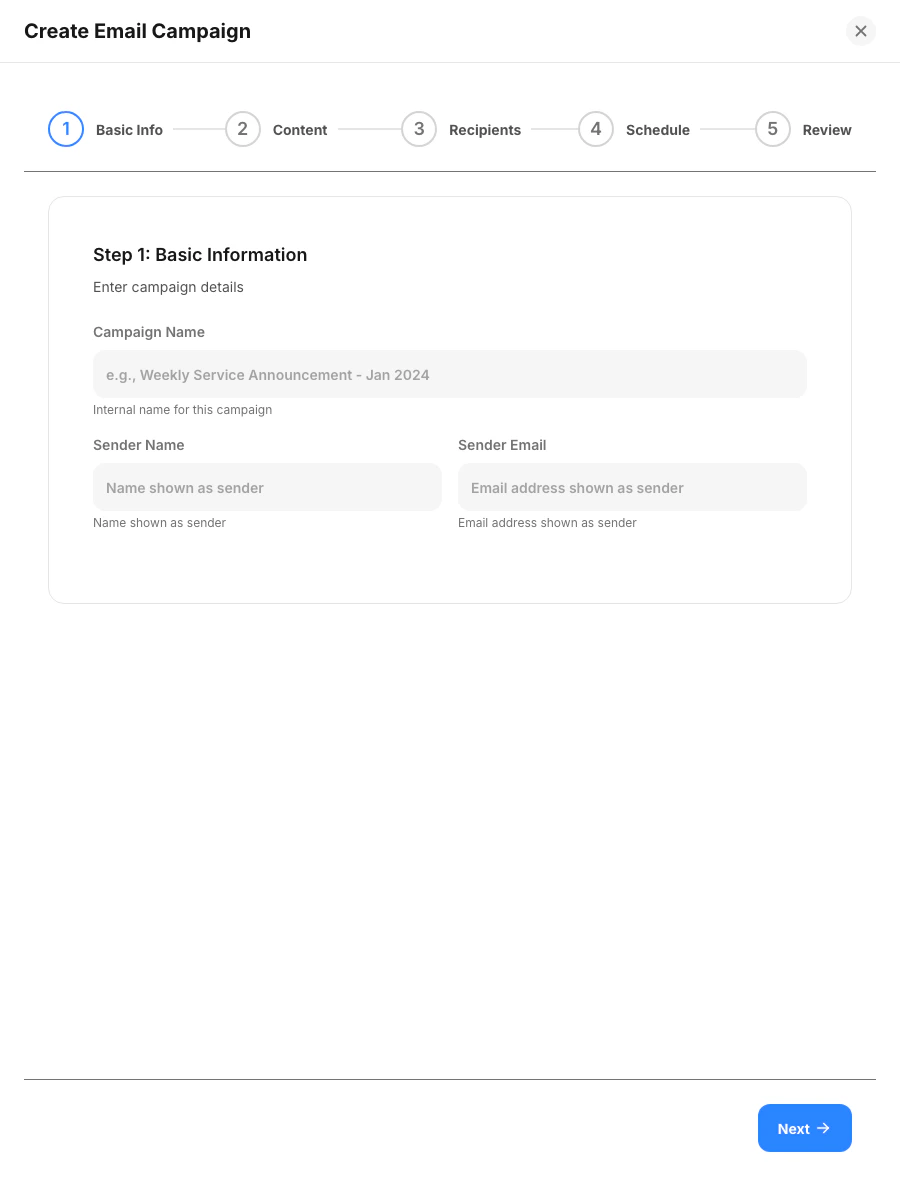
Use the create drawer when you want to start a guided email campaign setup.
 ### What You Can Do
* Enter campaign details
* Move through the guided setup steps
* Choose recipients
* Decide whether to send now or schedule later
### Steps
1. Open `Email Campaigns`.
2. Click `Create Campaign`.
3. Enter the campaign name, sender name, and sender email.
4. Continue through the content, recipients, schedule, and review steps.
5. Save or continue based on the campaign flow shown in the drawer.
### Notes
* The campaign builder uses a step-by-step flow to keep setup organized.
* Template loading and recipient totals are still limited in the current build, so treat this flow as in progress.
## Email Templates
Use email templates to prepare reusable layouts and messaging before creating campaigns.
### What You Can Do
* Enter campaign details
* Move through the guided setup steps
* Choose recipients
* Decide whether to send now or schedule later
### Steps
1. Open `Email Campaigns`.
2. Click `Create Campaign`.
3. Enter the campaign name, sender name, and sender email.
4. Continue through the content, recipients, schedule, and review steps.
5. Save or continue based on the campaign flow shown in the drawer.
### Notes
* The campaign builder uses a step-by-step flow to keep setup organized.
* Template loading and recipient totals are still limited in the current build, so treat this flow as in progress.
## Email Templates
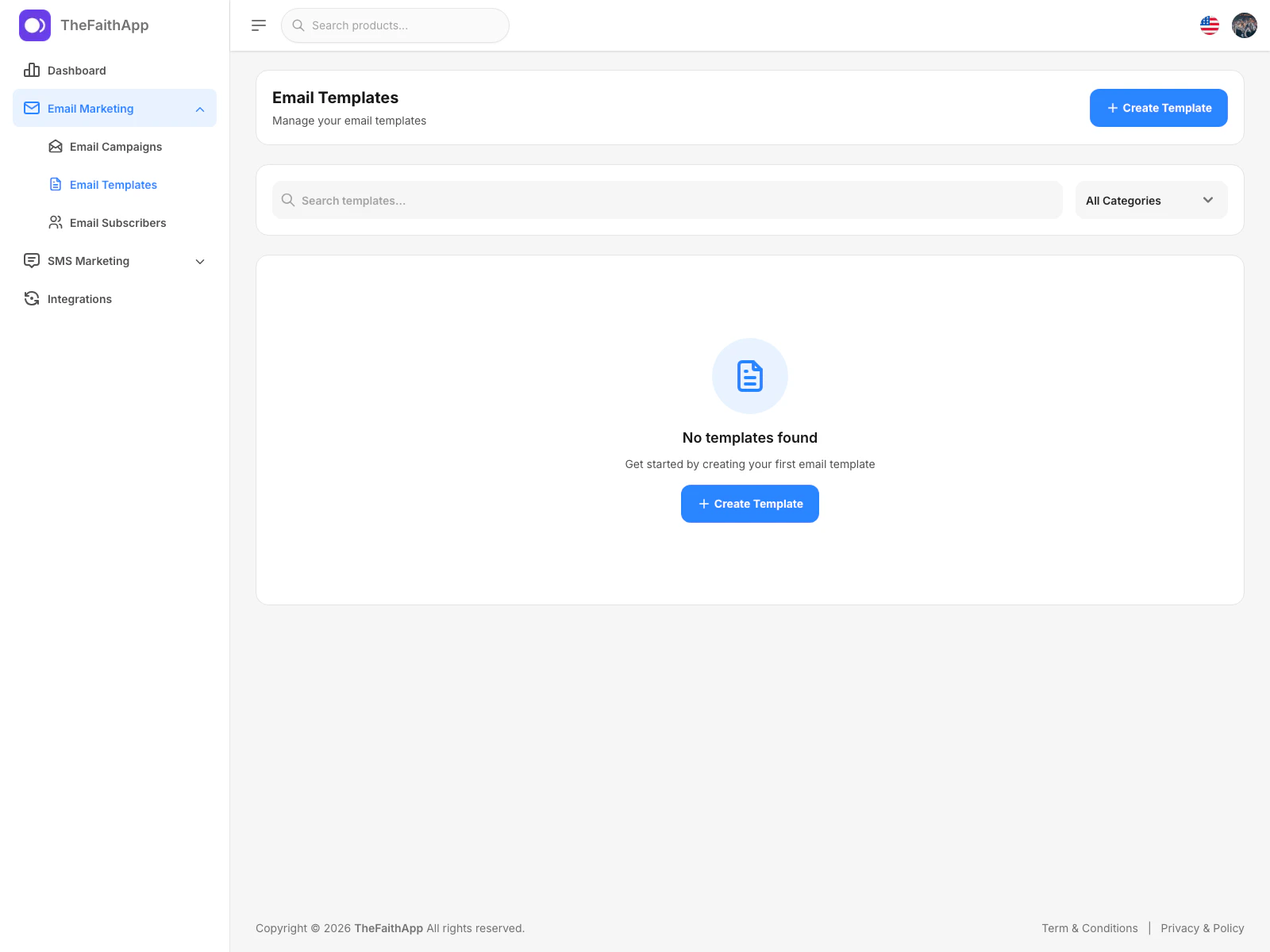
Use email templates to prepare reusable layouts and messaging before creating campaigns.
 ### What You Can Do
* Create a template
* Filter templates by category
* Edit a template
* Duplicate a template
* Delete a template
### Steps
1. Open `Marketing`.
2. Expand `Email Marketing`.
3. Click `Email Templates`.
4. Use the category filter if you want to narrow the list.
5. Click `Create Template` to add a new reusable template.
### Notes
* Templates are helpful when your team sends similar messages often.
* Keep template names clear so campaign builders can choose the right one quickly.
## Creating an Email Template
Use the create template drawer when you want to prepare the structure of a new email before sending campaigns.
### What You Can Do
* Create a template
* Filter templates by category
* Edit a template
* Duplicate a template
* Delete a template
### Steps
1. Open `Marketing`.
2. Expand `Email Marketing`.
3. Click `Email Templates`.
4. Use the category filter if you want to narrow the list.
5. Click `Create Template` to add a new reusable template.
### Notes
* Templates are helpful when your team sends similar messages often.
* Keep template names clear so campaign builders can choose the right one quickly.
## Creating an Email Template
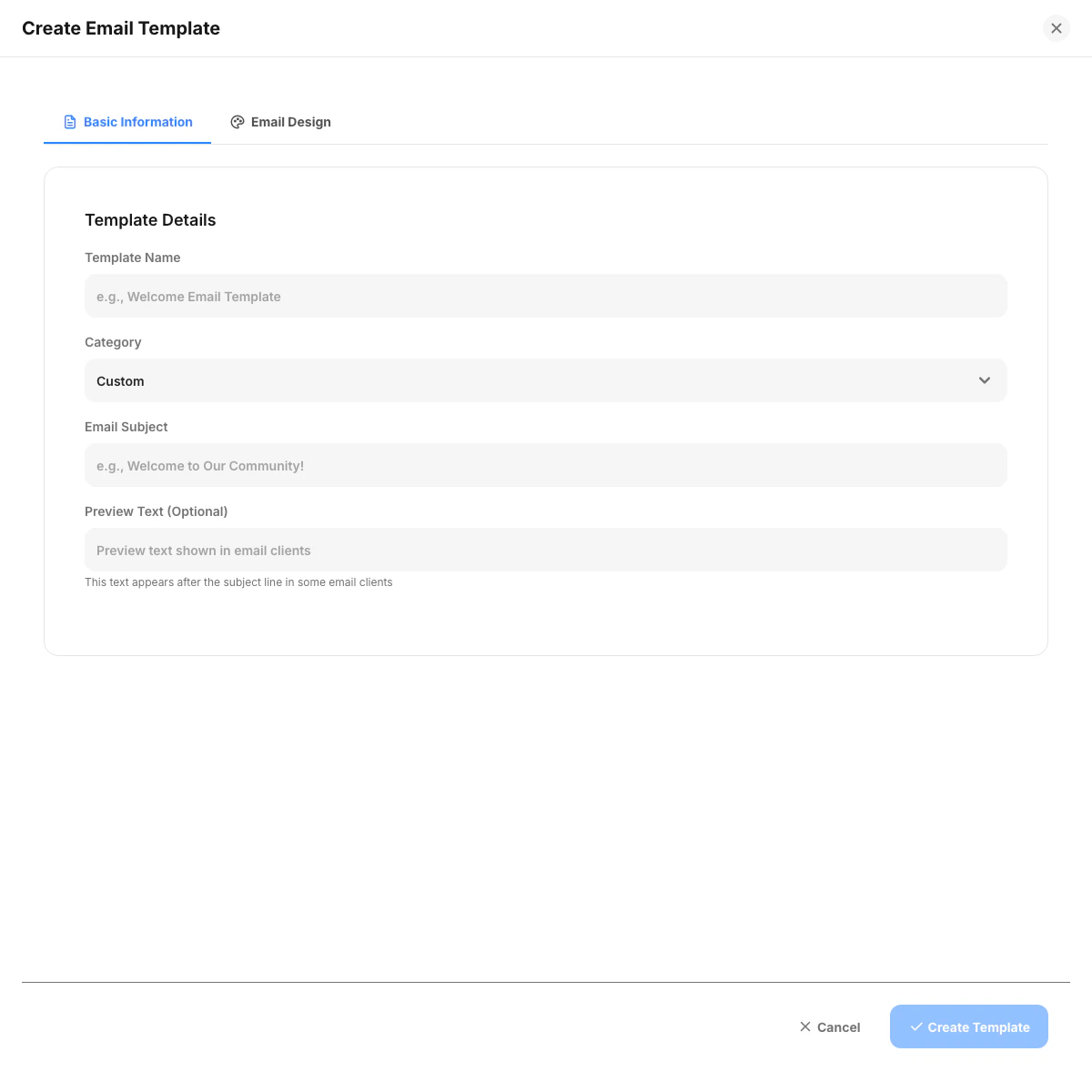
Use the create template drawer when you want to prepare the structure of a new email before sending campaigns.
 ### What You Can Do
* Add a template name
* Choose a category
* Add the subject line
* Add optional preview text
* Move into the design tab for the email layout
### Steps
1. Open `Email Templates`.
2. Click `Create Template`.
3. Enter the basic template details.
4. Open the `Email Design` tab when you are ready to build the layout.
5. Save the template.
### Notes
* Preview text helps members understand the message before opening the email.
* Use categories to keep welcome emails, announcements, and follow-up templates organized.
## Email Subscribers
Use email subscribers to manage who can receive email communication from your church.
### What You Can Do
* Add a template name
* Choose a category
* Add the subject line
* Add optional preview text
* Move into the design tab for the email layout
### Steps
1. Open `Email Templates`.
2. Click `Create Template`.
3. Enter the basic template details.
4. Open the `Email Design` tab when you are ready to build the layout.
5. Save the template.
### Notes
* Preview text helps members understand the message before opening the email.
* Use categories to keep welcome emails, announcements, and follow-up templates organized.
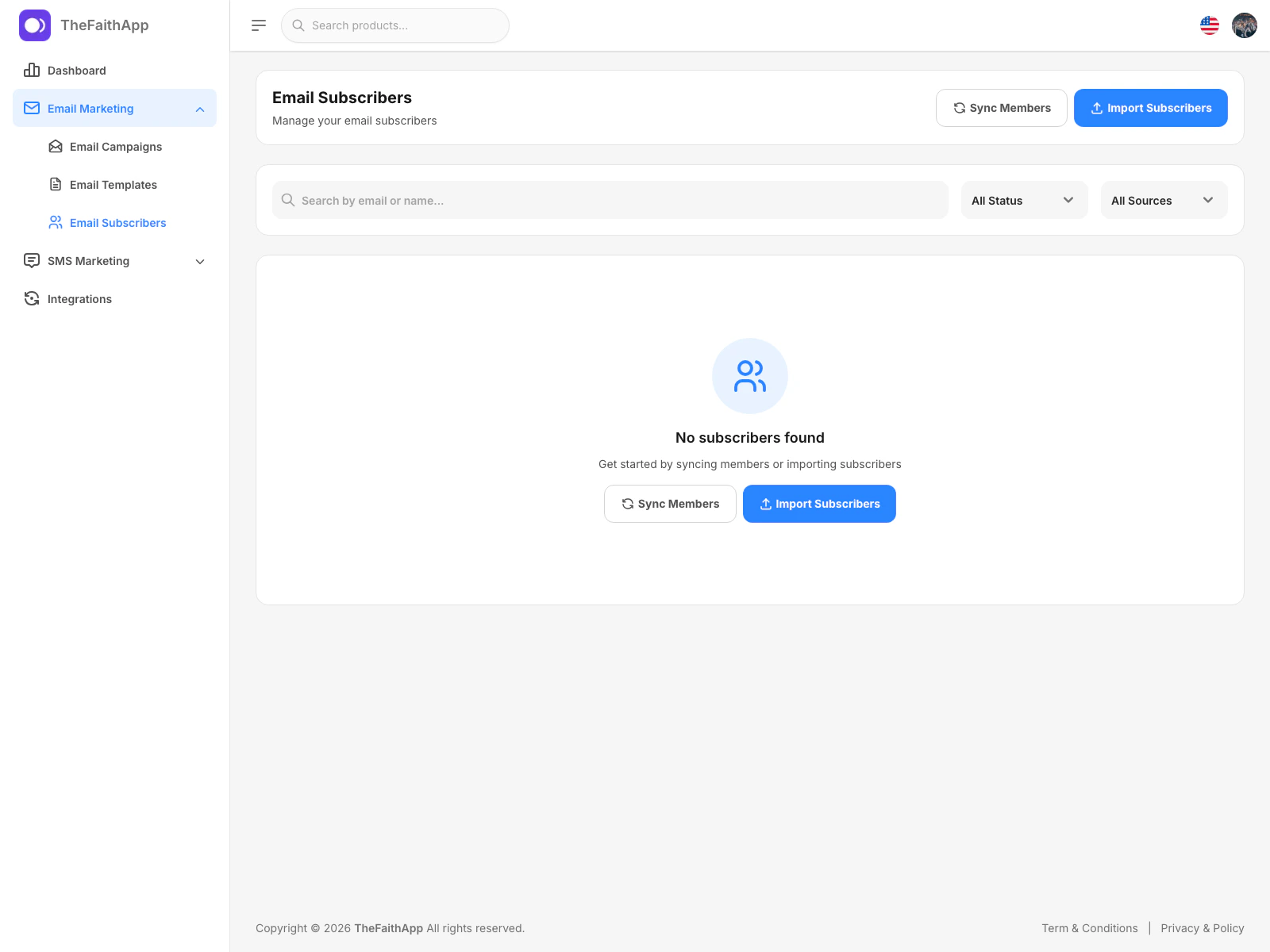
## Email Subscribers
Use email subscribers to manage who can receive email communication from your church.
 ### What You Can Do
* Search subscribers
* Filter by status
* Filter by source
* Sync members into the subscriber list
* Import subscribers from CSV
* Unsubscribe, resubscribe, or delete subscribers
* Bulk unsubscribe or bulk delete selected subscribers
### Steps
1. Open `Marketing`.
2. Expand `Email Marketing`.
3. Click `Email Subscribers`.
4. Use search or filters to review the list.
5. Click `Sync Members` to pull member records into the subscriber list.
6. Click `Import Subscribers` if you want to upload a CSV file.
### Notes
* Source labels help your team tell whether a subscriber came from members, imports, or manual entry.
* Syncing members is useful after major membership updates.
## Importing Email Subscribers
Use the import drawer when you already have a CSV file of contacts to add.
### What You Can Do
* Search subscribers
* Filter by status
* Filter by source
* Sync members into the subscriber list
* Import subscribers from CSV
* Unsubscribe, resubscribe, or delete subscribers
* Bulk unsubscribe or bulk delete selected subscribers
### Steps
1. Open `Marketing`.
2. Expand `Email Marketing`.
3. Click `Email Subscribers`.
4. Use search or filters to review the list.
5. Click `Sync Members` to pull member records into the subscriber list.
6. Click `Import Subscribers` if you want to upload a CSV file.
### Notes
* Source labels help your team tell whether a subscriber came from members, imports, or manual entry.
* Syncing members is useful after major membership updates.
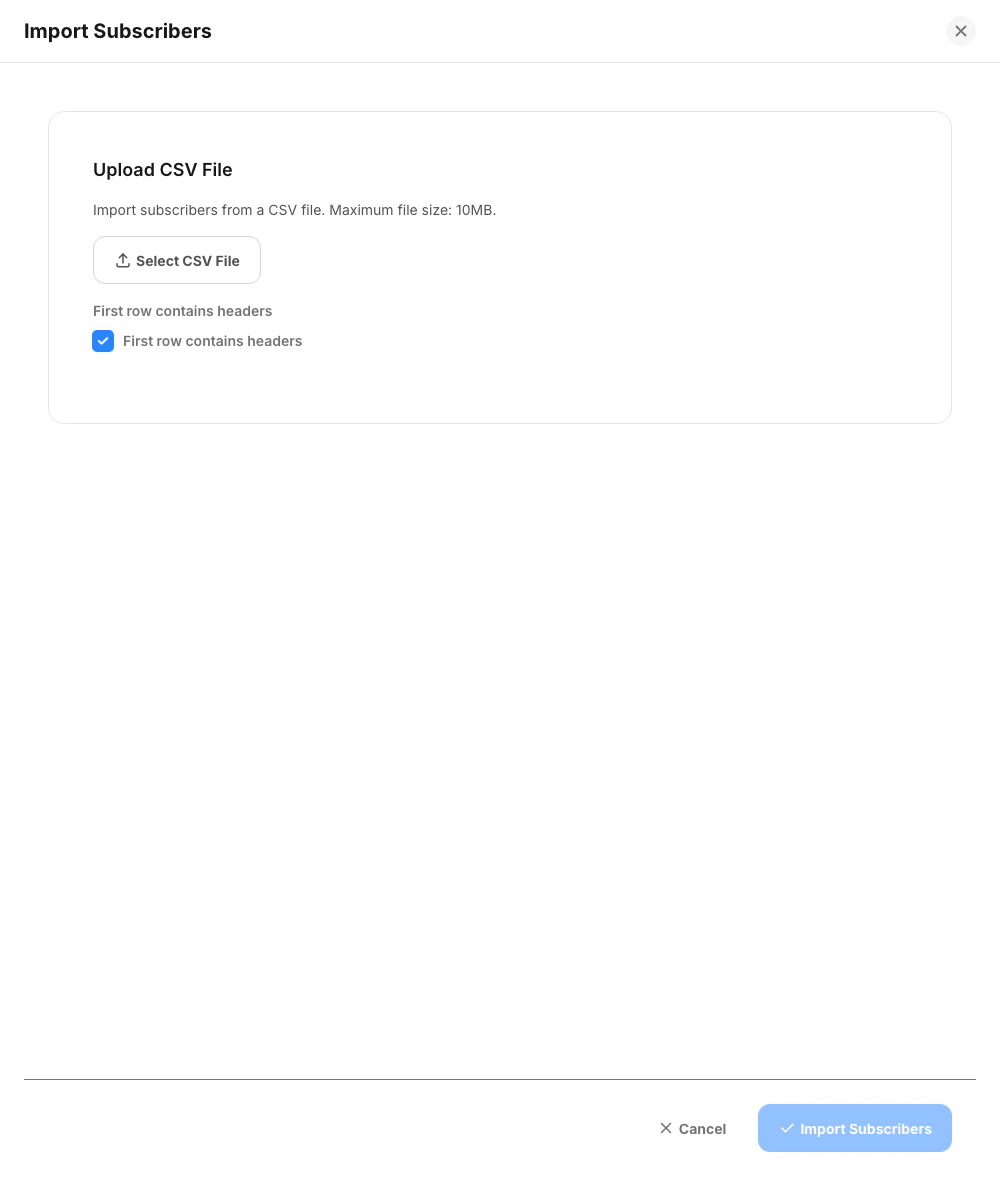
## Importing Email Subscribers
Use the import drawer when you already have a CSV file of contacts to add.
 ### What You Can Do
* Upload a CSV file
* Confirm whether the first row contains headers
* Import a batch of contacts in one step
### Steps
1. Open `Email Subscribers`.
2. Click `Import Subscribers`.
3. Select the CSV file.
4. Confirm whether the first row contains headers.
5. Click `Import Subscribers`.
### Notes
* CSV import is the fastest option when you already have contacts outside the platform.
## SMS Campaigns
Use SMS campaigns to prepare text message communication for members or subscriber groups.
### What You Can Do
* Upload a CSV file
* Confirm whether the first row contains headers
* Import a batch of contacts in one step
### Steps
1. Open `Email Subscribers`.
2. Click `Import Subscribers`.
3. Select the CSV file.
4. Confirm whether the first row contains headers.
5. Click `Import Subscribers`.
### Notes
* CSV import is the fastest option when you already have contacts outside the platform.
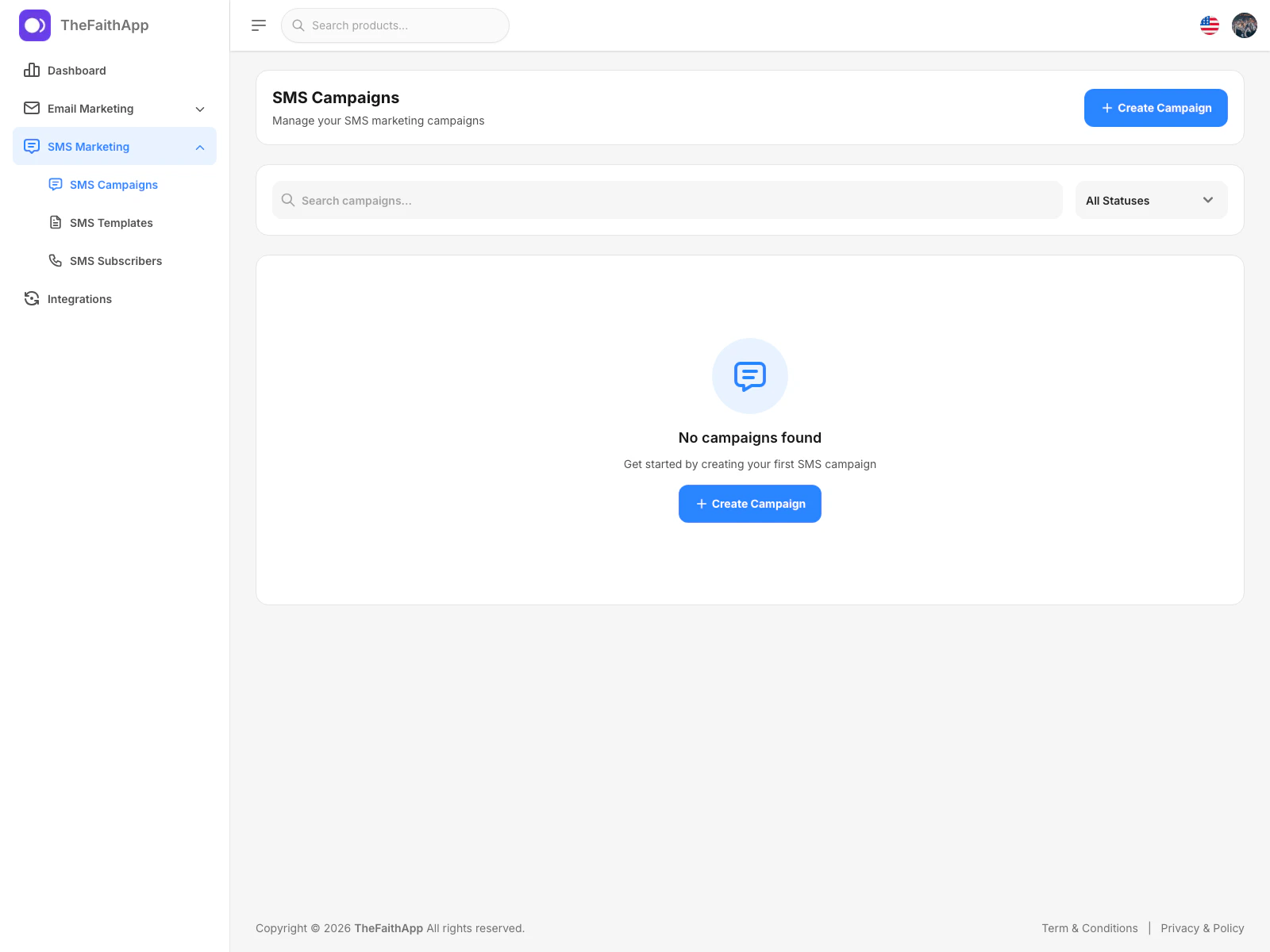
## SMS Campaigns
Use SMS campaigns to prepare text message communication for members or subscriber groups.
 ### What You Can Do
* Search campaigns
* Filter by status
* Create a new SMS campaign
* Review the campaign list from one place
### Steps
1. Open `Marketing`.
2. Expand `SMS Marketing`.
3. Click `SMS Campaigns`.
4. Use search or status filters when needed.
5. Click `Create Campaign` to start a new SMS campaign.
### Notes
* SMS campaigns use a guided flow similar to email campaigns.
## Creating an SMS Campaign
Use the create drawer when you want to build an SMS campaign step by step.
### What You Can Do
* Search campaigns
* Filter by status
* Create a new SMS campaign
* Review the campaign list from one place
### Steps
1. Open `Marketing`.
2. Expand `SMS Marketing`.
3. Click `SMS Campaigns`.
4. Use search or status filters when needed.
5. Click `Create Campaign` to start a new SMS campaign.
### Notes
* SMS campaigns use a guided flow similar to email campaigns.
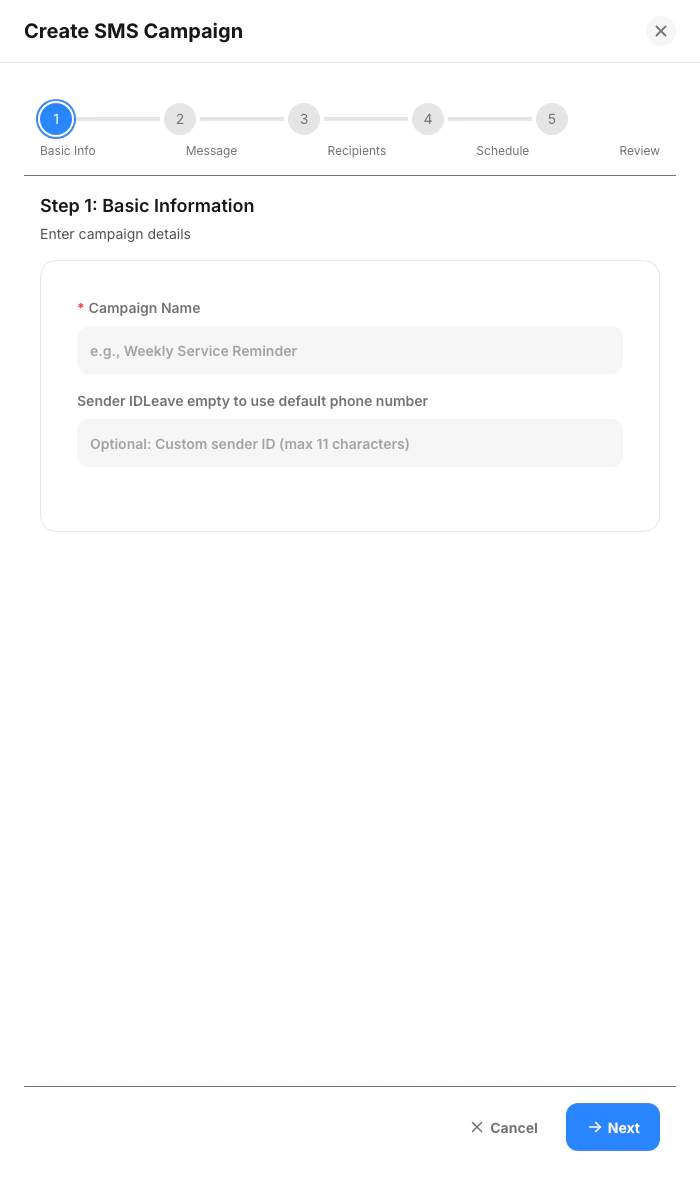
## Creating an SMS Campaign
Use the create drawer when you want to build an SMS campaign step by step.
 ### What You Can Do
* Enter campaign details
* Choose a saved SMS template
* Review recipient totals
* Schedule the campaign or send it immediately
### Steps
1. Open `SMS Campaigns`.
2. Click `Create Campaign`.
3. Enter the campaign name and optional sender ID.
4. Continue through message, recipients, schedule, and review.
5. Complete the campaign setup from the final step.
### Notes
* The SMS builder shows the campaign process in five clear steps.
* Recipient totals are calculated as you choose the audience.
## SMS Templates
Use SMS templates to save reusable message formats for future campaigns.
### What You Can Do
* Enter campaign details
* Choose a saved SMS template
* Review recipient totals
* Schedule the campaign or send it immediately
### Steps
1. Open `SMS Campaigns`.
2. Click `Create Campaign`.
3. Enter the campaign name and optional sender ID.
4. Continue through message, recipients, schedule, and review.
5. Complete the campaign setup from the final step.
### Notes
* The SMS builder shows the campaign process in five clear steps.
* Recipient totals are calculated as you choose the audience.
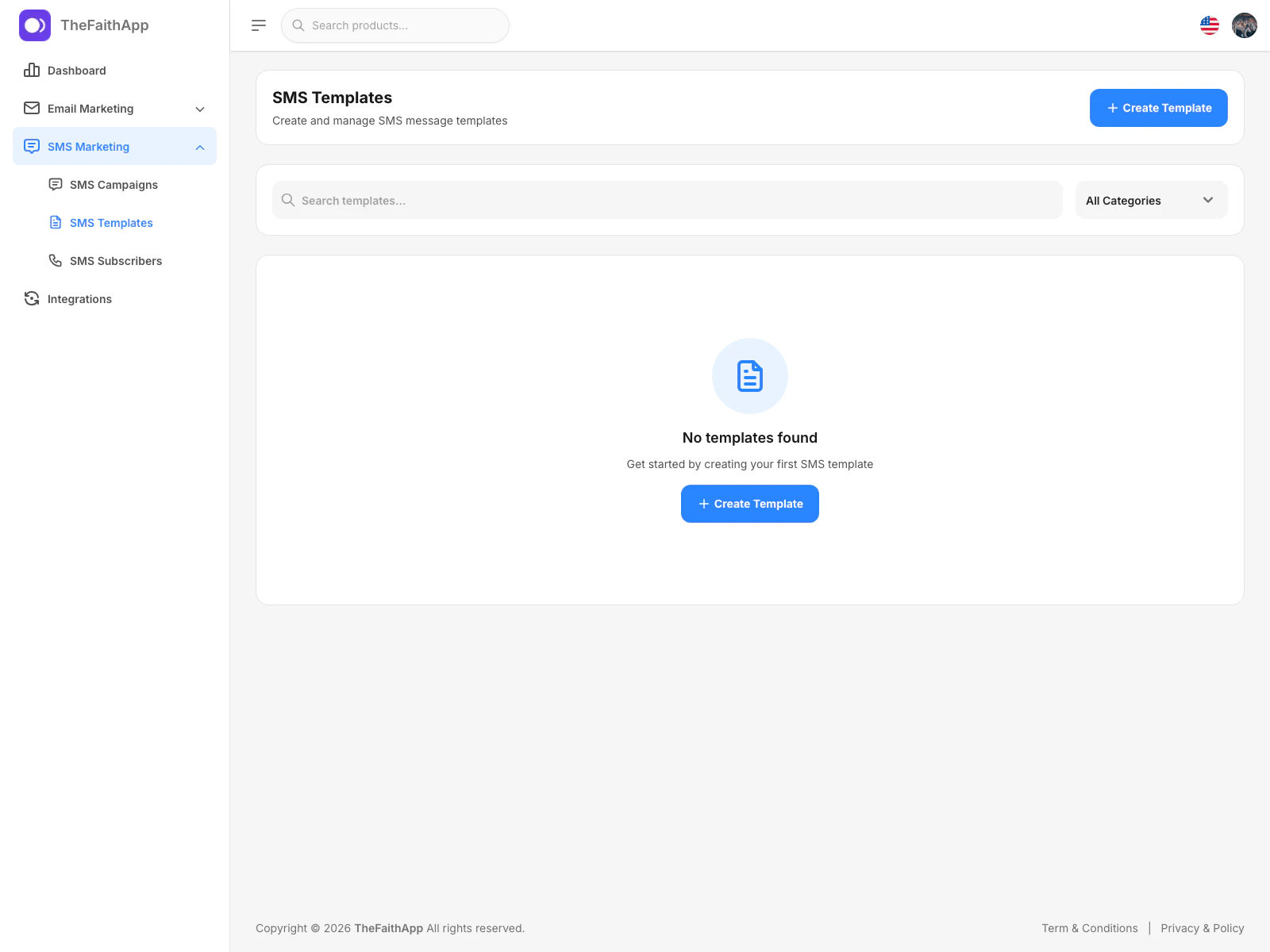
## SMS Templates
Use SMS templates to save reusable message formats for future campaigns.
 ### What You Can Do
* Create a template
* Filter by category
* Edit a template
* Duplicate a template
* Delete a template
### Steps
1. Open `Marketing`.
2. Expand `SMS Marketing`.
3. Click `SMS Templates`.
4. Use the category filter when needed.
5. Click `Create Template` to add a reusable message.
### Notes
* SMS templates help teams move faster when they send recurring reminders or announcements.
## Creating an SMS Template
Use the create drawer when you want to save a new reusable SMS message.
### What You Can Do
* Create a template
* Filter by category
* Edit a template
* Duplicate a template
* Delete a template
### Steps
1. Open `Marketing`.
2. Expand `SMS Marketing`.
3. Click `SMS Templates`.
4. Use the category filter when needed.
5. Click `Create Template` to add a reusable message.
### Notes
* SMS templates help teams move faster when they send recurring reminders or announcements.
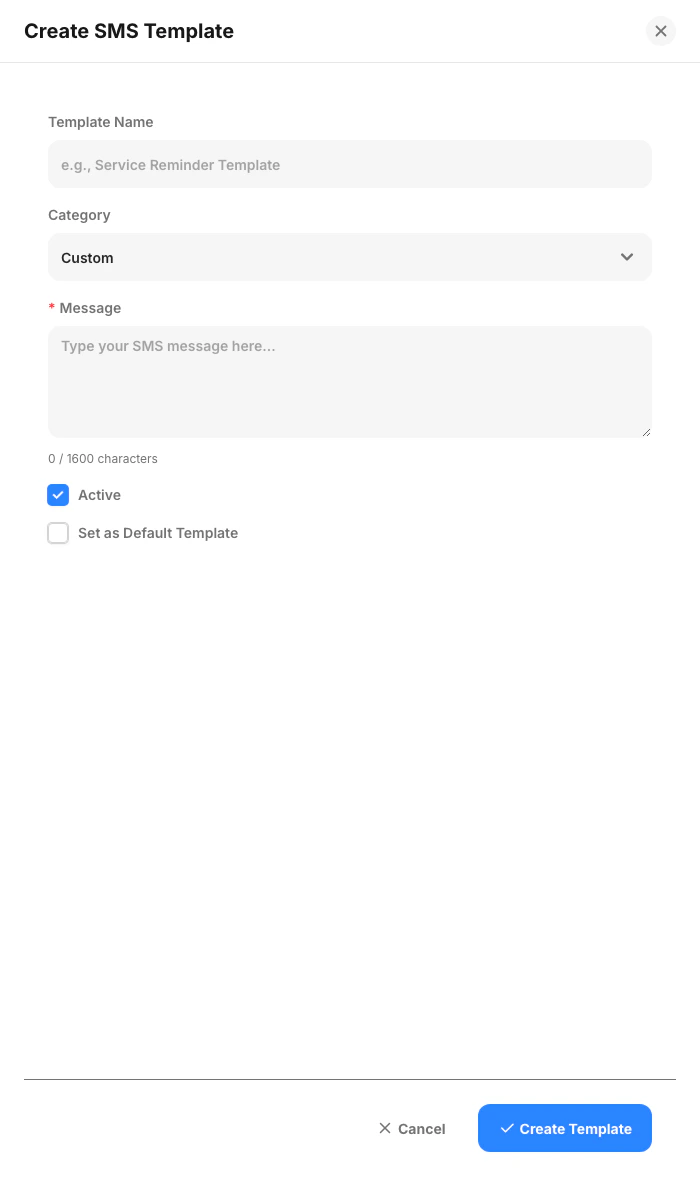
## Creating an SMS Template
Use the create drawer when you want to save a new reusable SMS message.
 ### What You Can Do
* Add a template name
* Choose a category
* Write the SMS message
* Set the template active or inactive
### Steps
1. Open `SMS Templates`.
2. Click `Create Template`.
3. Enter the template name and category.
4. Write the message content.
5. Save the template.
### Notes
* Keep templates short and clear so they fit SMS comfortably.
## SMS Subscribers
Use SMS subscribers to manage the people who can receive text message communication from your church.
### What You Can Do
* Add a template name
* Choose a category
* Write the SMS message
* Set the template active or inactive
### Steps
1. Open `SMS Templates`.
2. Click `Create Template`.
3. Enter the template name and category.
4. Write the message content.
5. Save the template.
### Notes
* Keep templates short and clear so they fit SMS comfortably.
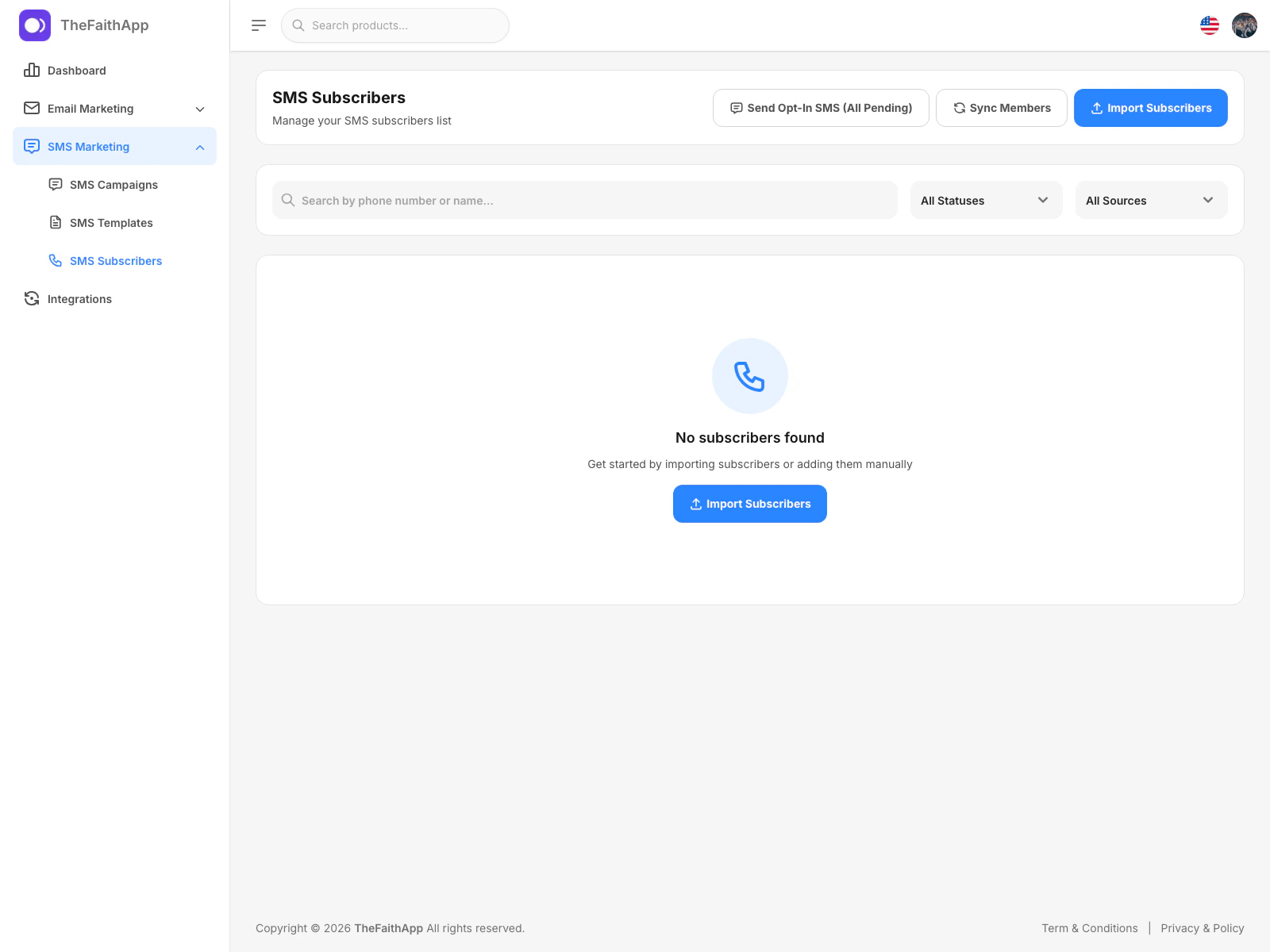
## SMS Subscribers
Use SMS subscribers to manage the people who can receive text message communication from your church.
 ### What You Can Do
* Search subscribers
* Filter by status
* Filter by source
* Send opt-in SMS to all pending contacts
* Sync members into the SMS list
* Import subscribers from CSV
* Send individual opt-in messages
* Confirm opt-in
* Unsubscribe or delete subscribers
### Steps
1. Open `Marketing`.
2. Expand `SMS Marketing`.
3. Click `SMS Subscribers`.
4. Use search or filters to review the list.
5. Click `Send Opt-In SMS (All Pending)` when you want to follow up with pending contacts.
6. Use `Sync Members` or `Import Subscribers` when you need to add more contacts.
### Notes
* SMS subscriber status is especially important because opt-in confirmation affects who can receive future messages.
## Importing SMS Subscribers
Use the import drawer when you already have a CSV file of phone contacts to add.
### What You Can Do
* Search subscribers
* Filter by status
* Filter by source
* Send opt-in SMS to all pending contacts
* Sync members into the SMS list
* Import subscribers from CSV
* Send individual opt-in messages
* Confirm opt-in
* Unsubscribe or delete subscribers
### Steps
1. Open `Marketing`.
2. Expand `SMS Marketing`.
3. Click `SMS Subscribers`.
4. Use search or filters to review the list.
5. Click `Send Opt-In SMS (All Pending)` when you want to follow up with pending contacts.
6. Use `Sync Members` or `Import Subscribers` when you need to add more contacts.
### Notes
* SMS subscriber status is especially important because opt-in confirmation affects who can receive future messages.
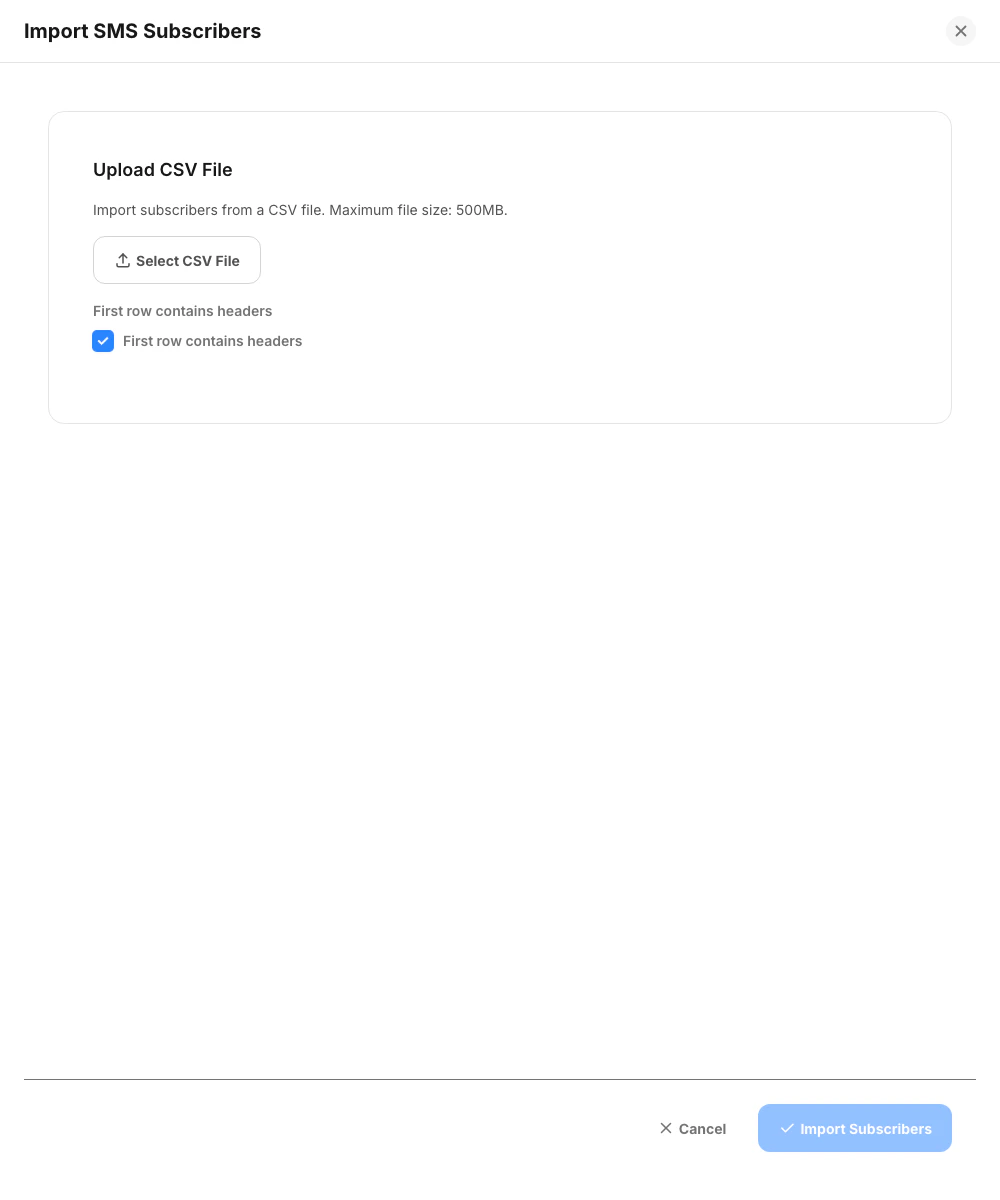
## Importing SMS Subscribers
Use the import drawer when you already have a CSV file of phone contacts to add.
 ### What You Can Do
* Upload a CSV file
* Confirm whether the first row contains headers
* Import a batch of SMS contacts
### Steps
1. Open `SMS Subscribers`.
2. Click `Import Subscribers`.
3. Select the CSV file.
4. Confirm the header option.
5. Click `Import Subscribers`.
### Notes
* Import is useful when your church already has a separate SMS contact list.
## Current Product Notes
* `SMTP Configuration` is linked from `Marketing > Integrations`, but the actual setup screen opens in the general `Settings` area.
* The email campaign builder is visible and usable as a guided workflow, but template loading and recipient totals are still limited in the current build.
* Email campaign card `View` and `Edit` actions are not fully available yet in the current build.
### What You Can Do
* Upload a CSV file
* Confirm whether the first row contains headers
* Import a batch of SMS contacts
### Steps
1. Open `SMS Subscribers`.
2. Click `Import Subscribers`.
3. Select the CSV file.
4. Confirm the header option.
5. Click `Import Subscribers`.
### Notes
* Import is useful when your church already has a separate SMS contact list.
## Current Product Notes
* `SMTP Configuration` is linked from `Marketing > Integrations`, but the actual setup screen opens in the general `Settings` area.
* The email campaign builder is visible and usable as a guided workflow, but template loading and recipient totals are still limited in the current build.
* Email campaign card `View` and `Edit` actions are not fully available yet in the current build.