> ## Documentation Index
> Fetch the complete documentation index at: https://docs.thefaithapp.com/llms.txt
> Use this file to discover all available pages before exploring further.
# Classes, quizzes, and learners
> Build, publish, and run a complete church-owned learning pathway from the admin dashboard.
# Classes, quizzes, and learners
A **pathway** is a course or formation journey made from ordered sections and
lessons. Your church owns every word, question, answer, enrollment rule, and
completion setting.
## Choose the enrollment style first
| Enrollment | Best for | What the member sees |
| -------------- | ---------------------------------------------------- | ------------------------------------------------------------- |
| Open | Foundations or resources anyone may begin | **Enroll** and immediate access |
| Approval-based | Classes that need a conversation or scheduled cohort | **Request access**, followed by a pending state |
| Invite-only | Leadership, sensitive, or staff-selected training | The pathway remains locked until a teacher enrolls the member |
Choose this early because it determines how learners enter the pathway. You
can change it before publishing.
## Create the pathway
1. Open **Discipleship → Pathways**.
2. Select **Create pathway**.
3. Choose **Blank pathway** or a church-editable template.
4. Give the pathway a clear title and short description.
5. Select **Continue to builder**.
 Templates include common starting points such as membership foundations,
baptism preparation, new-believer foundations, serving foundations, and
leadership foundations. Replace any wording that does not fit your church.
## Build sections and lessons
Use sections to group related lessons. A membership pathway might look like:
```text theme={null}
Section 1 — Our story and beliefs
Lesson 1 — Welcome and church story
Lesson 2 — What we believe
Section 2 — Belonging and participation
Lesson 3 — Community and care
Lesson 4 — Serving and next steps
```
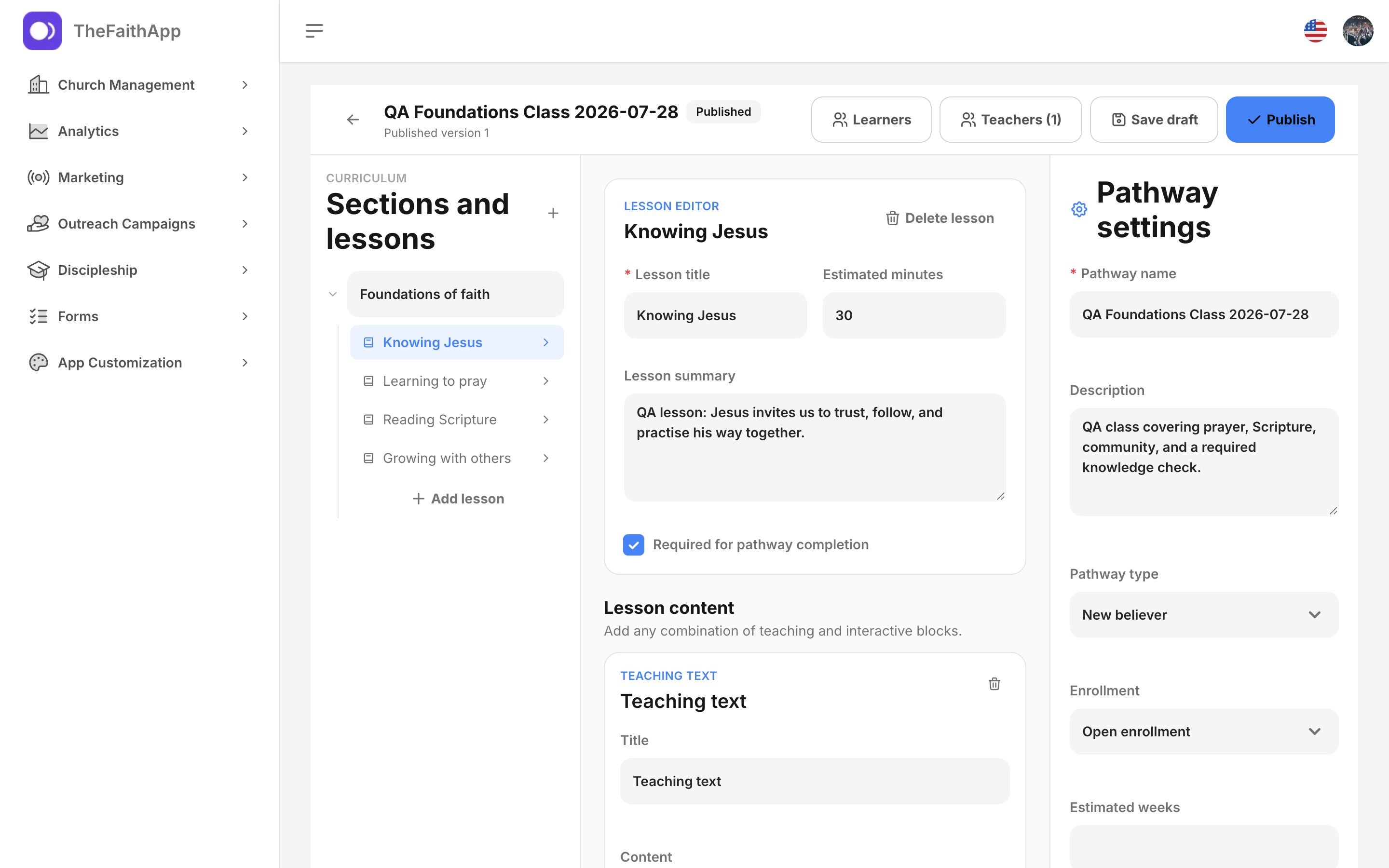
Each lesson can include:
* A title, summary, and expected time.
* Teaching text and Scripture.
* Video or audio links.
* Downloadable files.
* Reflection and group-discussion prompts.
* Required acknowledgements.
* Questions or a quiz.
Mark a lesson **required** only when it must count toward pathway completion.
Keep lessons focused; a short lesson with one clear next action is usually
easier to complete than an entire class session on one screen.
## Add questions and quizzes
Open a lesson and select **Add questions or a quiz**. Supported question types
are:
* Single choice.
* Multiple choice.
* True or false.
* Short answer.
For each question, write the prompt, accepted or correct answer, point value,
and an optional explanation. Correct answers are never sent with the lesson
content shown to the member.
### Decide whether a quiz is required
Use an optional quiz for self-checking. Use a required quiz when the learner
must demonstrate a clear understanding before continuing. For a required
quiz, set:
* The passing percentage.
* The maximum number of attempts.
* A helpful explanation for incorrect answers where appropriate.
Do not score experiences that need prayerful reflection rather than a correct
answer. Use reflection or discussion prompts for those moments.
Test every correct answer before publishing. A learner who uses all allowed
attempts needs help from the teacher; do not use a strict attempt limit
without a support plan.
## Configure completion
Pathway settings include:
* Pathway type and expected number of weeks.
* Enrollment style.
* Whether a completed or removed learner may repeat the pathway.
* The waiting period before a member-initiated repeat.
* Completion message.
* Certificate eligibility, title, award wording, signatory, and accent color.
If repeat enrollment is enabled, a new cycle uses the currently published
version and preserves the earlier journey. Approval-based repeats return to
pending review; invite-only repeats still require a teacher. Authorized staff
can start a repeat cycle even when the member waiting period has not ended.
When certificates are enabled, completing every required lesson issues a PDF
with a public verification code. The certificate keeps a snapshot of the
published wording used for that learner.
## Assign teachers and reviewers
Open **Teachers** in the builder. A Discipleship manager can assign:
* **Teacher** — may customize and maintain the assigned pathway.
* **Reviewer** — may inspect the assigned pathway before publication.
The creator remains the pathway owner. A staff member must already have an
appropriate Discipleship permission before they can be assigned.
## Publish safely
Publishing creates a fixed version. Learners already enrolled remain on the
version they started; later edits do not change their lessons or answers
halfway through the class.
Before selecting **Publish**:
1. Preview every required lesson.
2. Confirm required quizzes contain questions.
3. Check correct answers, score, and attempt limits.
4. Confirm enrollment and repeat rules.
5. Review the completion message and certificate.
6. Save the draft, then publish.
To make later changes, edit the draft and publish a new version. Do not expect
existing learners to move to it automatically.
## Manage learners
Templates include common starting points such as membership foundations,
baptism preparation, new-believer foundations, serving foundations, and
leadership foundations. Replace any wording that does not fit your church.
## Build sections and lessons
Use sections to group related lessons. A membership pathway might look like:
```text theme={null}
Section 1 — Our story and beliefs
Lesson 1 — Welcome and church story
Lesson 2 — What we believe
Section 2 — Belonging and participation
Lesson 3 — Community and care
Lesson 4 — Serving and next steps
```
Each lesson can include:
* A title, summary, and expected time.
* Teaching text and Scripture.
* Video or audio links.
* Downloadable files.
* Reflection and group-discussion prompts.
* Required acknowledgements.
* Questions or a quiz.
Mark a lesson **required** only when it must count toward pathway completion.
Keep lessons focused; a short lesson with one clear next action is usually
easier to complete than an entire class session on one screen.
## Add questions and quizzes
Open a lesson and select **Add questions or a quiz**. Supported question types
are:
* Single choice.
* Multiple choice.
* True or false.
* Short answer.
For each question, write the prompt, accepted or correct answer, point value,
and an optional explanation. Correct answers are never sent with the lesson
content shown to the member.
### Decide whether a quiz is required
Use an optional quiz for self-checking. Use a required quiz when the learner
must demonstrate a clear understanding before continuing. For a required
quiz, set:
* The passing percentage.
* The maximum number of attempts.
* A helpful explanation for incorrect answers where appropriate.
Do not score experiences that need prayerful reflection rather than a correct
answer. Use reflection or discussion prompts for those moments.
Test every correct answer before publishing. A learner who uses all allowed
attempts needs help from the teacher; do not use a strict attempt limit
without a support plan.
## Configure completion
Pathway settings include:
* Pathway type and expected number of weeks.
* Enrollment style.
* Whether a completed or removed learner may repeat the pathway.
* The waiting period before a member-initiated repeat.
* Completion message.
* Certificate eligibility, title, award wording, signatory, and accent color.
If repeat enrollment is enabled, a new cycle uses the currently published
version and preserves the earlier journey. Approval-based repeats return to
pending review; invite-only repeats still require a teacher. Authorized staff
can start a repeat cycle even when the member waiting period has not ended.
When certificates are enabled, completing every required lesson issues a PDF
with a public verification code. The certificate keeps a snapshot of the
published wording used for that learner.
## Assign teachers and reviewers
Open **Teachers** in the builder. A Discipleship manager can assign:
* **Teacher** — may customize and maintain the assigned pathway.
* **Reviewer** — may inspect the assigned pathway before publication.
The creator remains the pathway owner. A staff member must already have an
appropriate Discipleship permission before they can be assigned.
## Publish safely
Publishing creates a fixed version. Learners already enrolled remain on the
version they started; later edits do not change their lessons or answers
halfway through the class.
Before selecting **Publish**:
1. Preview every required lesson.
2. Confirm required quizzes contain questions.
3. Check correct answers, score, and attempt limits.
4. Confirm enrollment and repeat rules.
5. Review the completion message and certificate.
6. Save the draft, then publish.
To make later changes, edit the draft and publish a new version. Do not expect
existing learners to move to it automatically.
## Manage learners
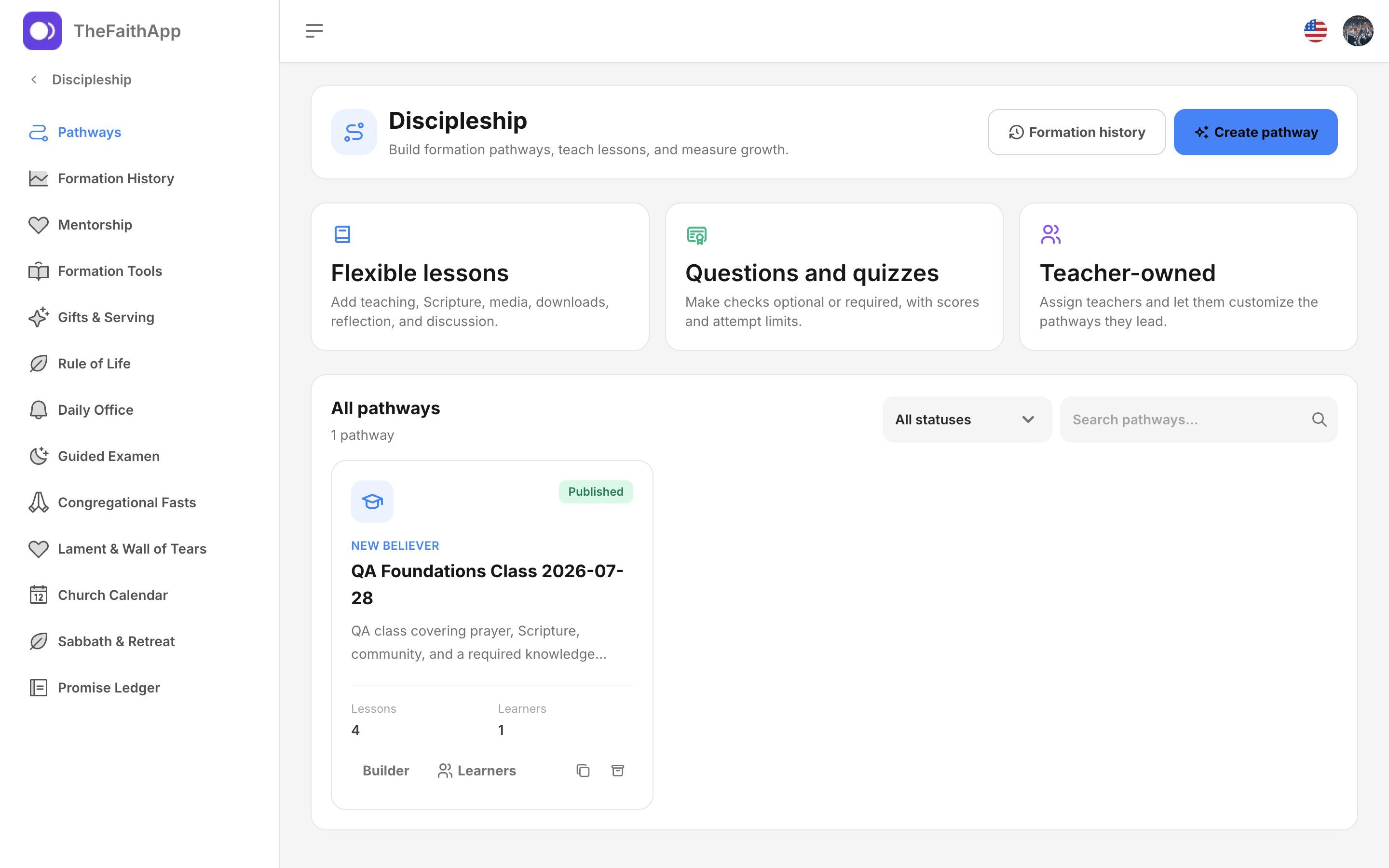 Open **Learners** from a pathway card or the builder. Authorized staff can:
* Approve or deny pending requests.
* Add existing church members.
* Search and filter enrollments.
* Review lesson completion and overall progress.
* Pause, reactivate, or remove an enrollment.
* Start a repeat cycle.
* Download, verify, or revoke a certificate.
A progress viewer can read progress but cannot change access. Revoked
certificates remain in the audit trail and fail public verification.
## Review formation history
Open **Discipleship → Formation History** for a cross-pathway view. It shows
each enrollment cycle, the pathway and version used, progress, dates, status,
and any issued or revoked certificate.
History is intentionally cycle-based. A second journey through the same
pathway never erases the first one.
## What the member experiences
In the mobile app, a member can review the outline, enroll or request access,
continue the next lesson, answer quizzes, see scores and remaining attempts,
track progress, finish the pathway, and access an eligible certificate.
They can also open **Formation History** to revisit earlier cycles and begin a
repeat when the pathway rules allow it.
## Common problems
Confirm the pathway is published, the member belongs to the same church,
and its enrollment style allows discovery. Invite-only pathways require a
staff enrollment.
Confirm both pieces of access: the teacher needs a Discipleship permission
and an assignment to that pathway.
Check whether another required lesson item is incomplete or a required
quiz has not reached the passing score.
The learner may be using an earlier published version. That protects an
in-progress class from changing. New enrollments use the current version.
Open **Learners** from a pathway card or the builder. Authorized staff can:
* Approve or deny pending requests.
* Add existing church members.
* Search and filter enrollments.
* Review lesson completion and overall progress.
* Pause, reactivate, or remove an enrollment.
* Start a repeat cycle.
* Download, verify, or revoke a certificate.
A progress viewer can read progress but cannot change access. Revoked
certificates remain in the audit trail and fail public verification.
## Review formation history
Open **Discipleship → Formation History** for a cross-pathway view. It shows
each enrollment cycle, the pathway and version used, progress, dates, status,
and any issued or revoked certificate.
History is intentionally cycle-based. A second journey through the same
pathway never erases the first one.
## What the member experiences
In the mobile app, a member can review the outline, enroll or request access,
continue the next lesson, answer quizzes, see scores and remaining attempts,
track progress, finish the pathway, and access an eligible certificate.
They can also open **Formation History** to revisit earlier cycles and begin a
repeat when the pathway rules allow it.
## Common problems
Confirm the pathway is published, the member belongs to the same church,
and its enrollment style allows discovery. Invite-only pathways require a
staff enrollment.
Confirm both pieces of access: the teacher needs a Discipleship permission
and an assignment to that pathway.
Check whether another required lesson item is incomplete or a required
quiz has not reached the passing score.
The learner may be using an earlier published version. That protects an
in-progress class from changing. New enrollments use the current version.