> ## Documentation Index
> Fetch the complete documentation index at: https://docs.thefaithapp.com/llms.txt
> Use this file to discover all available pages before exploring further.
# Authentication
> Sign in, sign up, password reset, email verification, and two-factor authentication for TheFaithApp admins.
# Authentication
This guide explains how admins access TheFaithApp and recover access when needed.
The auth experience includes:
* Sign in
* Sign up
* Forgot password
* Reset password
* Email verification
* Two-factor authentication challenge
## Sign In
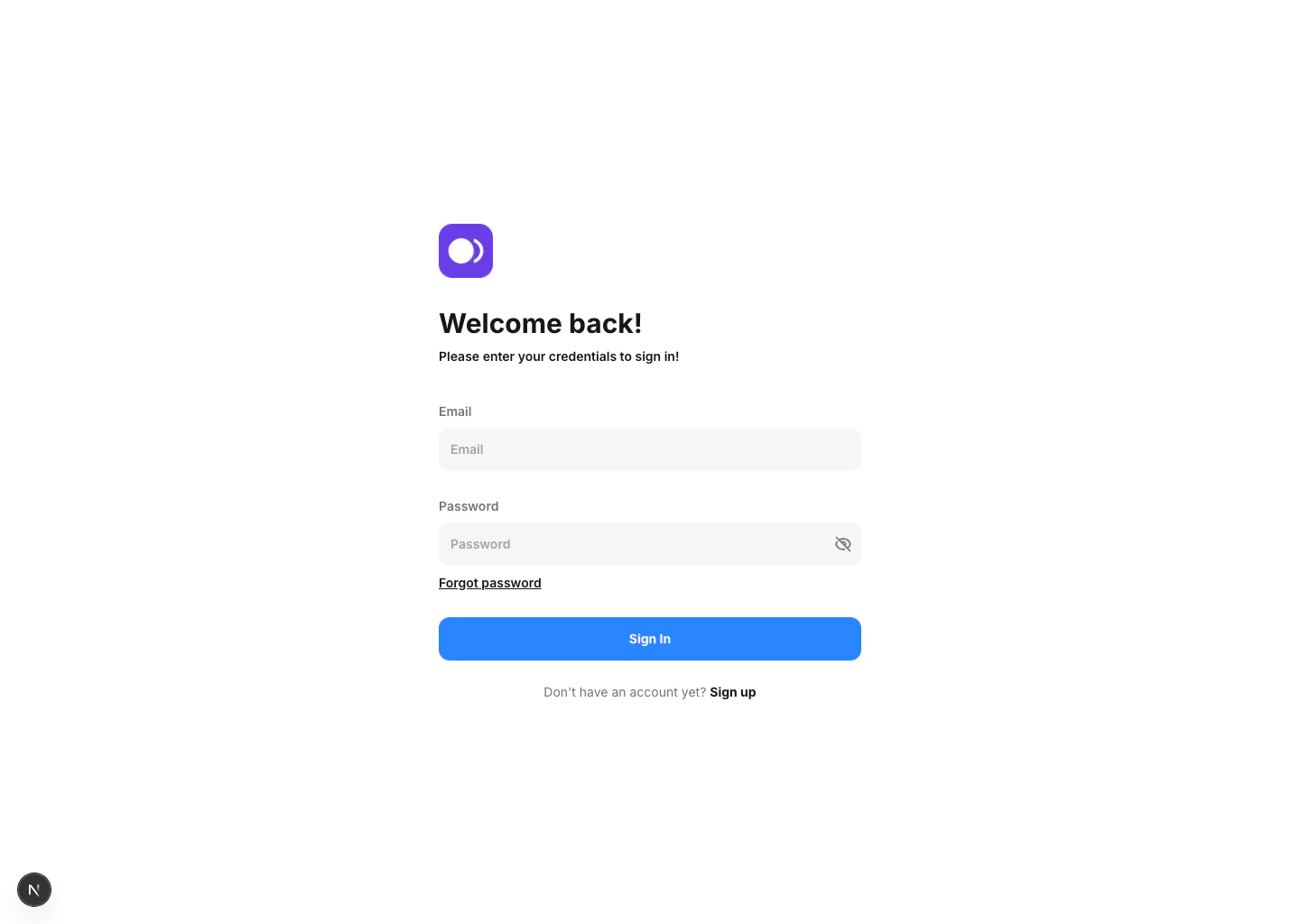
Admins sign in with their email address and password from the sign-in page.
### Steps
1. Open `/sign-in`.
2. Enter the admin email address.
3. Enter the password.
4. Click `Sign In`.
 ### Current Behavior
* A successful sign-in opens the dashboard home page.
* If two-factor authentication is enabled, the user is asked to complete a verification step before access is granted.
* If the account email has not yet been verified, the user is taken to the email verification screen.
### Notes
* The sign-in page includes a direct link to `Forgot password`.
* The UI also links new users to `Sign up`.
## Sign Up
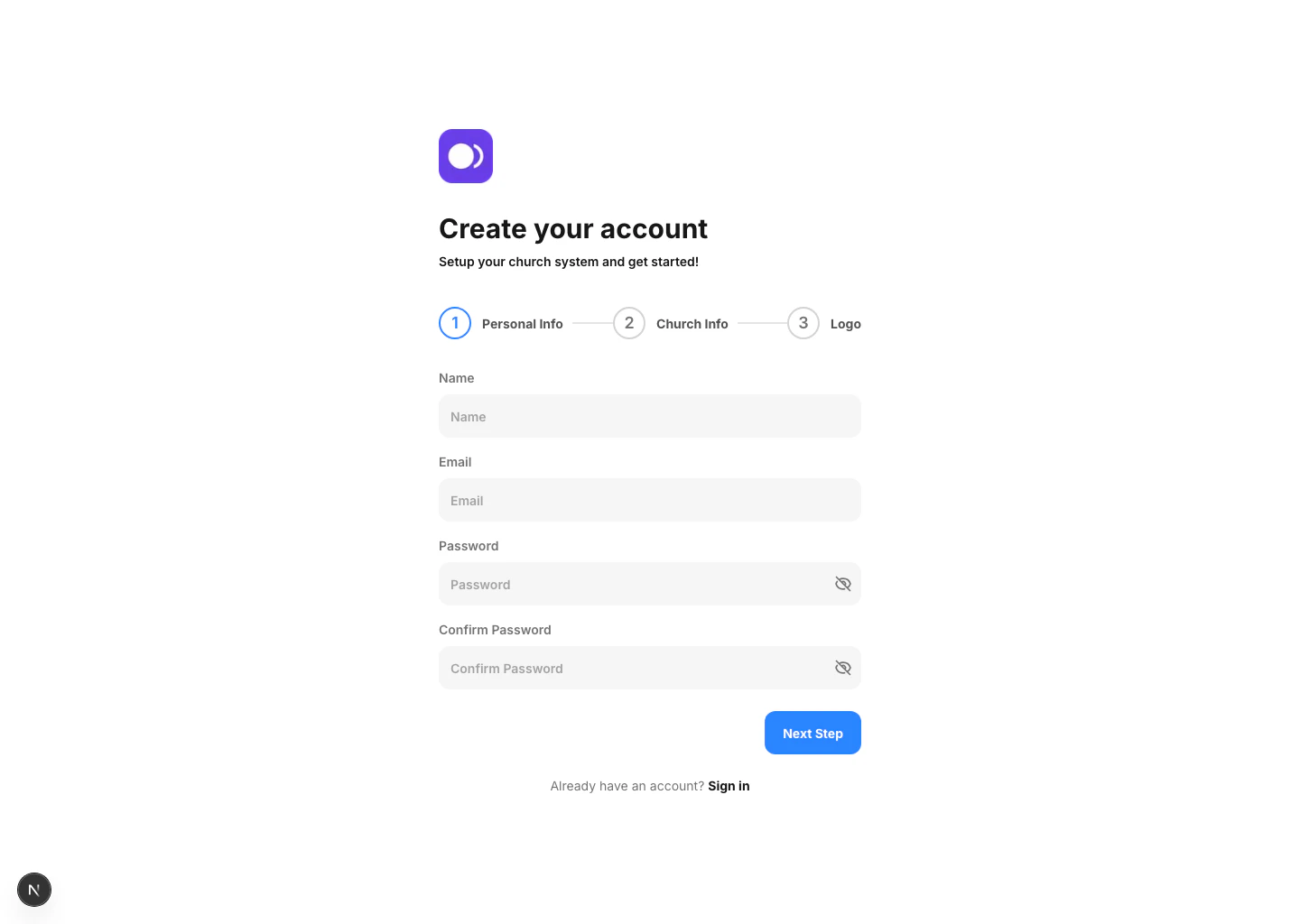
New churches can create an account from `/sign-up`.
### Steps
1. Open `/sign-up`.
2. Complete the `Personal Info` step.
3. Complete the `Church Info` step.
4. Upload or configure the logo step.
5. Submit the account creation form.
### Collected Information
* User name
* Email
* Password
* Password confirmation
* Church name
* Church location
* Church email
* Church website
* Church logo path
### Result
* On success, the app shows a confirmation toast.
* The user is redirected back to `/sign-in`.
### Current Behavior
* A successful sign-in opens the dashboard home page.
* If two-factor authentication is enabled, the user is asked to complete a verification step before access is granted.
* If the account email has not yet been verified, the user is taken to the email verification screen.
### Notes
* The sign-in page includes a direct link to `Forgot password`.
* The UI also links new users to `Sign up`.
## Sign Up
New churches can create an account from `/sign-up`.
### Steps
1. Open `/sign-up`.
2. Complete the `Personal Info` step.
3. Complete the `Church Info` step.
4. Upload or configure the logo step.
5. Submit the account creation form.
### Collected Information
* User name
* Email
* Password
* Password confirmation
* Church name
* Church location
* Church email
* Church website
* Church logo path
### Result
* On success, the app shows a confirmation toast.
* The user is redirected back to `/sign-in`.
 ## Forgot Password
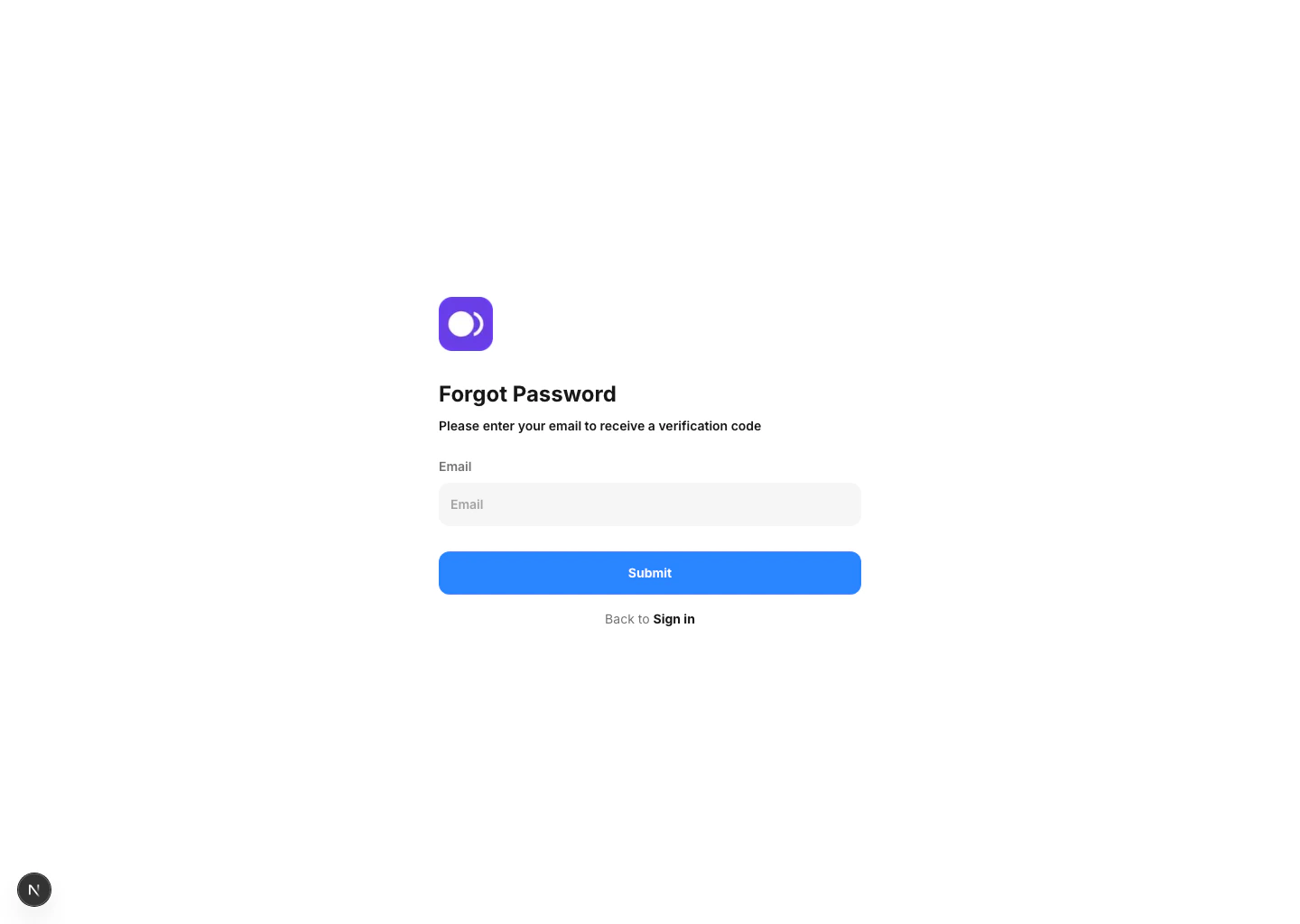
Admins who cannot access their password can start recovery from `/forgot-password`.
### Steps
1. Open `/forgot-password`.
2. Enter the account email address.
3. Submit the form.
### Result
* The app sends a password reset email.
* A success notification confirms the email was sent.
## Forgot Password
Admins who cannot access their password can start recovery from `/forgot-password`.
### Steps
1. Open `/forgot-password`.
2. Enter the account email address.
3. Submit the form.
### Result
* The app sends a password reset email.
* A success notification confirms the email was sent.
 ### Caveat
* The current page copy mentions a verification code, but the implemented flow sends a password reset email.
## Reset Password
The reset password page opens from the link sent in the password reset email.
### Expected Flow
1. Open the reset link from the email.
2. Enter a new password.
3. Confirm the new password.
4. Submit the form.
### Result
* A valid reset completes the password update.
* The app redirects the user back to `/sign-in` after a short delay.
### Caveats
* If the reset link is incomplete or expired, the page asks the user to request a new password reset email.
## Email Verification
If an admin account is not verified after sign-in, the app takes the user to the email verification screen.
### Available Actions
* Resend verification email
* Confirm that verification has already been completed
* Sign out
### Behavior
* If verification is completed from the email link, the page can continue the login flow automatically.
* After verification, the app returns the user to the main signed-in experience.
## Two-Factor Authentication
The app supports a second verification step for accounts that have two-factor authentication enabled.
### Supported Challenge Methods
* Authenticator code
* Recovery code
### Behavior
* If the user leaves the flow before completing verification, they need to sign in again.
* On success, the user continues into the dashboard.
### Caveat
* The current page copy mentions a verification code, but the implemented flow sends a password reset email.
## Reset Password
The reset password page opens from the link sent in the password reset email.
### Expected Flow
1. Open the reset link from the email.
2. Enter a new password.
3. Confirm the new password.
4. Submit the form.
### Result
* A valid reset completes the password update.
* The app redirects the user back to `/sign-in` after a short delay.
### Caveats
* If the reset link is incomplete or expired, the page asks the user to request a new password reset email.
## Email Verification
If an admin account is not verified after sign-in, the app takes the user to the email verification screen.
### Available Actions
* Resend verification email
* Confirm that verification has already been completed
* Sign out
### Behavior
* If verification is completed from the email link, the page can continue the login flow automatically.
* After verification, the app returns the user to the main signed-in experience.
## Two-Factor Authentication
The app supports a second verification step for accounts that have two-factor authentication enabled.
### Supported Challenge Methods
* Authenticator code
* Recovery code
### Behavior
* If the user leaves the flow before completing verification, they need to sign in again.
* On success, the user continues into the dashboard.